How to hide comments on Facebook and Instagram ads, including dark posts
Ads collect the worst comments, and the ones built in Ads Manager never appear on your Page. Here is where those comments live, how to hide them by hand, and how to stop checking every ad yourself.
Guides 6 min read
On this page
Your organic posts get a handful of comments from people who already follow you. Your ads get comments from everyone else: people who have never heard of you, bots that go wherever the reach is, and scammers who know a busy ad is the best place to fish for your customers. The comments that do the most damage to a sale sit under the posts you are paying to show.
The awkward part is finding them. Most ads are built in Ads Manager, and those never appear on your Page, so the comment section your buyers read is one you rarely see.
Why ad comments are hard to find
When you create an ad in Ads Manager with new creative (not an existing post), Meta creates a post for it that is never published to your Page. Meta's own documentation says so plainly: "When you provide ad creative, an unpublished post is created" (Meta: Instagram ads, get started). Marketers call these dark posts. They look like normal posts to the people who see the ad, likes and comments included, but they are not in your Page's feed.
A few things follow from that:
- Every ad built from new creative has its own comment thread. Duplicate the ad with fresh creative and you start a second, separate thread.
- Your Page notifications are easy to miss for ads, and scrolling your Page will never show them.
- On Instagram, Meta keeps the comments people leave on the ad apart from the comments on the original post when you promote an existing one. Its developer documentation describes them as "non-organic" comments on the ad media and "organic" comments on the source post (Instagram post moderation). Two places to check, for what looks like one post.
How to hide a comment on a Facebook ad by hand
- Open Ads Manager and find the ad.
- Open the ad's preview and choose the option to view the post with its comments. This opens the dark post itself.
- On the comment, open the menu and choose Hide comment.
Meta Business Suite also gathers Facebook and Instagram comments into one inbox, which is quicker than opening ads one at a time once you have more than a few running.
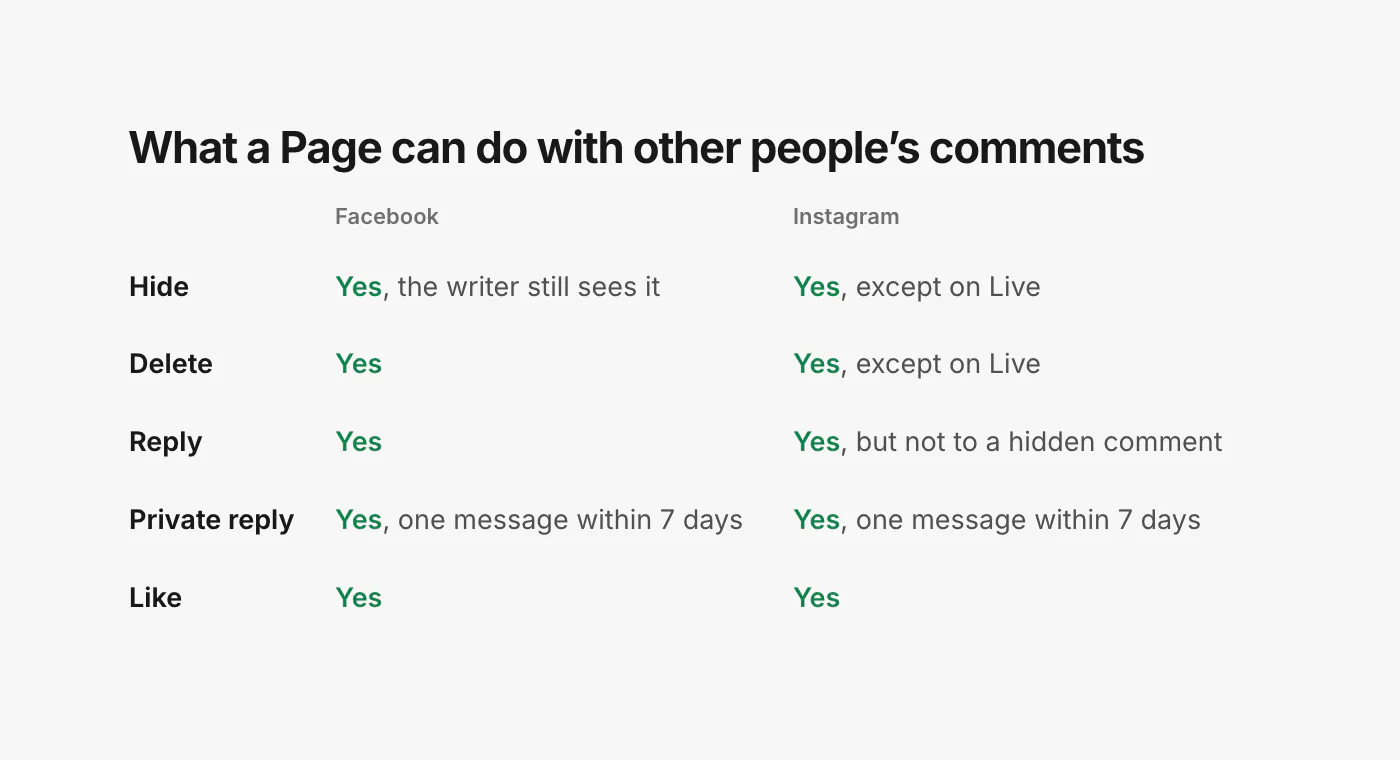
Hiding is almost always the right first move on Facebook. The person who wrote the comment can still see it, so they have no reason to come back angrier, but the people deciding whether to buy from you no longer can. Delete is permanent, and deleting a real customer's complaint tends to produce a second, louder one.
How to hide a comment on an Instagram ad
- Open Meta Business Suite and go to the inbox, where comments from your Instagram posts and ads appear next to Facebook ones.
- Pick the comment and hide it, or delete it if it has to go for good.
In the Instagram app itself, swipe left on a comment (or press and hold it) to see what your app version offers for that comment.
Two Instagram rules are worth knowing before you build a routine around this:
- You cannot reply to a hidden comment. Meta's reference is explicit: "You cannot reply to hidden comments" (IG Comment replies). If a comment deserves both an answer and to disappear (a shipping complaint with a phone number in it, say), reply first, then hide.
- Replies only go one level deep. You can reply to a top-level comment; a reply to a reply is added to the top-level thread.
What you cannot hide
Some comments are out of reach for everyone, including Meta's own tools for third parties:
- Instagram Live. Live comments can be read while the broadcast runs, but they cannot be hidden or deleted through Meta's tools for businesses (IG Comment reference).
- Stories. They do not take comments at all, only replies that arrive as messages.
- Advantage+ catalog ads on Instagram. Meta states that "you cannot get the likes and comments of your Advantage+ catalog ad posts on Instagram" (Advantage+ catalog ads). The same ads on Facebook can be read and moderated, one variation at a time (Advantage+ catalog ads on Facebook).
Keyword filters help, but only a little
Facebook Pages have moderation settings with a blocked-word list and a profanity filter, and Instagram has Hidden Words with your own custom words. Turn them on. They cost nothing and they catch the laziest spam.
They also miss most of what matters on ads, for three reasons:
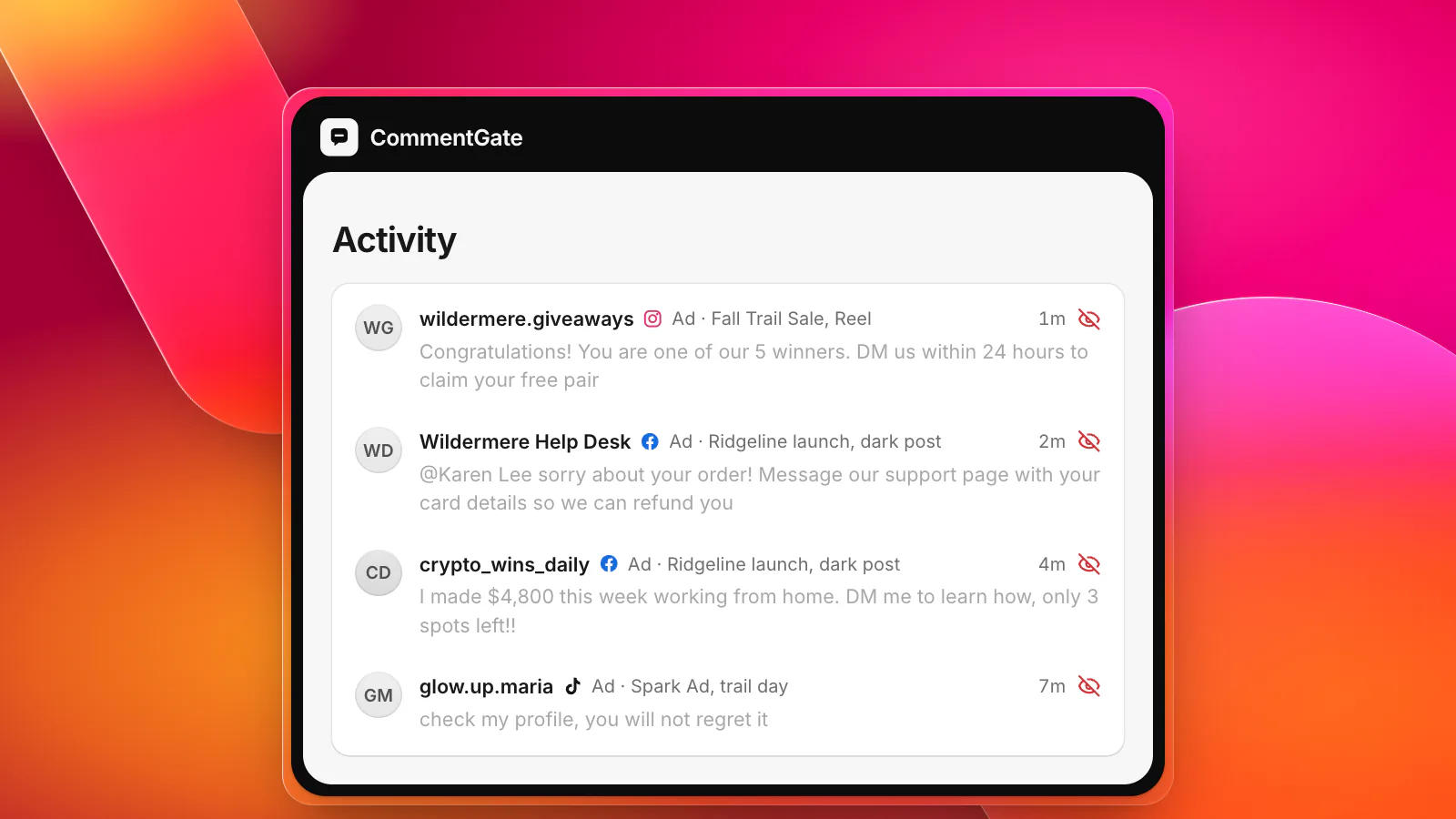
- Scams rarely use a word you would block. "Congrats, you were picked! Claim at the link in our bio" contains nothing you could put on a list without also hiding your own giveaway announcements.
- Spammers misspell on purpose. Swap a letter for a number, add a space, use a lookalike character, and an exact-match list is beaten.
- A list cannot tell who is talking. "Is this a scam?" from a hesitant buyer and "this brand is a scam, buy from [competitor]" share a word and need opposite handling: the first deserves a fast, friendly answer, the second is gone.
A routine that holds up
If you moderate by hand, the thing that matters most is speed. A scam near the top of a busy ad is read by everyone who opens the comments while it is up, and a busy ad can collect a lot of readers in an afternoon.
- Make a list of every live ad with its placement (Facebook, Instagram, or both). If you use Advantage+ placements, assume both.
- Check each ad's comments at least twice a day, and every hour or two in the first day of a new campaign.
- Hide, do not delete, anything that is a scam, spam, hate, a competitor plug, or personal information (someone's phone number, an address).
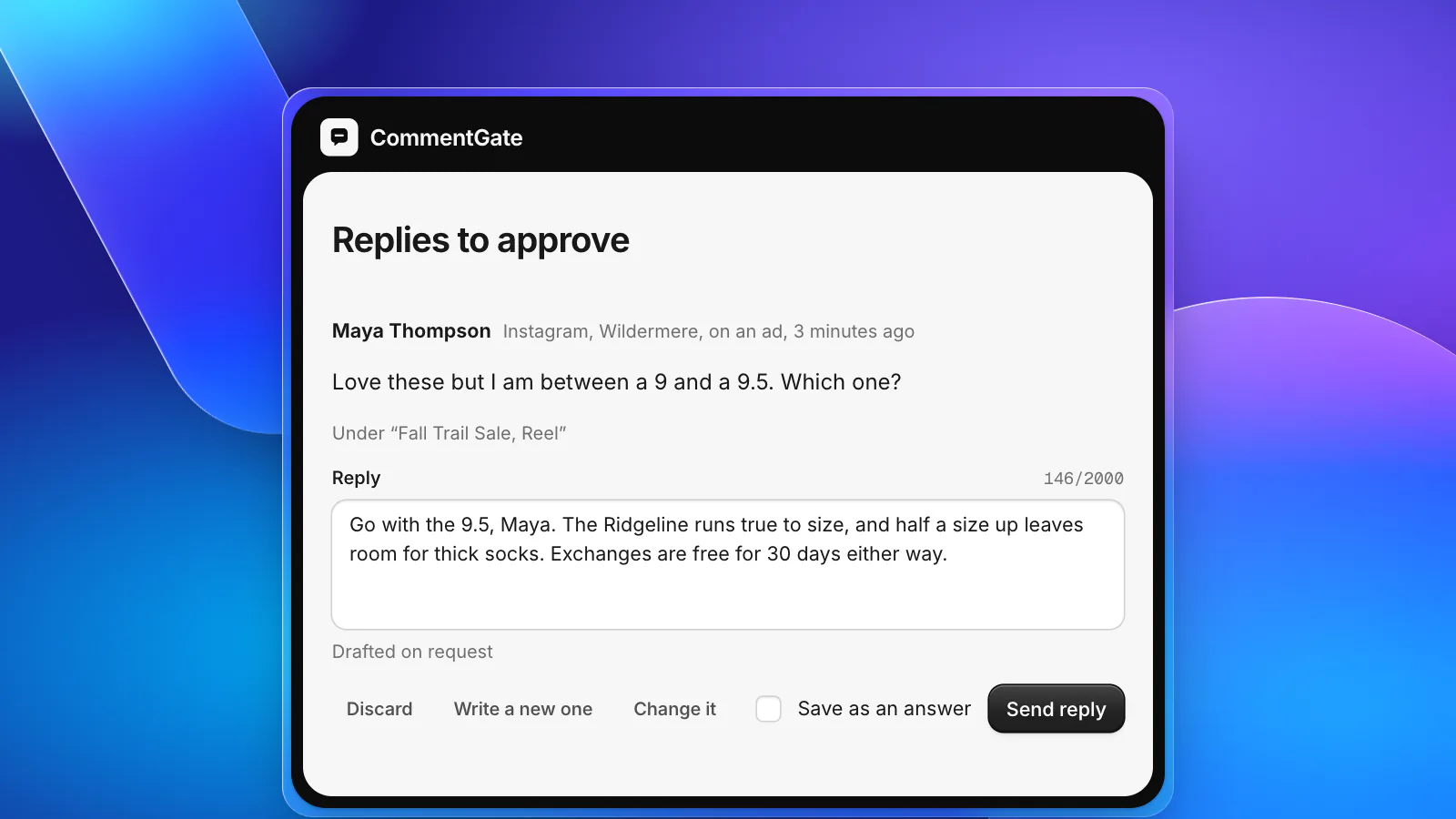
- Answer questions before you hide anything nearby. On Instagram this is required; on Facebook it is simply better manners.
- Leave honest criticism up and answer it. People trust a comment section with one unhappy customer and a helpful reply more than a spotless one.
- Report impersonators. An account using your name and logo to "announce winners" should be reported to Meta, not just hidden.
This works for two or three ads. It falls apart at twenty, or at 2 a.m. when a new ad set starts delivering to a fresh audience.
Doing it without checking every ad
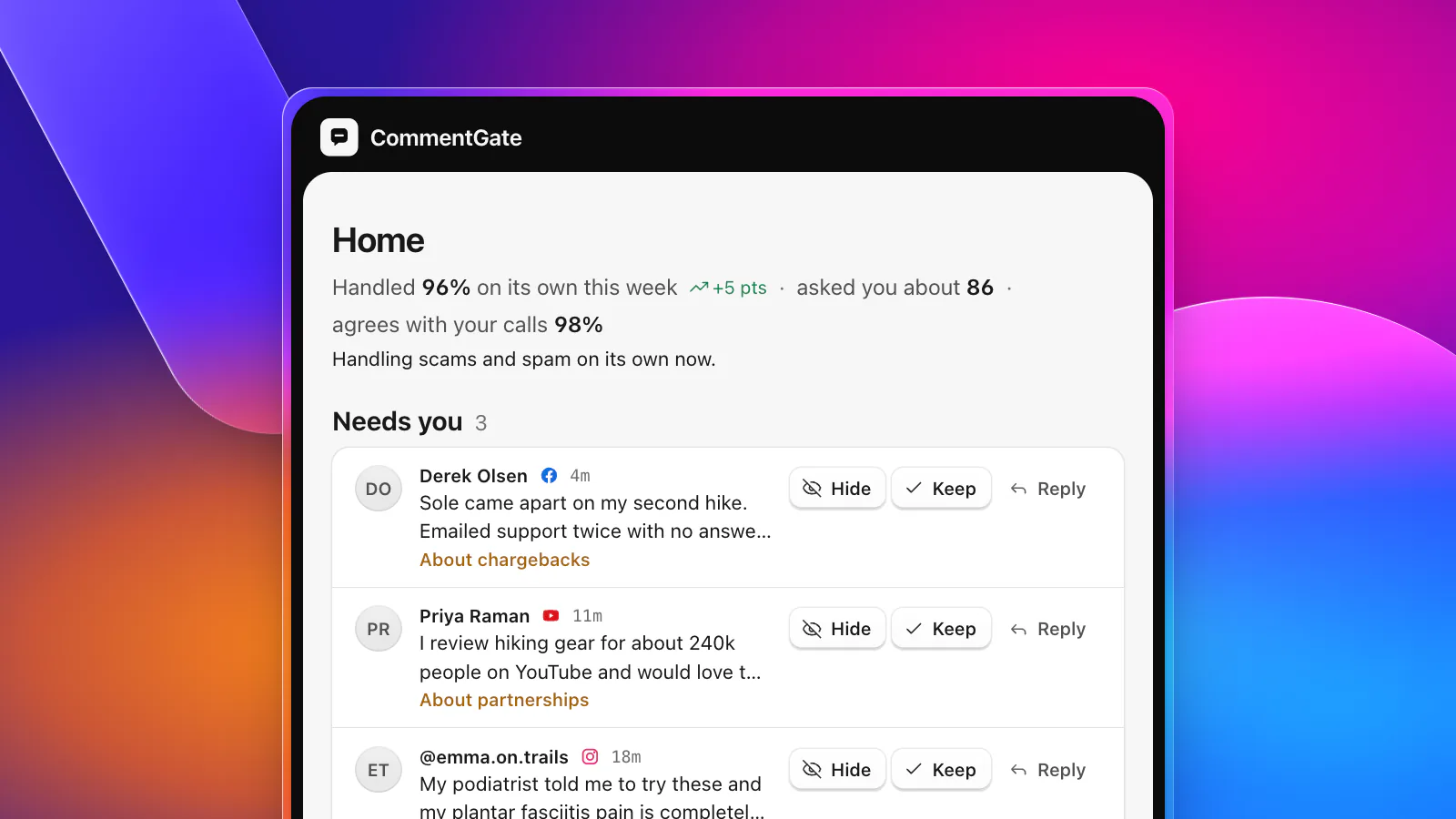
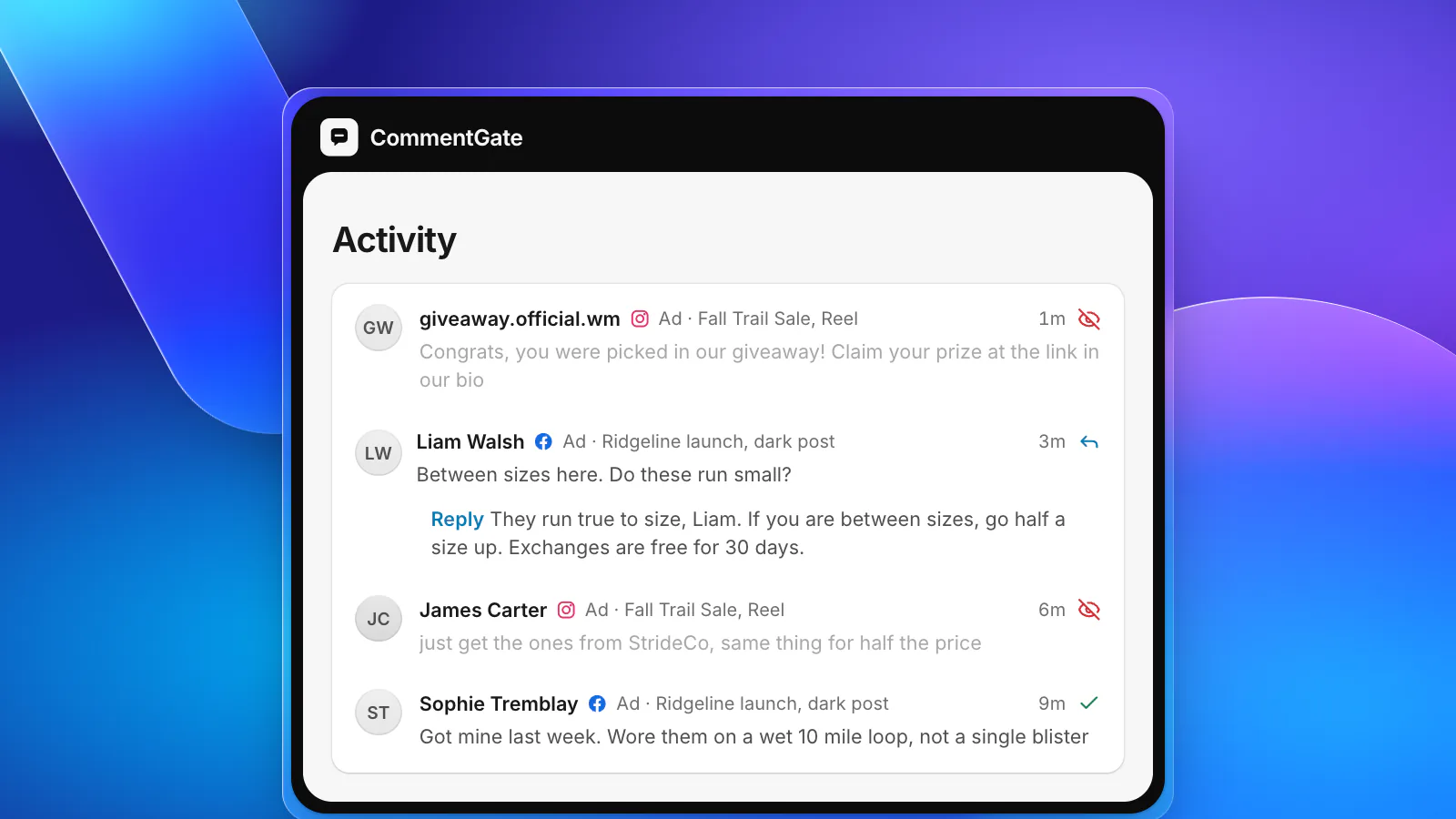
This is the job CommentGate was built for. Connect your Facebook Page, the Instagram account linked to it, and your ad accounts, and every comment on your posts and ads lands in one list, including dark posts and Instagram ad comments. Connecting the ad account is what tells CommentGate which ad each comment came from, so you can have stricter rules on a prospecting ad than on a retargeting one.
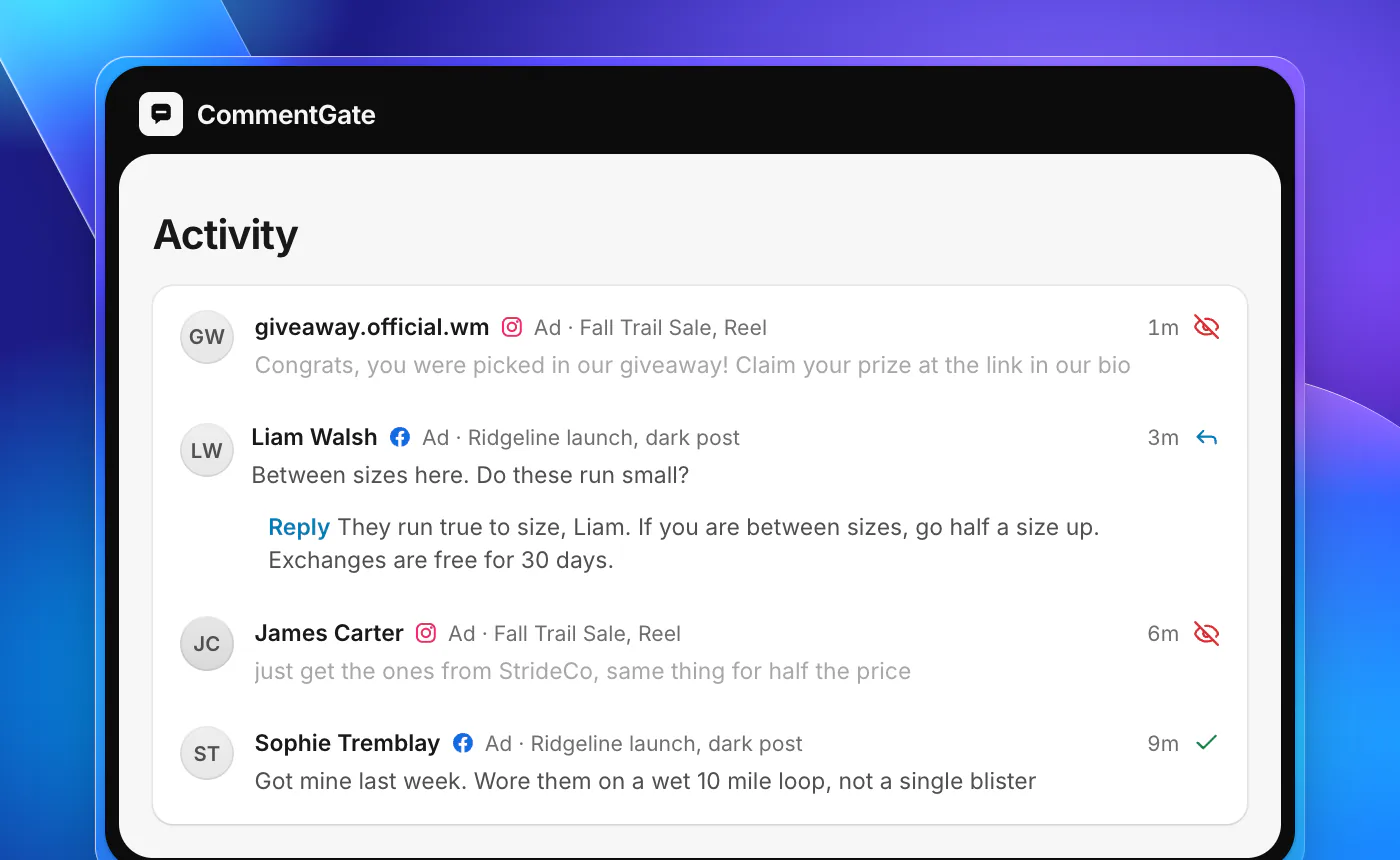
Then you flip a few switches: hide scams and fake giveaways, hide spam, hide hate, hide competitor mentions. Those four are on from the start. On Facebook and Instagram, a comment is read and hidden within seconds of arriving. It follows the Instagram rule for you: when a rule both replies and hides, it replies first.
Anything it is unsure about waits for you in Needs you instead of being guessed, and every time you unhide a comment or keep one it asked about, it learns. You can see exactly what Meta allows on each surface, or read how the three-step setup works.