Switching from another tool
Bring your hide words, keyword replies and ManyChat contacts over from commentguard.io, ManyChat or any other tool, and check everything before it is added.
Updated
You can bring the work you already did in another tool with you. Go to Settings, then Import. An owner, admin or manager can import.
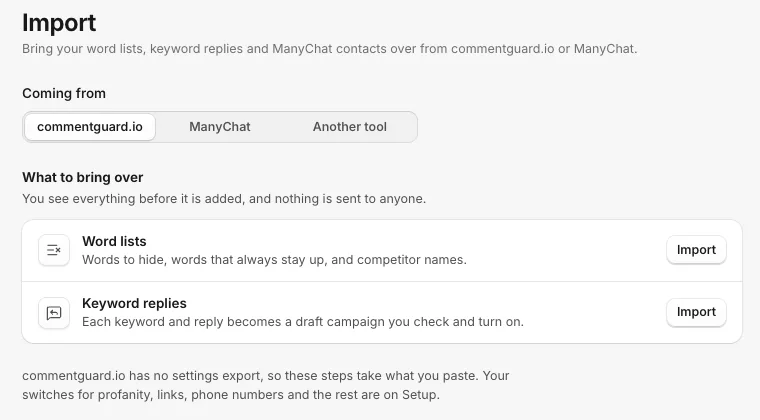
Under Coming from, pick commentguard.io, ManyChat or Another tool. The steps are the same; the directions on each step change to match where you are coming from.
You see everything before it is added, and nothing is sent to anyone.
Word lists
For the words you hid, the words you always kept, and competitor names.
- Next to Word lists, press Import.
- Under What should these words do?, pick Hide these, Always keep these or Competitor names.
- Paste the words, one per line or separated by commas.
- Check the list under Check before adding, then add them.
Coming from commentguard.io: open Moderation for a page there, copy the words under Hide keywords into Hide these, and the Whitelist into Always keep these. commentguard.io has no settings export, so copying and pasting is the way.
Keyword replies
Each keyword and reply becomes a draft campaign. Nothing is sent until you open it on Campaigns and turn it on.
- Next to Keyword replies, press Import.
- Choose Paste or Upload a CSV.
- Pick how they answer: Reply under the comment, Message the commenter or Answer a direct message.
- Type one per line: the keywords, then
->and the reply. For example:price, how much -> It is $29 with free shipping in the US. - Check the drafts under Check before creating, then create them.
ManyChat does not let anyone copy its automations out, so type each keyword and its reply in the same way.
When you turn a draft on and something is missing, the campaign tells you what. See My campaign won't turn on.
ManyChat contacts and tags
Pick ManyChat under Coming from, then Import next to Contacts and tags.
- Paste your ManyChat API key. It is used for this import only and is not kept.
- Upload a file of the people you want. ManyChat has no way to download everyone at once, so export the people from ManyChat first.
- Say what the ids in the file are, and which account they message: Messenger ids belong to a Facebook Page, Instagram ids to an Instagram account.
- Check the summary and start. Keep the page open until it finishes.
Existing people are updated, never duplicated, so running it again is safe. Tags you already have are kept as they are.
What you set up yourself
Your switches for profanity, links, phone numbers and the rest are on Setup, not in the import. Turn on the ones you had in your old tool. See Every switch on Setup.
Related
- Your first 15 minutes Connect your accounts, check the switches on Setup, and clear Needs you once, so CommentGate knows how you like things done.
- What CommentGate does, in 2 minutes CommentGate reads every comment on your posts and ads, hides the harmful ones, drafts answers and asks you only about the hard calls.
- Every switch on Setup, in plain words What each hide switch on Setup catches, which are on from the start, and how to set one account differently.
- My campaign won't turn on What the list under "Before it can go live" means, how to fix the usual problems, and what to check when a live campaign sends nothing.
Still stuck?
Tell us what you were trying to do and what happened. A person replies, usually within one business day.