Invite your team
Send someone a link to join your brand, choose their role, and add them to your other brands in one go.
Updated
Every plan includes unlimited team members, so invite everyone who answers comments: your support team, a virtual assistant, your media buyer.
Send an invitation
- Open Settings, then Members.
- Select Invite.
- Type their Email.
- Choose a Role. The line under it says what that role can do. See Roles and permissions.
- If you own other brands, tick them under Also invite them to and pick a role for each.
- Select Send invitation.
They get an email with a link to join. It works for 7 days. When they open it, they see the brand, the role you chose and what it lets them do, then select Join Wildermere (with your brand’s name). If they are new to CommentGate, they sign in with the email you invited, and no password is needed.
Owners and admins can invite people. Only an owner can invite another owner.
Invitations waiting to be accepted
Open invitations are listed under Waiting to join on Members, with the role and the date each one expires.
- Send again emails the link once more.
- Cancel invitation stops the link working.
If an invitation expired, send a new one. If it never arrived, see I am not getting emails.
Change someone’s role or remove them
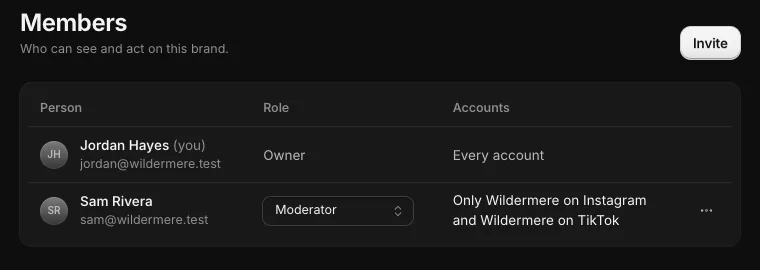
On Members, pick a new role from the menu in their row. The change applies right away.
To remove someone, open the menu at the end of their row and select Remove from this brand. They lose access at once. Comments they hid or replied to stay as they are.
A few safeguards:
- Only an owner can change or remove another owner.
- Every brand needs at least one owner.
- You cannot remove yourself from Members.
See everyone across your brands
If you own several brands, Settings, then Team, shows every person across all of them, with their role in each brand and the invitations still waiting. Roles are changed in each brand’s Members.
Clients
To give a client a read-only view of their reports and comments, invite them with the Client role. See The client portal and white label.
Related
- Roles and what each one can do Owner, admin, manager, moderator and client: what each role can see and change in a brand.
- Limit someone to certain accounts Let a moderator or manager work only on the accounts you choose, such as one store’s Instagram and TikTok.
- Two-step sign-in and passkeys Add a passkey or an authenticator app to your sign-in, and require two-step sign-in for everyone on your team.
- I'm not getting emails Sign-in links, alerts, the daily digest, the Monday email and billing notices: who gets each one, and what to check when one does not arrive.
Still stuck?
Tell us what you were trying to do and what happened. A person replies, usually within one business day.