Threads reply controls for brands: who can reply, approvals, hiding replies and quote posts
Threads lets you choose who can reply and quote each post, approve replies before they show, hide replies, and filter words. Here is where each control lives, what it really does, and the one thing none of them can touch.
Guides 6 min read
On this page
Threads gives a brand more say over its replies than most platforms: you pick who can reply to each post, you can approve replies one by one, and you can hide what does not belong. It is also the platform where a post can travel furthest without a single reply, because people quote it instead.
This guide covers each control, the exact taps, and when a brand should reach for it. For ads on Threads, see our separate guide to Threads ads comment moderation.
Who can reply and quote
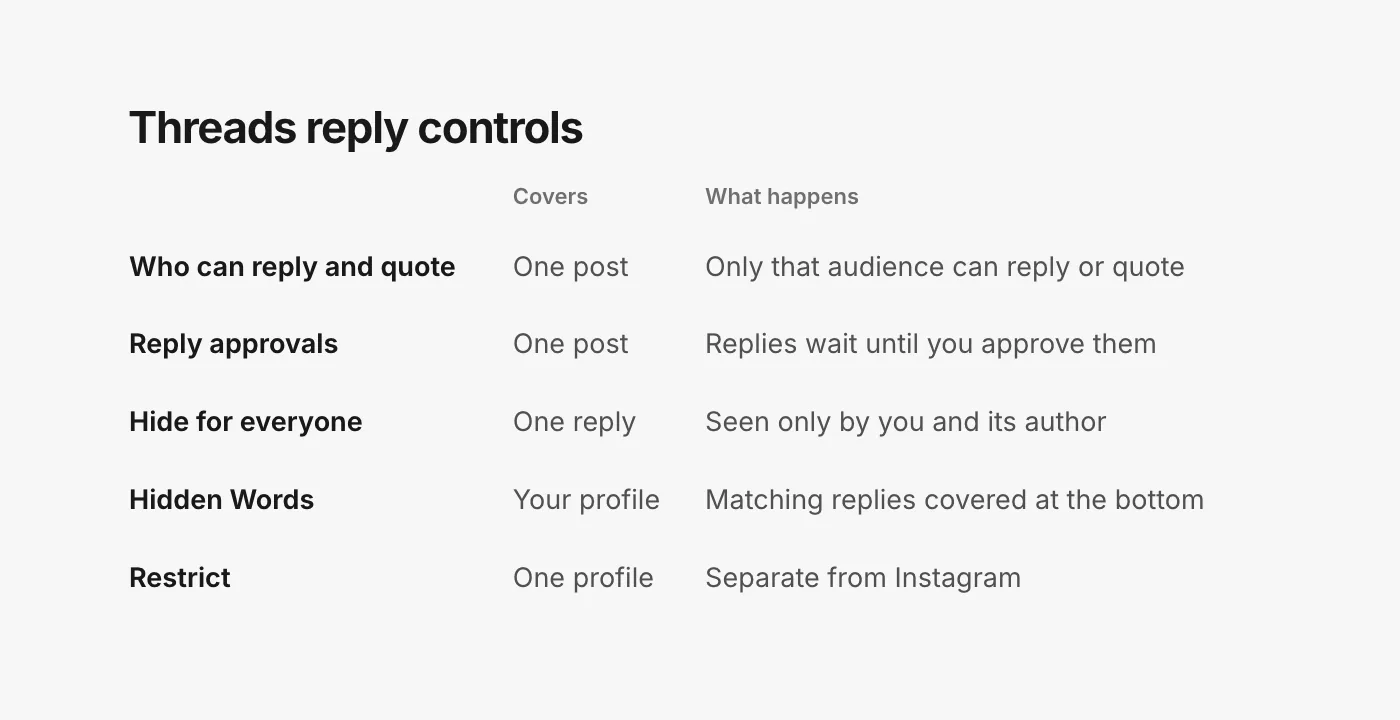
Each post has its own reply audience, and the same setting covers who can quote it. You can set it while drafting, or change it later: tap Options in the top right of the post, tap Reply options, and pick an audience below Who can reply and quote (Instagram Help: manage who can reply and quote on Threads). Threads' developer documentation lists five audiences: everyone, accounts you follow, mentioned only, followers only, and the author of the original post only (Meta for Developers: Threads reply management).
Three rules from the help page are worth knowing before you use it:
- "Existing replies and quotes of your post will not be deleted" when you change it. It only affects what comes next.
- "Changes to this setting will not apply to all your posts." There is no account-wide default; you set it post by post.
- Limiting replies and quotes "will also limit who can reuse media that is included in your post".
For brands: leave product and launch posts open to everyone. Replies are where people ask about sizes and shipping, and a post that only your followers can reply to looks guarded to everyone else. Narrow the audience on a post that has turned into a pile-on, or on an announcement you know will draw heat, like a price change.
Reply approvals
Approvals are the strictest control: replies wait for you before anyone else sees them. When drafting, tap Reply options and turn on Review and approve replies; on a post you have already shared, go to Options, then Reply options (Instagram Help: reply approvals on Threads).
Pending replies show under the post as Pending replies, where you can Approve or Ignore each one, or approve or ignore them all at once. You are notified in Activity when a reply needs review. The details:
- It is per post: "You’ll need to manage this setting for each post."
- "Ignored replies remain hidden until you approve them."
- Once a reply is approved, "you can no longer return it to pending review", though you can still hide it.
- Someone replying to the post is told their reply "will go into a queue to be approved by the poster" (Instagram Help: replies on Threads).
For brands: approvals suit a post you expect to be targeted, such as a response to a public complaint or a post during a recall. They do not suit a launch. Every buyer's question sits invisible until someone on your team taps Approve, and the next buyer asks it again.
Hiding a reply
For a single bad reply, tap Options next to it and tap Hide for everyone. Hidden replies move "to a covered section at the bottom of your thread", and a reply you hid by hand "is only visible to you and the person who wrote the reply". To undo it, scroll to the bottom, tap See all, then Options and Unhide (Instagram Help: hide replies on Threads).
Hiding is the right default for spam, scams and competitor plugs. The author still sees their own reply, so a spammer has no reason to come back with a new spelling.
Hidden Words
Threads has its own Hidden Words, separate from the Instagram screen. Tap Profile, then Menu, then Content preferences, then Hidden Words (Instagram Help: hide replies on Threads).
- Hide common offensive words in replies is on by default. Replies it catches are covered at the bottom of your thread, and "Others can still view these replies" by tapping through.
- Custom filters let you add "words, topics with hashtags, phrases, numbers and emojis", give the filter a name, and choose how long it lasts.
Note the difference: a filtered reply is covered, not hidden the way Hide for everyone hides it. Anyone curious can still open it. Meta's ads help says Hidden Words set at the Threads profile level also "extend to ads from the Page or profile" (Meta Business Help: manage comments on your ads).
For brands: a custom filter for competitor names, lookalike store domains and the handles that copy yours. Pick the longest duration on offer, and review the list when you launch in a new market.
Restrict
Restrict quiets one profile without them knowing. Their replies "may be hidden from others or require your approval", and you stop getting notifications about them. To restrict someone, go to their profile, tap Options, then Restrict; the list is under Menu, Privacy, Restricted profiles (Instagram Help: restrict on Threads).
One detail catches brands out: "restricting someone on Instagram doesn’t restrict them on Threads, and vice versa". If the same person is bothering you on both, restrict them in both apps.
Quote posts: the part no control reaches
A quote is not a reply. When someone quotes your post, "it will be included in a thread you post" (Instagram Help: like, repost or quote on Threads), which means it lives on their profile, under their name, with its own replies. You cannot hide it, approve it, or filter it; it is not in your replies at all.
What you can do:
- Limit quoting up front on posts likely to be dunked on, using Who can reply and quote. Remember that existing quotes stay.
- Answer in your own replies, not in theirs. A clear reply under your own post is what people see when they follow the quote back to you.
- Report quotes that break the rules, such as impersonation or harassment, rather than arguing in them.
What the controls miss
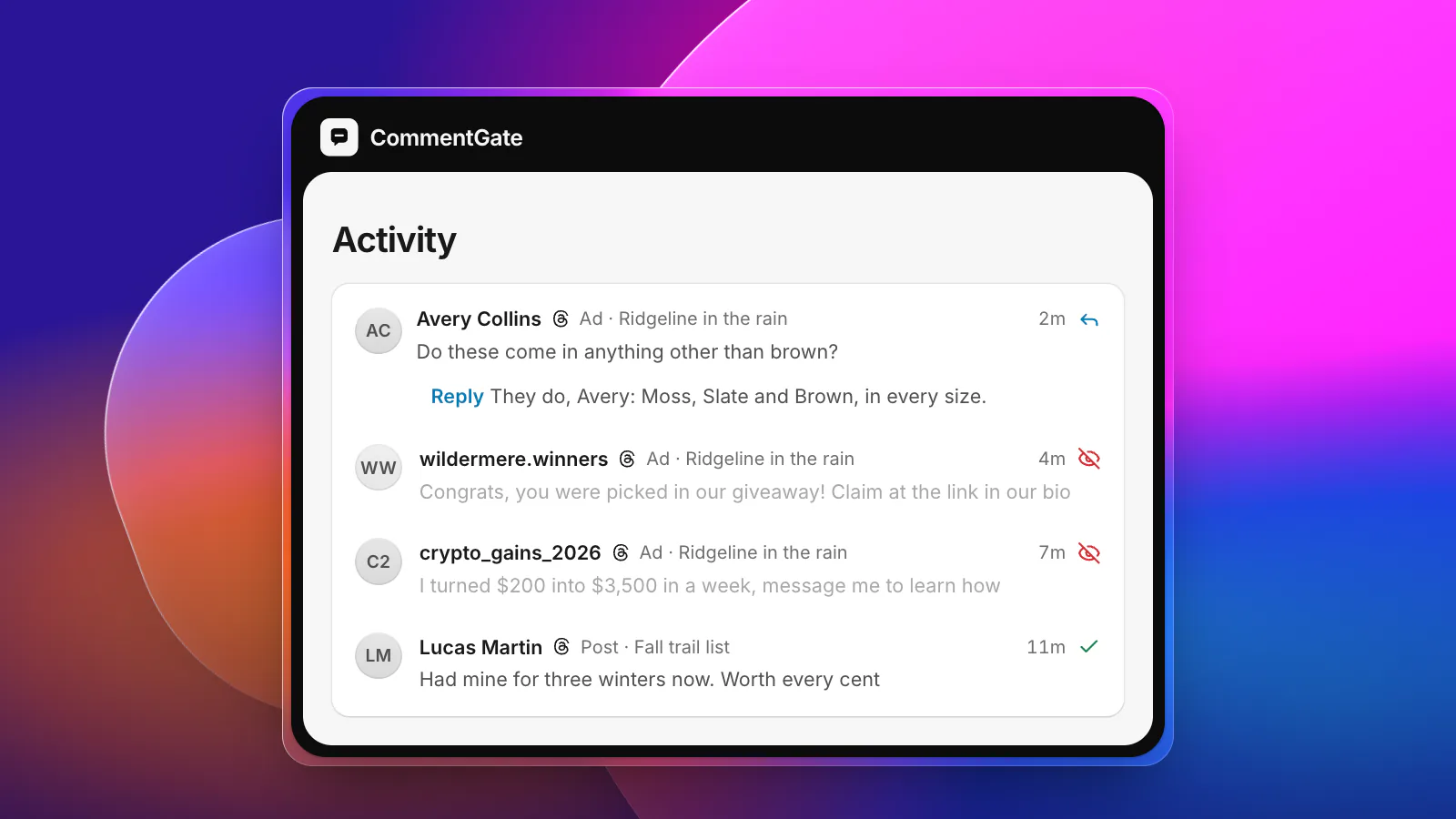
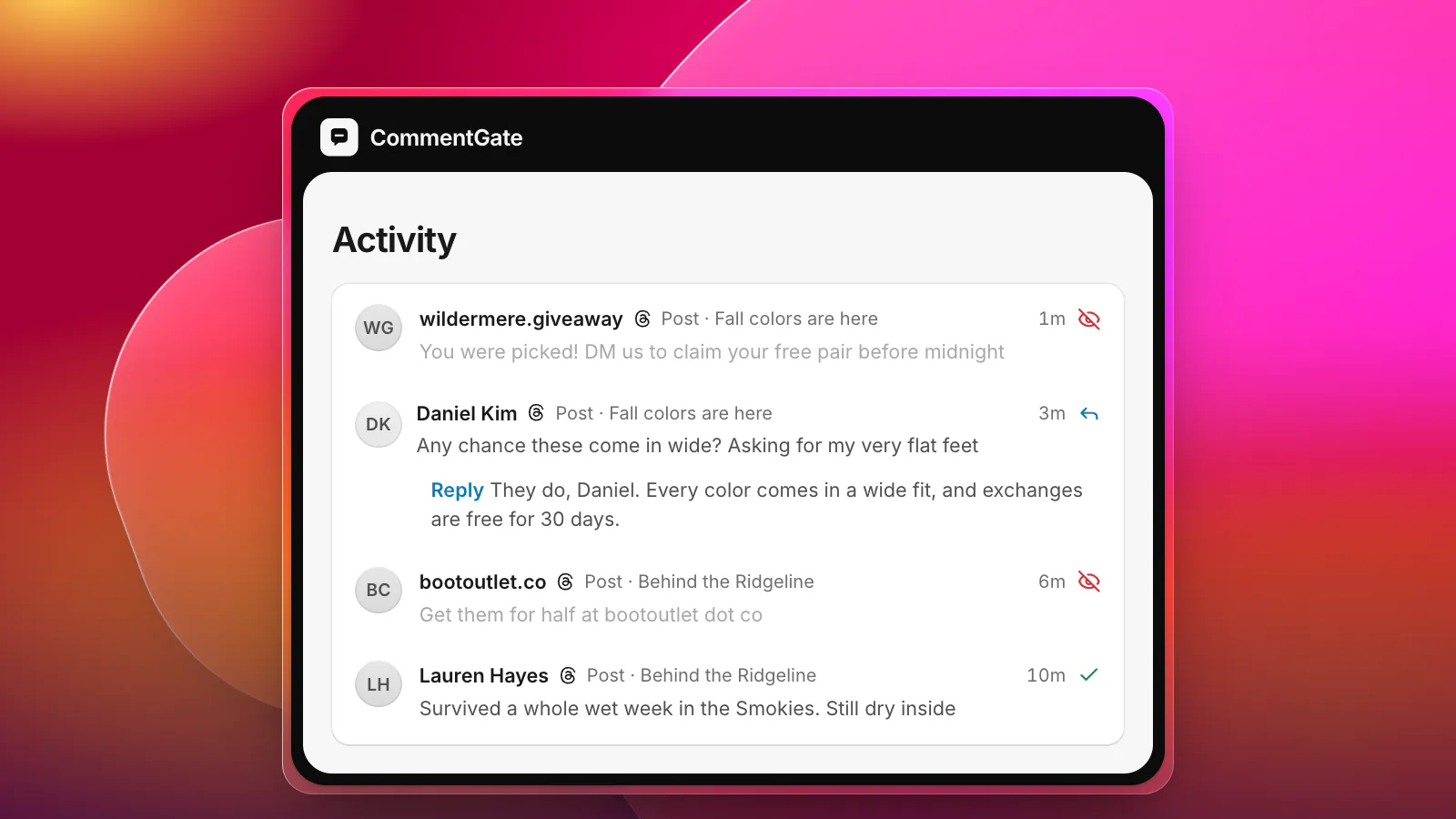
Every control above either narrows the audience or matches words. None of them can tell a fake giveaway ("you were picked, claim at the link in our bio") from a real customer, and none of them answer the question in the reply below it. Approvals come closest, at the cost of making every buyer wait for a person.
How CommentGate covers the rest
CommentGate connects to your Threads profile, and replies to your posts come into the same list as your Facebook, Instagram, TikTok and YouTube comments.
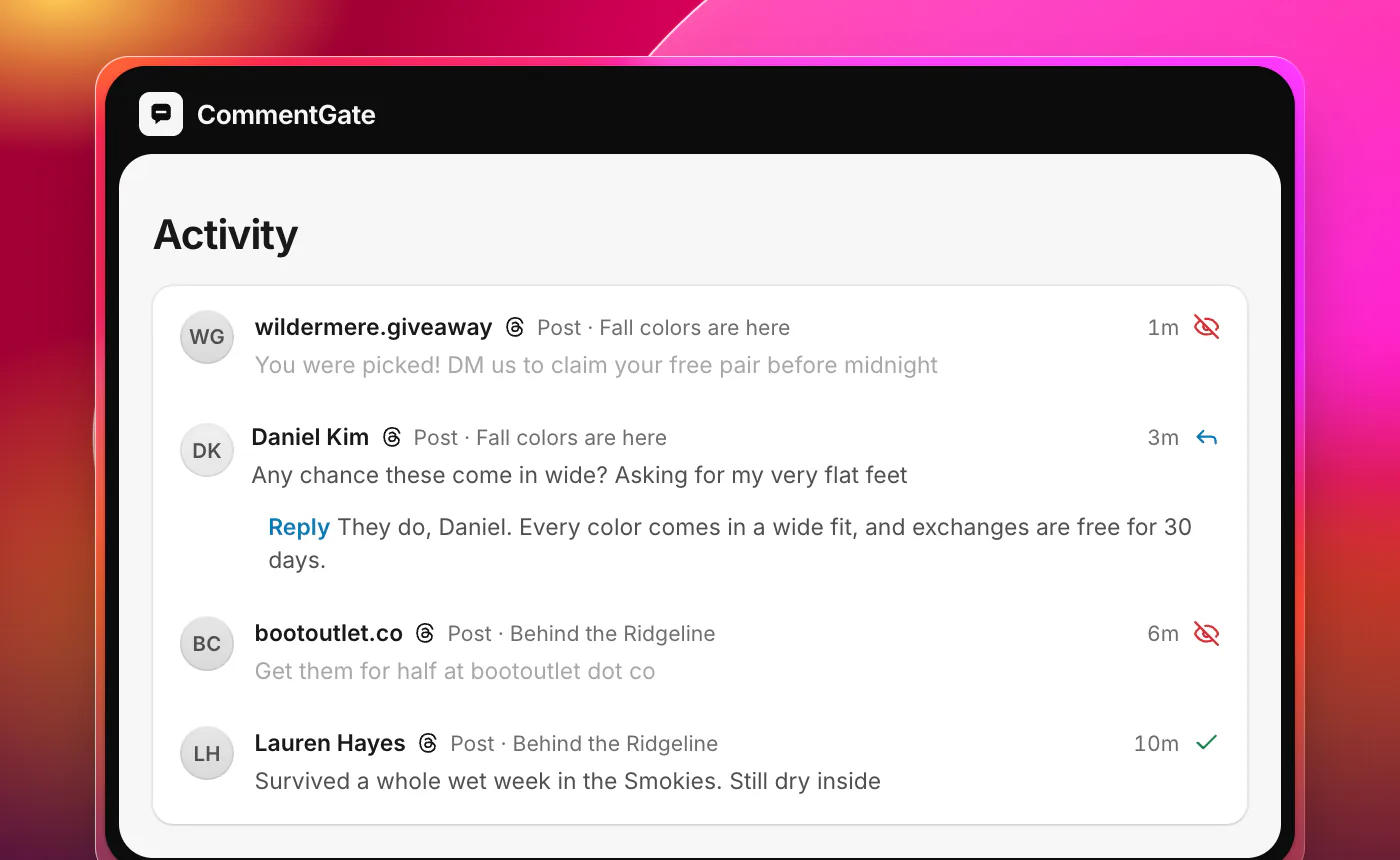
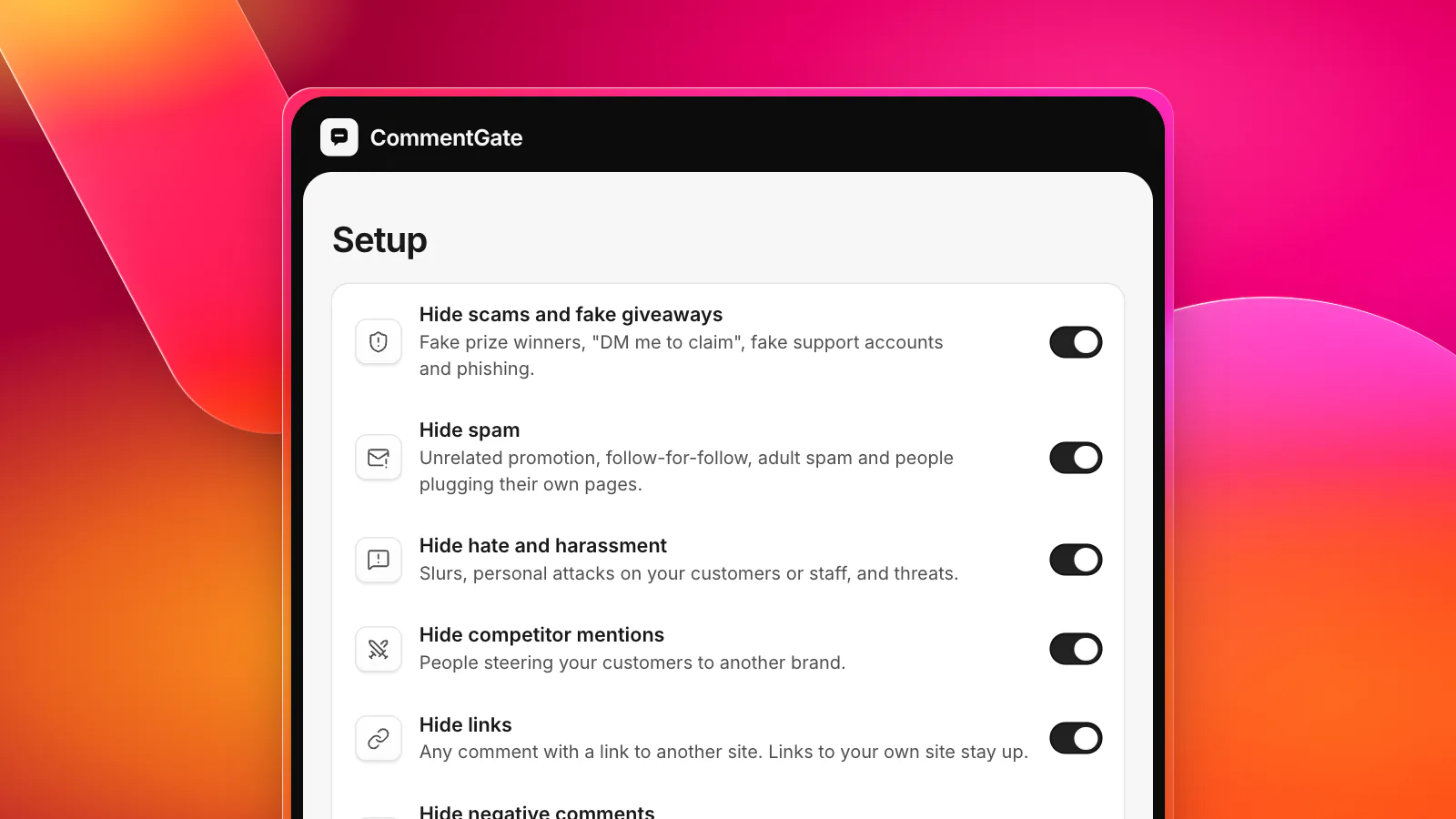
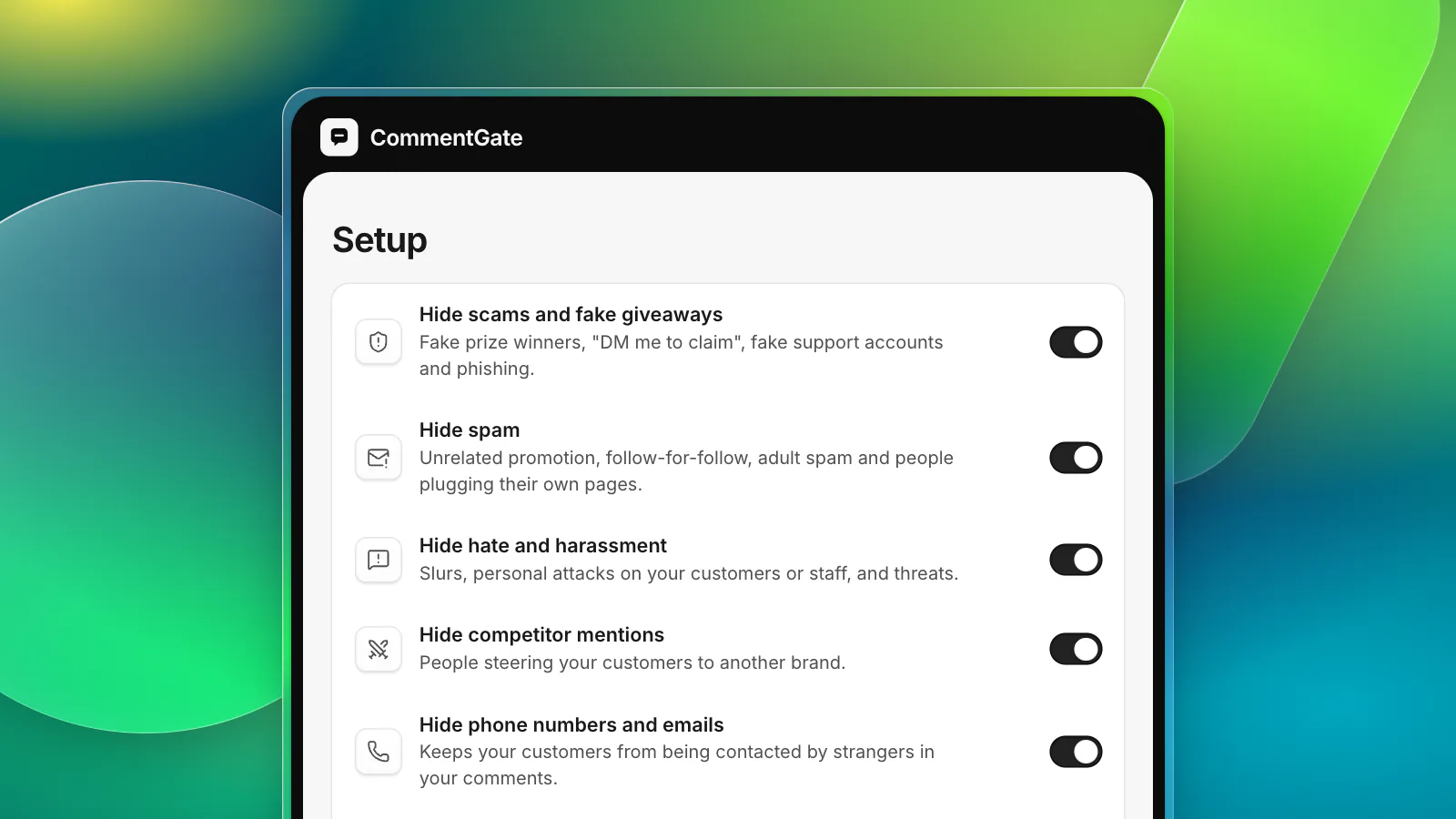
- Scams, spam, hate and competitor plugs are hidden from replies to your posts. Hiding follows Threads' rule for outside tools: it acts on top-level replies, and hides the replies under them too (Meta for Developers: Threads reply management).
- Questions get a drafted answer in your voice, which you approve or let send on its own.
- Judgement calls wait for you in Needs you, like a reply from someone who says a product made their child sick.
- Your ads, in view. Replies on your Threads ads show up in the same list. Hiding and answering them from CommentGate needs an extra Meta permission you grant; until then, act on them in Ads Manager under Manage Threads replies.
Keep your Threads controls on for the posts that need them. CommentGate handles the everyday posts, where you want replies open and clean. See every platform side by side.
Sources
- Instagram Help Center: Manage who can reply and quote your post on Threads
- Instagram Help Center: Turn approvals on or off for replies to your post on Threads
- Instagram Help Center: Hide posts you don’t want to see on Threads
- Instagram Help Center: Restrict or unrestrict someone on Threads
- Instagram Help Center: About replies on Threads
- Instagram Help Center: Like, repost or quote a thread or reply on Threads
- Meta Business Help Center: Manage comments on your ads in Meta Ads Manager
- Meta for Developers: Threads reply management