Instagram comment controls for brands: limits, restrict, filters and turning comments off
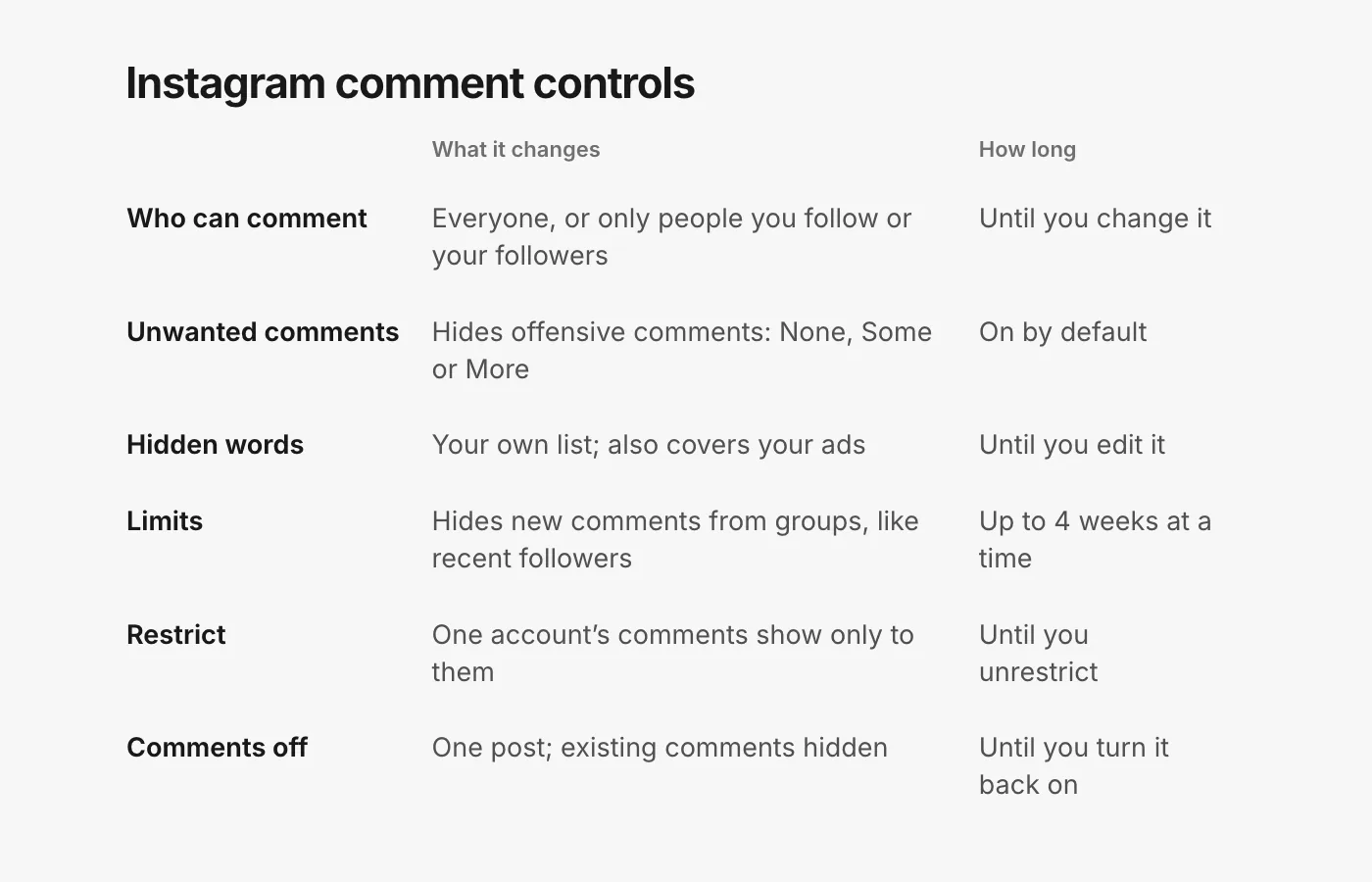
Instagram has six different controls over who comments and what shows. Here is what each one does, the exact taps to set it, which ones reach your ads, and when a brand should use each.
Guides 6 min read
On this page
Instagram gives you more control over comments than any other platform a brand runs ads on, and the controls are spread across four different screens. Some last a post, some last a month, some cover your ads, and a couple are really built for people being harassed rather than for stores.
This guide goes through each one: what it does, the exact taps, and whether a brand should use it. If you want the short version on hiding a single comment, our guide to hiding comments on Instagram covers that in detail.
Almost every path starts at the same place: tap Profile (or your profile picture) in the bottom right, tap Menu in the top right, and look under How others can interact with you.
1. Who can comment
By default, "everyone can comment on your posts and stories" (Instagram Help: hide comments). To change it, open Comments under How others can interact with you. For a public account you can allow comments from:
- People you follow
- Your followers
- People you follow and your followers
The same screen lets you turn off commenting on your posts, reels and stories for everyone.
For brands: leave this on everyone. Your buyers are mostly people who do not follow you yet, especially on ads, and a question from a stranger is the most valuable comment you can get. Narrowing the audience is a bad-day tool, not a setting.
2. Hide unwanted comments (None, Some or More)
Instagram's own filter hides "common offensive words, phrases, or emojis that are likely to be abusive or mean, such as insults, sexual remarks, or personal attacks". It is on by default. To pick a level: Comments under How others can interact with you, then under Types of comments, tap Hide unwanted comments, and choose None, Some or More.
Two things worth knowing: hidden comments "are still included in your total comment count", and "the person who sent it won’t know" it was hidden. If you turn the setting off later, "hidden comments or message requests will be restored" (Instagram Help: hide comments).
For brands: Some is a sensible start. Try More if your posts attract abuse, and check your hidden comments now and then, because a stricter filter catches more real customers too.
3. Your own hidden words
Under How others can interact with you, tap Hidden words, then Add words separated by commas... and enter words, phrases, numbers or emojis. They are hidden from comments on your posts.
This is the one control Meta says reaches your ads: Hidden Words is "set at the Facebook Page, or Instagram and Threads profile level, and extend to ads from the Page or profile" (Meta Business Help: manage comments on your ads).
For brands: competitor names, lookalike store domains, and handles that imitate yours. Keep common words off it. Our blocked words builder helps you draft the list.
4. Limits, for a pile-on
Limits temporarily hides new comments and messages from whole groups of accounts, without telling them. Under How others can interact with you, tap Limit interactions, choose what will be limited (Some interactions or Most interactions), then who: Everyone but your Close Friends, Recent followers, and/or Accounts that don’t follow you. Then set a reminder and tap Turn on (Instagram Help: limits).
The rules:
- Limited accounts "can still comment on your posts and reels but their comments will be hidden unless you approve them."
- "Recent followers" means accounts that started following you in the last week.
- It lasts "up to four weeks at a time", and you can extend it.
- Comments made while it was on "will remain hidden after you turn off this tool."
To review them, open a post's comments, tap Options, then See Limited Comments, where you can approve, delete or block (Instagram Help: view limited comments). Limits is available in the Android, iPhone and iPad apps, not on a computer.
For brands: this is the right tool for a coordinated pile-on from accounts that do not follow you, such as a post that went viral for the wrong reason. It is the wrong tool for normal days, because strangers are your customers. Remember to approve the real questions it held back.
5. Restrict, for one account
Restrict is Limits for a single person. Their "new comments on your posts will only be visible to that person", and you choose See comment, then Approve, Delete or ignore it. You also stop getting notifications for their comments (Instagram Help: restrict).
The fastest way: on your post, tap and hold their comment, then tap Restrict account. You can also manage the list under How others can interact with you, then Restricted.
For brands: use it for the regular who is not quite a spammer but derails every thread, like a reseller or a persistent complainer who has already been answered in messages. For scam accounts, block and report instead.
6. Turning comments off on one post
On a post you have shared, tap Options, then Turn off commenting. You can also do it before posting, under Advanced settings. When you turn it off, "any comments that are currently on your post will be hidden", and turning it back on restores them (Instagram Help: turn comments on or off).
For brands: reserve it for a post that has become the story, and turn it back on once you have answered the issue somewhere else. Our crisis-day checklist covers that day.
Cleaning up in bulk
When a post collects a wave of spam, you do not have to go one by one. Tap Comments, then Options in the top right, then Select multiple comments. You can Hide comments, Delete comments or Block accounts for everything you selected, and delete up to 25 comments at a time (Instagram Help: manage multiple comments). Hide rather than delete unless the comment has to go, because hiding can be undone.
What reaches your ads, and what does not
Meta's ads help names Hidden Words as the filter that extends to ads. It says nothing similar about Limits, Restrict or who can comment, so do not count on those for ad comments.
Ad comments also live in their own place. When you promote an existing post, comments on the ad are kept apart from comments on the original post: Meta calls the ad's comments "non-organic" (Meta for Developers: Instagram post moderation). To see them, open the ad in Ads Manager and choose Manage Instagram comments. That option appears only if an Instagram profile is connected to the ad; ads run under your Facebook Page's identity alone have no Instagram comments to manage there (Meta Business Help: manage comments on your ads).
What the controls miss
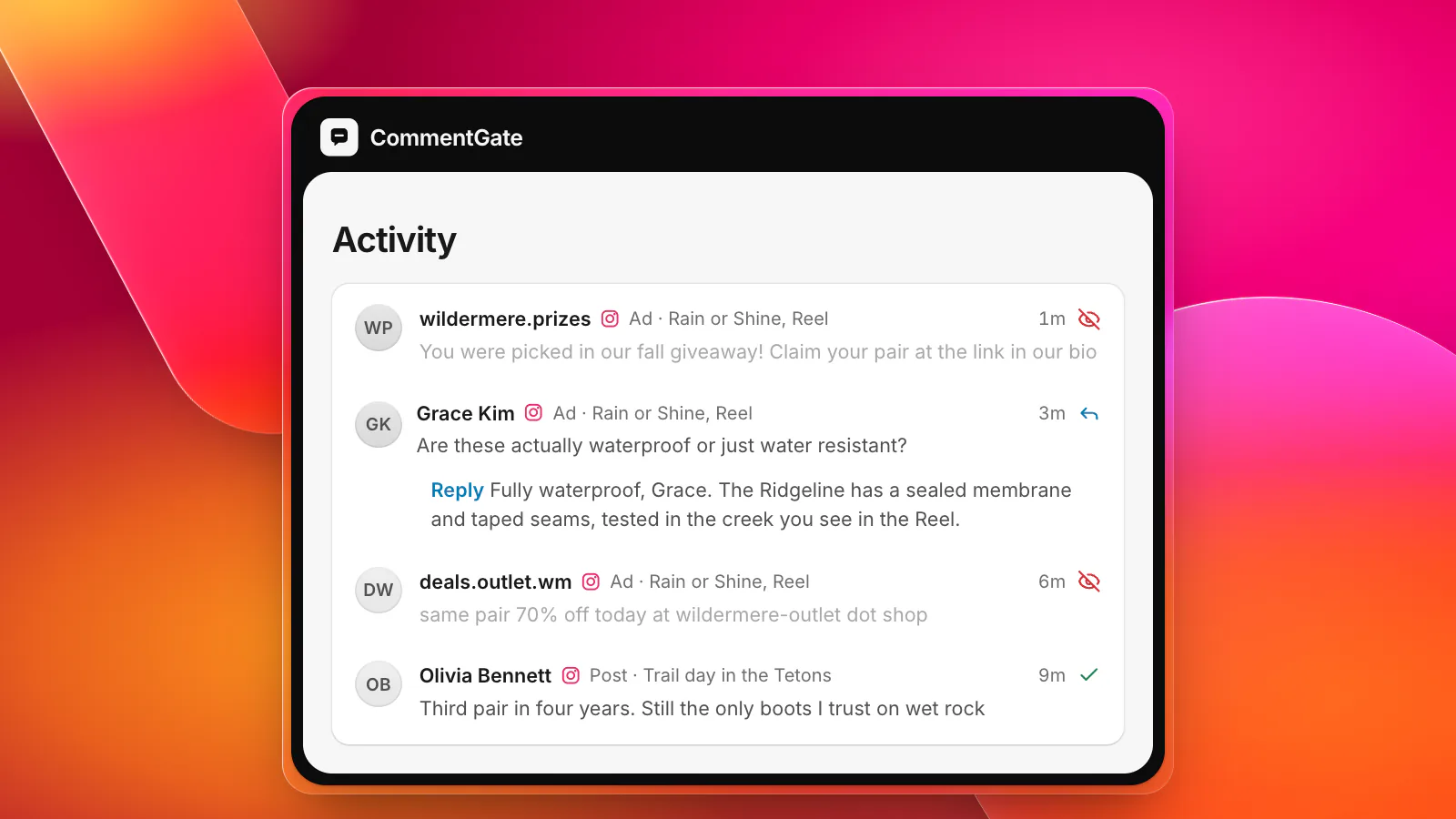
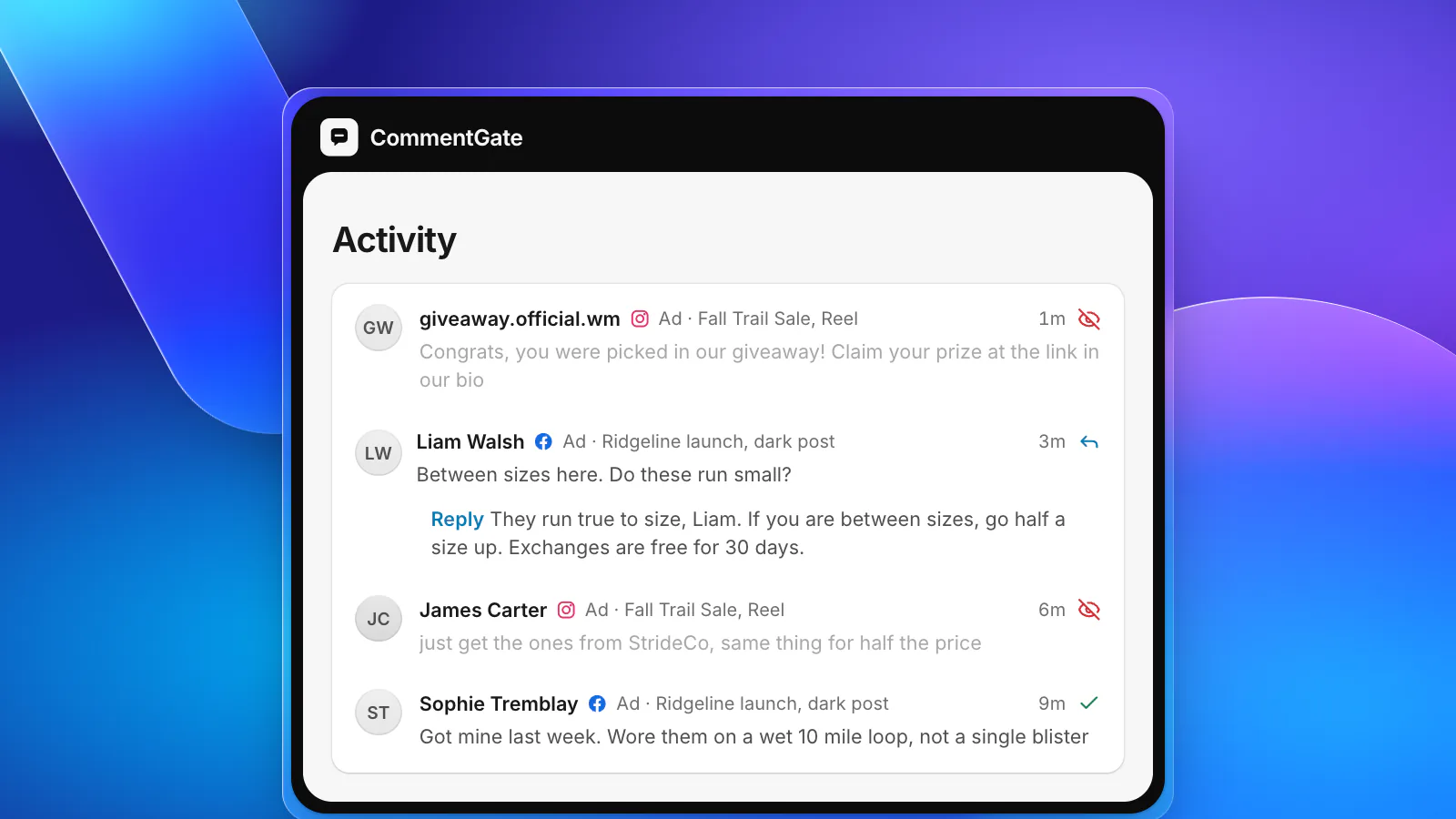
All six controls work on words, groups or single accounts you already know about. None of them can tell that "you were picked in our fall giveaway, claim at the link in our bio" is a scam, or that an account called your brand name plus "support" is not you. And none of them answer questions, which on an ad are the comments closest to a sale.
How CommentGate covers the rest
CommentGate connects to your Instagram account (through the Facebook Page it is linked to) and your ad accounts. Every comment on your posts, Reels and ads lands in one list, and on Instagram a comment is read and handled within seconds of arriving.
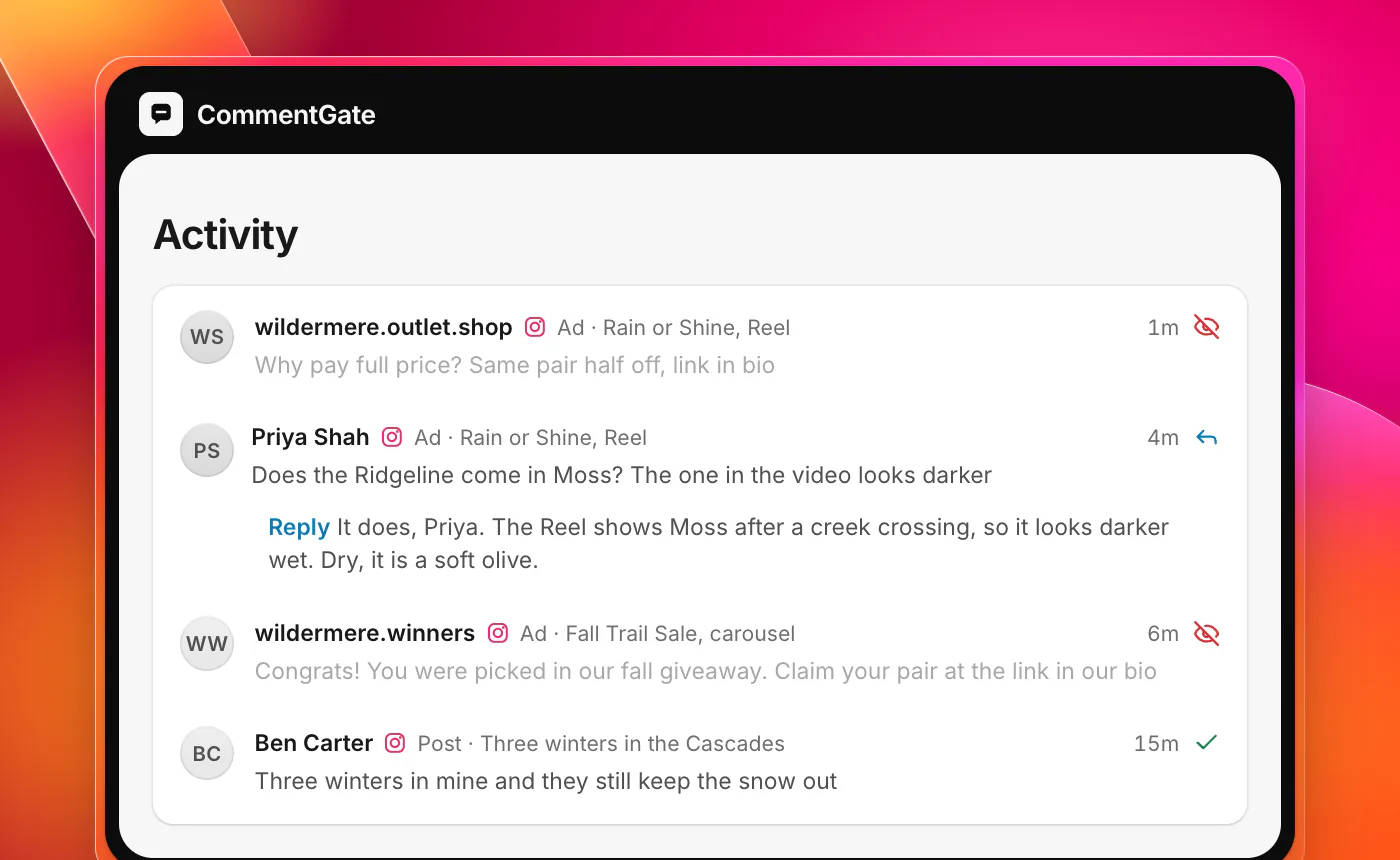
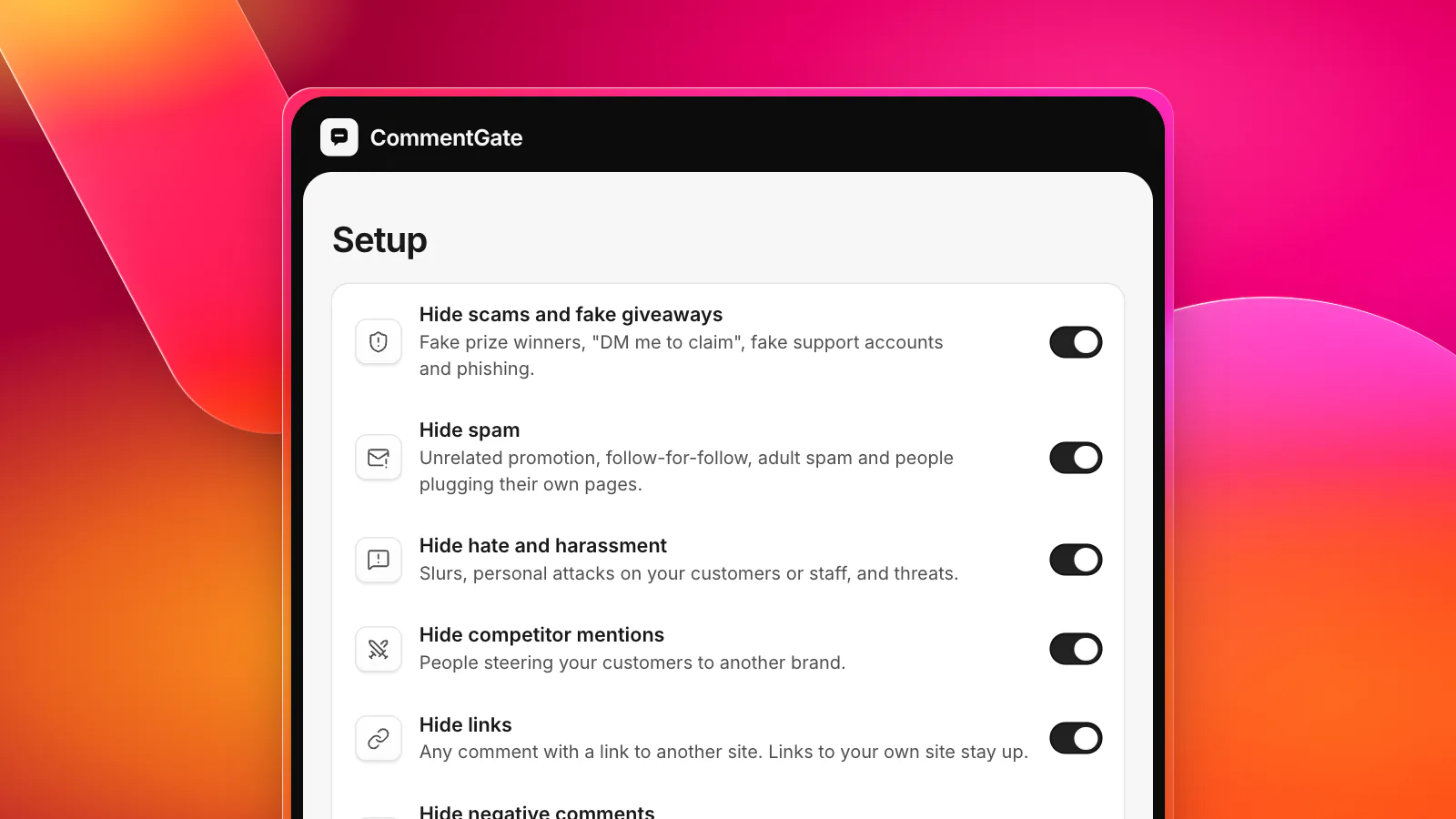
- Scams, spam, hate and competitor plugs are hidden, on the switches you choose. Negative comments stay up unless you decide otherwise.
- Questions get a drafted reply, which you approve or let send on its own. Because Instagram does not allow a reply to a hidden comment, the reply goes out first when a comment needs both (Meta for Developers: IG comment replies).
- Judgement calls wait for you in Needs you: a customer reporting a buckle that cut their ankle, or a creator offering a partnership.
- It learns from your corrections, so what you unhide stays unhidden next time.
Keep your Instagram controls on: they act first, and CommentGate catches what gets through. See what Meta allows on each surface or how it works for e-commerce brands.
Sources
- Instagram Help Center: Hide comments or message requests you don’t want to see
- Instagram Help Center: Temporarily limit people from interacting with you
- Instagram Help Center: View comments from accounts you’ve limited
- Instagram Help Center: Restrict or unrestrict someone on Instagram
- Instagram Help Center: Turn comments on or off for Instagram posts
- Instagram Help Center: Manage multiple comments on your Instagram posts
- Meta Business Help Center: Manage comments on your ads in Meta Ads Manager
- Meta for Developers: Instagram post moderation
- Meta for Developers: IG Comment replies