TikTok comment settings for business accounts: filters, who can comment, and what differs for ads
TikTok keeps comment settings in two places: the app for your posts, and Ads Manager for your ads. Here is every setting in each, the exact taps and clicks, and how the two fit together for Spark Ads.
Guides 5 min read
On this page
On TikTok, the settings for your posts and the settings for your ads live in different products. Your organic videos are controlled from the TikTok app. Your ads are controlled from TikTok Ads Manager. Neither one mentions the other, and a Spark Ad sits in both.
This guide walks through each set, with the exact taps and clicks, and ends with how to make them work together. For what to do with a comment once it arrives, see our TikTok moderation guide.
In the app: who can comment
In the TikTok app, tap Profile, tap the Menu button, select Settings and privacy, tap Privacy, then Comments, then Allow comments from (TikTok Support: manage comments). The options:
- Everyone (public accounts only)
- Followers (private accounts only)
- Friends, meaning followers you follow back
You can also turn Allow comments on or off for one post: before posting, on the Post screen under More options; after posting, on the post under More options, then Privacy settings.
For brands: a business account should be on Everyone. Your buyers are strangers. Turning comments off on a single post is for the rare video that has turned into a fight.
In the app: comment filters
The same Comments screen holds TikTok's filters. Each hides matching comments "unless you approve them":
- Filter unwanted comments. Hides "recent comments that may be offensive or spam".
- Filter keywords in comments. Turn on Filter specific keywords, tap Add keywords, and enter your words.
- Creator Care Mode. Hides comments "that are inappropriate, offensive, or contain profanity, as well as comments that were previously reported, deleted, or disliked".
- Filter all comments. Every comment waits for you. TikTok notes this one "isn't currently available to everyone".
To check what they caught, go back to Comments and tap Review filtered comments, then Approve anything that was a real customer.
For brands: turn on Filter unwanted comments and add a short keyword list (competitor names, lookalike store domains, handles that copy yours). Think twice about Creator Care Mode on a store account: it also hides comments that were merely "disliked", and on a product video those are often honest questions about price or quality. Open Review filtered comments every few days, because a filtered question is a sale nobody answered.
In Ads Manager: Comments Manager
Ad comments live in Ads Manager, not the app. To open them, hover over Tools in the top menu and click Comments (or Comments Manager), or go to Campaigns, the Ad group tab, click the three dots next to an ad group, and click Comments (TikTok Ads Help: Comments Manager). You need to be linked to a TikTok account to manage them.
From there you can hide or unhide, reply, like, export, and block users, one at a time or in bulk (TikTok Ads Help: view and manage comments). Two details are easy to miss:
- Block User hides "all of their new and existing comments on your ads". The person "can still comment, but only they will be able to see their comment". You can also block by TikTok ID under Block Users in Assets.
- Replies on Spark Ads need access to the account behind the ad. For Spark Ads made with an account you own, "only the user who is linked with the TikTok Account can reply to comments".
In Ads Manager: Blocked Words
This is the most useful ad setting TikTok has. Hover over Tools, click Comments, click Blocked Words in the left menu, click Add, enter words separated by commas, and click Confirm (TikTok Ads Help: add a Blocked Word).
The rules:
- Up to 500 words, with "a max of 30 Latin characters for each blocked word". The list belongs to the ad account (TikTok API for Business: blocked words).
- Phrases match as phrases. "Only comments that contain the Blocked Word phrase will become hidden." In languages with spaces between words, matching ignores punctuation but respects spaces, so "I love" catches "I, love you" but not "Ilove" (TikTok Ads Help: about Blocked Words).
- You cannot override it comment by comment. "You can't hide or unhide a comment that contains a blocked word." To bring those comments back, you delete the word, and "the comments containing the Blocked Words will become public" (TikTok Ads Help: manage your Blocked Words).
That last rule is why the list should hold only words that never appear in a real customer's comment. One broad entry can silently hide every comment that mentions it, with no way to rescue a single one.
In Ads Manager: turning comments off
Each ad group has a User comment toggle (also labeled Allow comments for certain advertisers). Edit the ad group, open Advanced settings under Placements, turn the toggle off, and confirm with Turn off (TikTok Ads Help: turn off comments for an ad group).
TikTok's own advice sits at the top of that page: "We recommend keeping user comments on to help your ads achieve more impressions and conversions." We agree. Hide what should not be there and answer the rest.
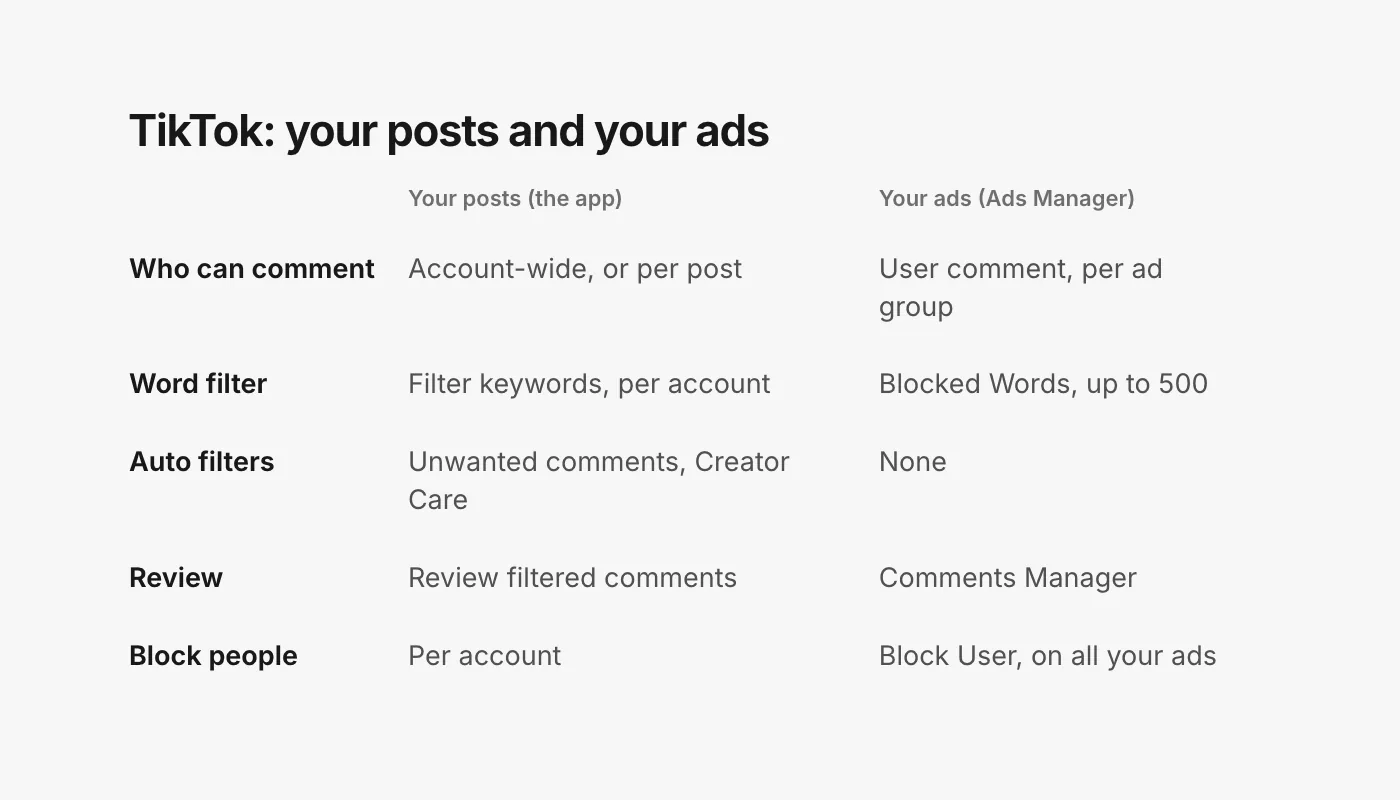
Spark Ads sit in both places
A Spark Ad runs on an organic post, and TikTok attributes "all views, comments, shares, likes, and follows gained from boosting the video" to that post (TikTok Ads Help: Spark Ads). So a Spark Ad's comments are your post's comments. TikTok's help does not say whether your in-app filters act on comments from paid views, so set both: the app filters for the account, and Blocked Words for the ad account. Our Spark Ads guide covers creator posts, where the comments live on the creator's account.
What the settings miss
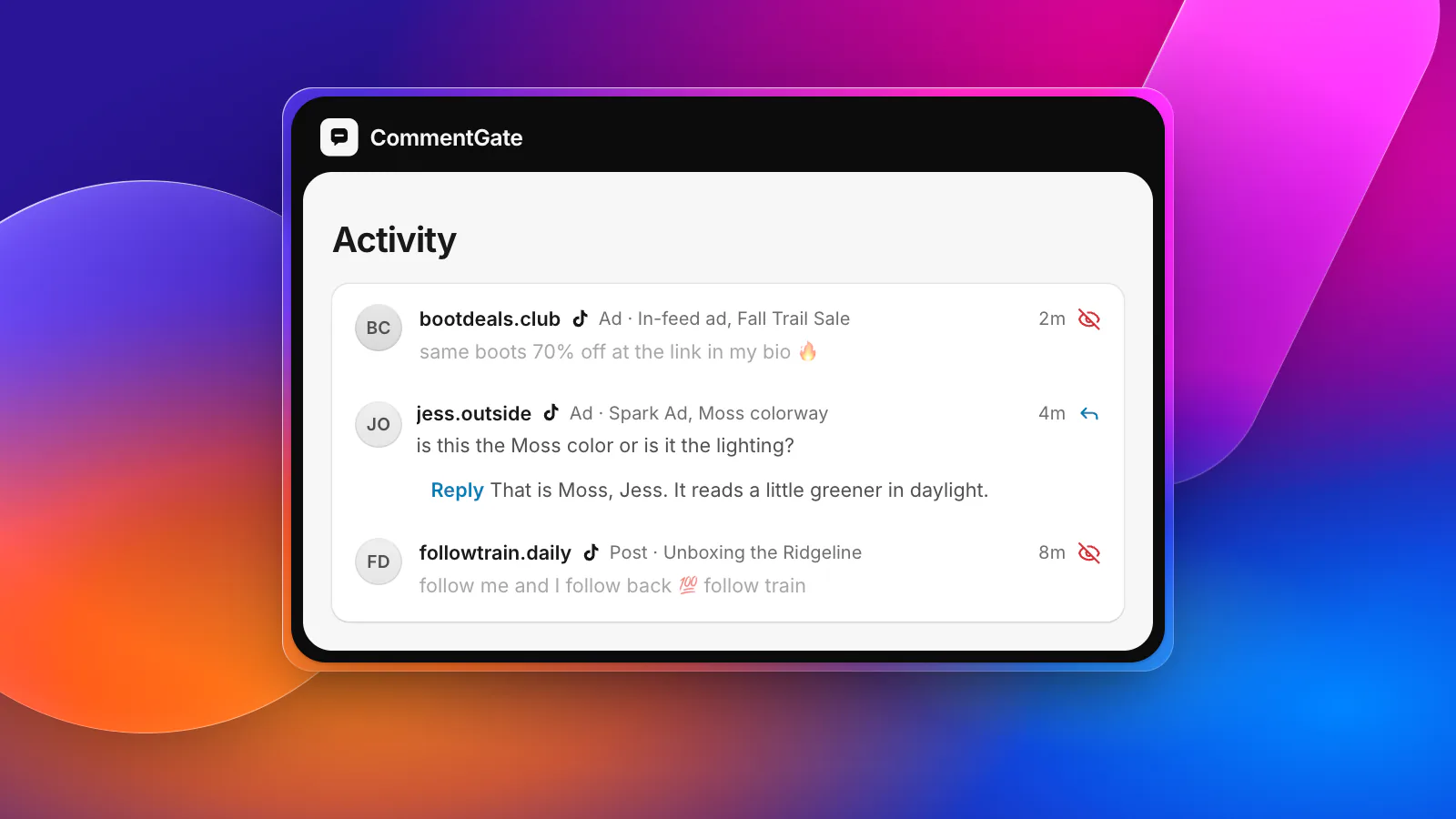
Keyword filters on TikTok have the same weakness as everywhere else: scams are written to avoid them. "Same boots 70% off at the link in my bio" contains nothing you can safely block. Nor can any setting answer "do these ship to Canada?", and on an ad that question is the closest comment to a sale.
How CommentGate covers the rest
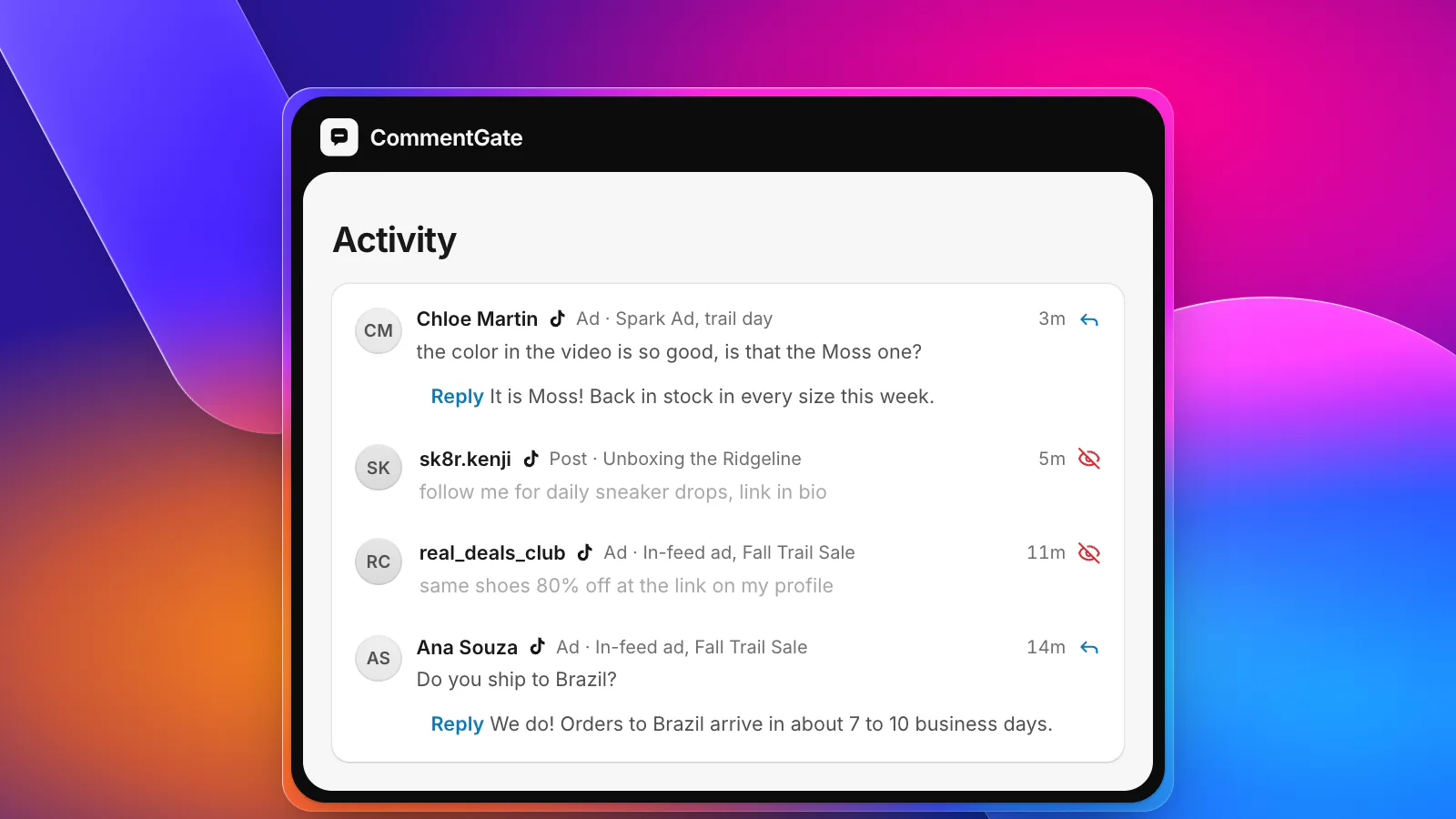
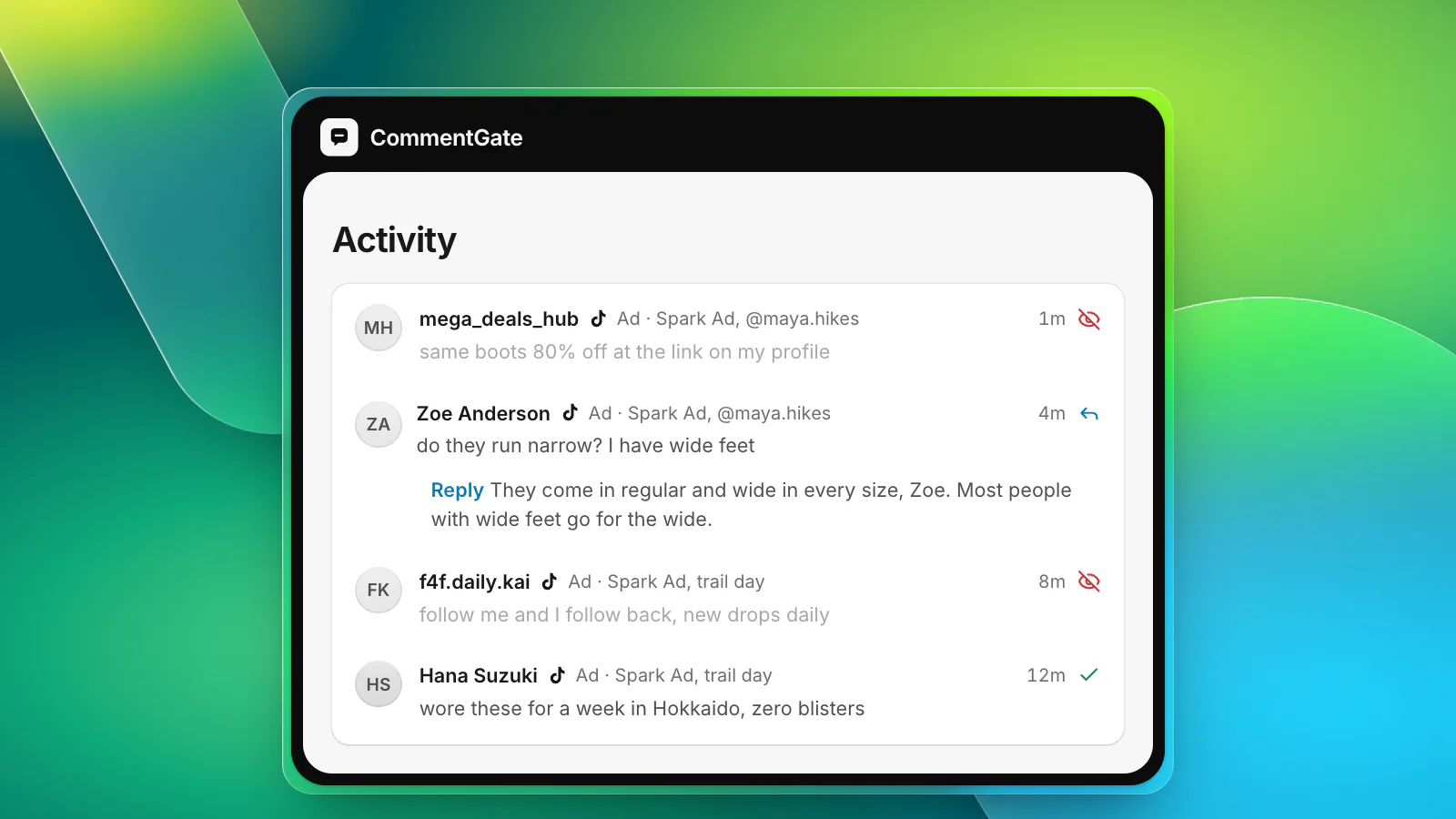
CommentGate connects to your TikTok business account and your TikTok ad account, so organic posts, Spark Ads and in-feed ads come into one list, next to Facebook, Instagram, Threads and YouTube.
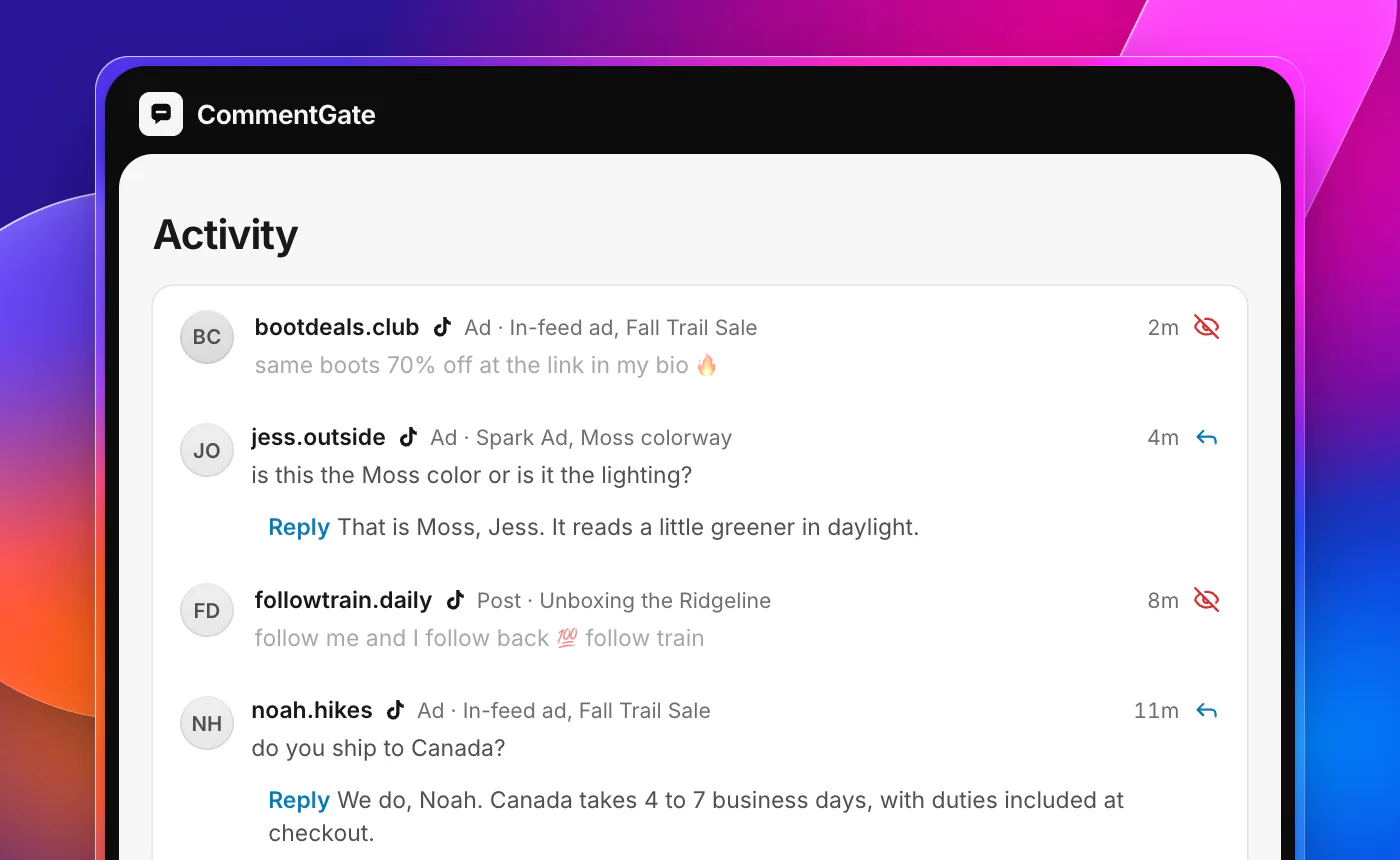
- Hide, never delete. TikTok does not let anyone delete other people's comments through outside tools (TikTok API for Business: delete a comment), so CommentGate hides, and every hide can be undone.
- Your blocked words reach TikTok. On your ads, your blocked words are added to TikTok's own list, so those comments are hidden the instant they are posted.
- TikTok's filters stay visible. Comments TikTok's own filters hid show up in the list, so you can bring back the real customers.
- Minutes, not seconds, on organic posts, because TikTok reports new comments within five minutes (TikTok API for Business: comment updates).
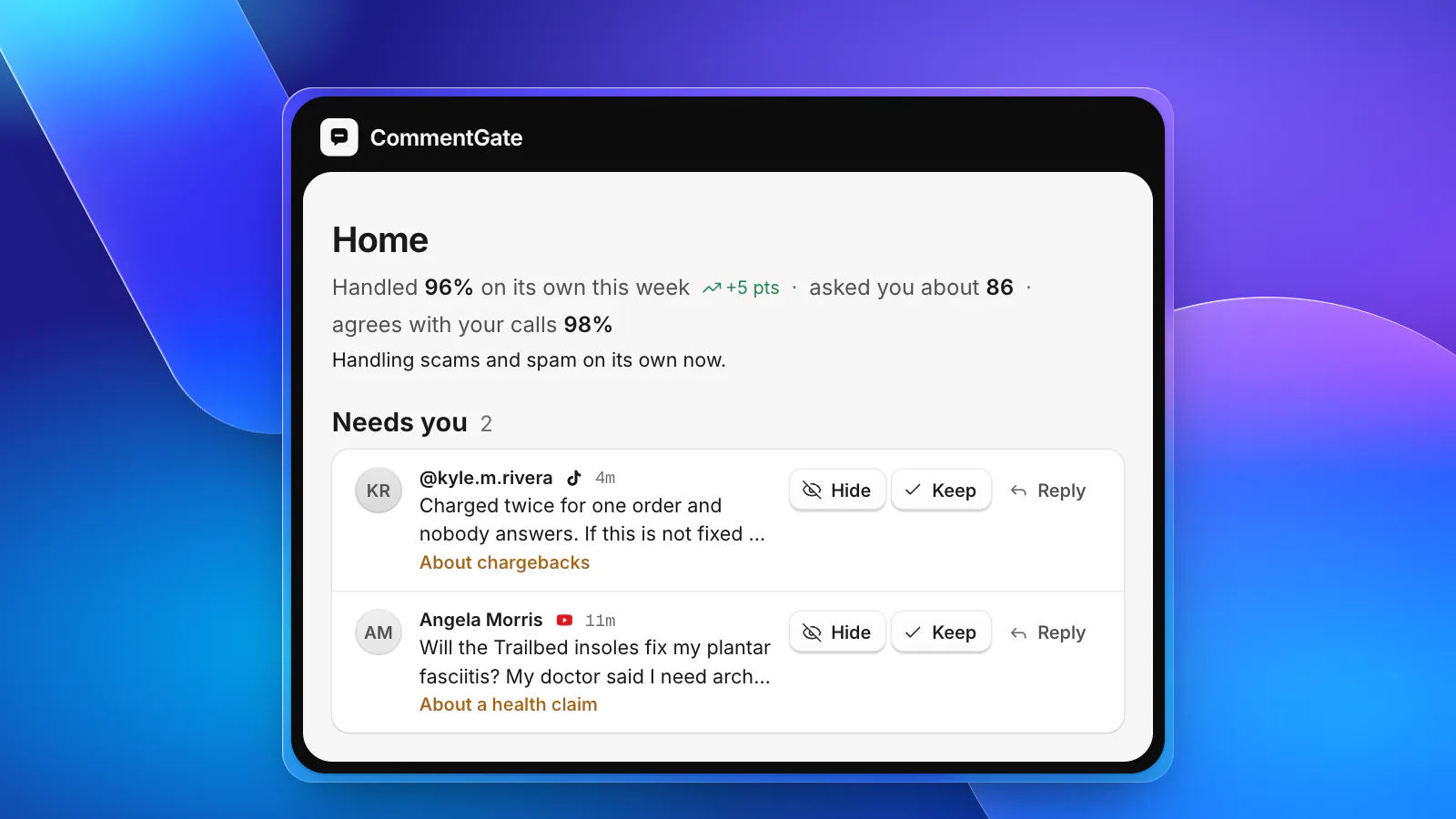
- Judgement calls wait for you in Needs you, and CommentGate learns from every correction.
See what each platform allows, or how media buyers use it on TikTok ad accounts.
Sources
- TikTok Support: Manage comments
- TikTok Ads Help: About Comments Manager in TikTok Ads Manager
- TikTok Ads Help: How to view and manage comments in TikTok Ads Manager
- TikTok Ads Help: How to add a Blocked Word in TikTok Ads Manager
- TikTok Ads Help: About Blocked Words
- TikTok Ads Help: How to manage your Blocked Words list
- TikTok Ads Help: How to turn off comments for an ad group
- TikTok Ads Help: Spark Ads
- TikTok API for Business: Blocked words
- TikTok API for Business: Delete a comment
- TikTok API for Business: Comment updates