Where comments on your ads actually live on each platform, and how to find them all
Ad comments rarely sit where you would look for them. Here is where they live on Facebook, Instagram, Threads, TikTok and YouTube, the exact screens that show them, and the ads no screen reaches.
Platforms 6 min read
On this page
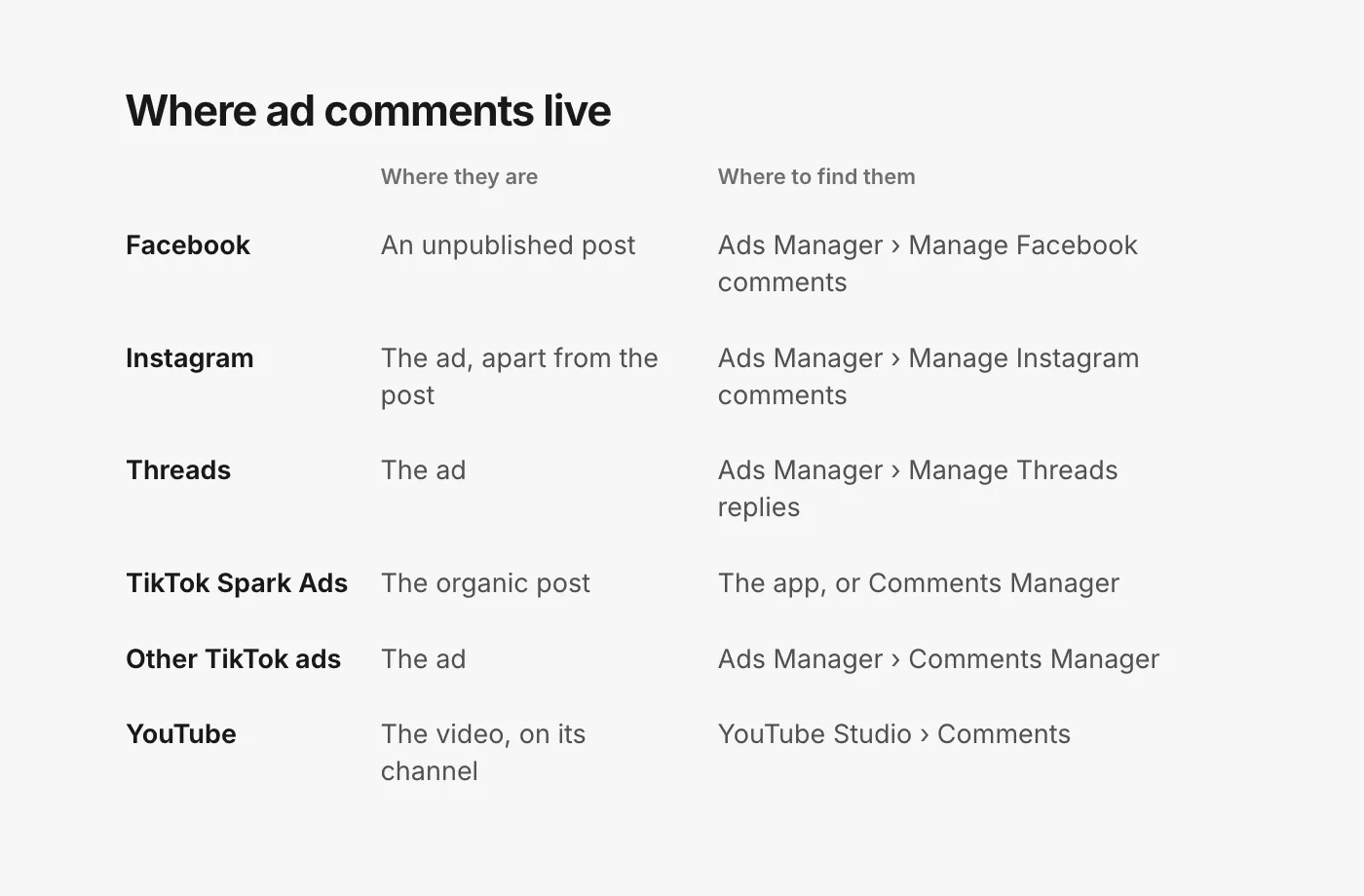
Ask a media buyer where the comments on their ads are and you will often get a pause. On most platforms, an ad's comments are not on your profile, not in your usual notifications, and sometimes not even on the post the ad was made from. They sit on a version of the post that only the ad shows, and you find them one ad at a time.
This guide goes platform by platform: where the comments live, the exact screen that shows them, and the ads that no screen reaches.
Where they live. When you build an ad in Ads Manager, Facebook creates a post for it that never appears on your Page. Meta's developer docs describe it plainly: "When you provide ad creative, an unpublished post is created" (Meta for Developers: Instagram ads get started). These are the "dark posts" of ad jargon, and their comments collect on that post, out of sight of anyone scrolling your Page. Our dark posts and boosted posts guide covers the difference.
How to find them. In Ads Manager, click the Ads tab, find the ad and click Edit below its name. In the column on the left, select ... next to the ad name, choose More options, then Manage Facebook comments (Meta Business Help: manage comments on your ads). A window opens with the ad and its comments, where you can like, reply, hide or report. Meta adds that the same tools are "available via Notifications on Facebook".
What protects them without you. Your Page's blocked words and profanity filter "extend to ads from the Page" (Meta Business Help: best practices for ad comment moderation), and Moderation Assist covers "ads that you run" (Meta Business Help: Moderation Assist). Our Facebook Page settings checklist walks through each.
Where they live. On the ad itself, and apart from the original post's comments, even when you promote a post you already shared. Meta splits them into organic comments, on the post, and "non-organic" comments, "comments on ads media" (Meta for Developers: Instagram post moderation). One promoted Reel can have two comment sections to watch.
How to find them. The same Ads Manager path, then Manage Instagram comments. Meta's note matters here: you cannot manage "comments on Instagram if you don't connect an Instagram profile (ie, you run ads using your Facebook Page identity.)" (Meta Business Help: manage comments on your ads). If the option is missing, check the ad's identity before anything else.
What no screen reaches. Instagram Stories take no comments ("Stories are not posts open to comment"), and Meta says "Comment moderation features do not work with Advantage+ catalog ads" on Instagram (Meta for Developers: Instagram post moderation). On Facebook, the same catalog ads keep their comments on separate "dynamic posts" generated from the ad, which you read one by one (Meta for Developers: Advantage+ catalog ads).
Threads
Where they live. Replies to a Threads ad sit on the ad, under the Threads profile it runs as.
How to find them. The same Ads Manager path, then Manage Threads replies. You "can't manage replies on Threads if you don't connect a Threads profile (ie, you run ads using your Facebook or Instagram identity.)" (Meta Business Help: manage comments on your ads). Hide is available there; liking and replying are listed for Facebook only.
What no screen reaches. Advantage+ catalog ads on Threads take no replies at all: "Ad engagement (reply, quote, save, share) is disabled for Advantage+ catalog ads in Threads at this time" (Meta for Developers: Threads Advantage+ catalog ads). More in our Threads ads guide.
TikTok
Where they live. It depends on the ad type.
- Spark Ads run on an organic post, and TikTok attributes "all views, comments, shares, likes, and follows gained from boosting the video" to that post (TikTok Ads Help: Spark Ads). The comments are your post's comments. If the post is a creator's, they are on the creator's account.
- Other in-feed ads are made in Ads Manager, and their comments are managed there too.
How to find them. For every ad type, TikTok Ads Manager: hover over Tools and click Comments (or Comments Manager), or open Campaigns, the Ad group tab, the three dots next to an ad group, and Comments (TikTok Ads Help: Comments Manager). You must be linked to a TikTok account to manage them.
What protects them without you. Blocked Words, up to 500 per ad account, hide matching comments on your ads automatically (TikTok Ads Help: add a Blocked Word). Our TikTok settings guide covers the rest.
YouTube
Where they live. On the video, on whichever channel hosts it. For Shorts ads, "comments made on the ad will appear alongside other comments in the comment section of your original Shorts" (Google Ads Help: Shorts ads FAQ). So your ad comments are in YouTube Studio with everything else, and your Studio settings apply to them.
What no screen reaches. Videos you did not upload to your own channel. A video uploaded during campaign setup can land on a Google-managed House channel, where you cannot even edit the video's details (Google Ads Help: Performance Max video assets). Auto-generated videos go to "a Google-owned channel", and "You won't have the ability to manage or control this channel" (Google Ads Help: auto-generated video ads). If you care about the comments, host the video yourself. Our YouTube settings guide covers the settings that then apply.
A weekly routine, if you do it by hand
- List every live ad on every platform, with its identity: Page only, Instagram profile, Threads profile, Spark or not, which YouTube channel.
- Open each one in the screen above. Facebook, Instagram and Threads are one window per ad; TikTok's Comments Manager can filter across ad groups.
- Hide scams and spam, answer questions, leave fair criticism. On Instagram, answer before you hide, because you cannot reply to a hidden comment (Meta for Developers: IG comment replies).
- Check the promoted posts twice: the ad's comments and the original post's.
- Review what your filters hid and bring back the real customers.
It works. It also takes an afternoon a week for a modest account, and it is always a week behind the scam that went up on Tuesday.
How CommentGate finds them for you
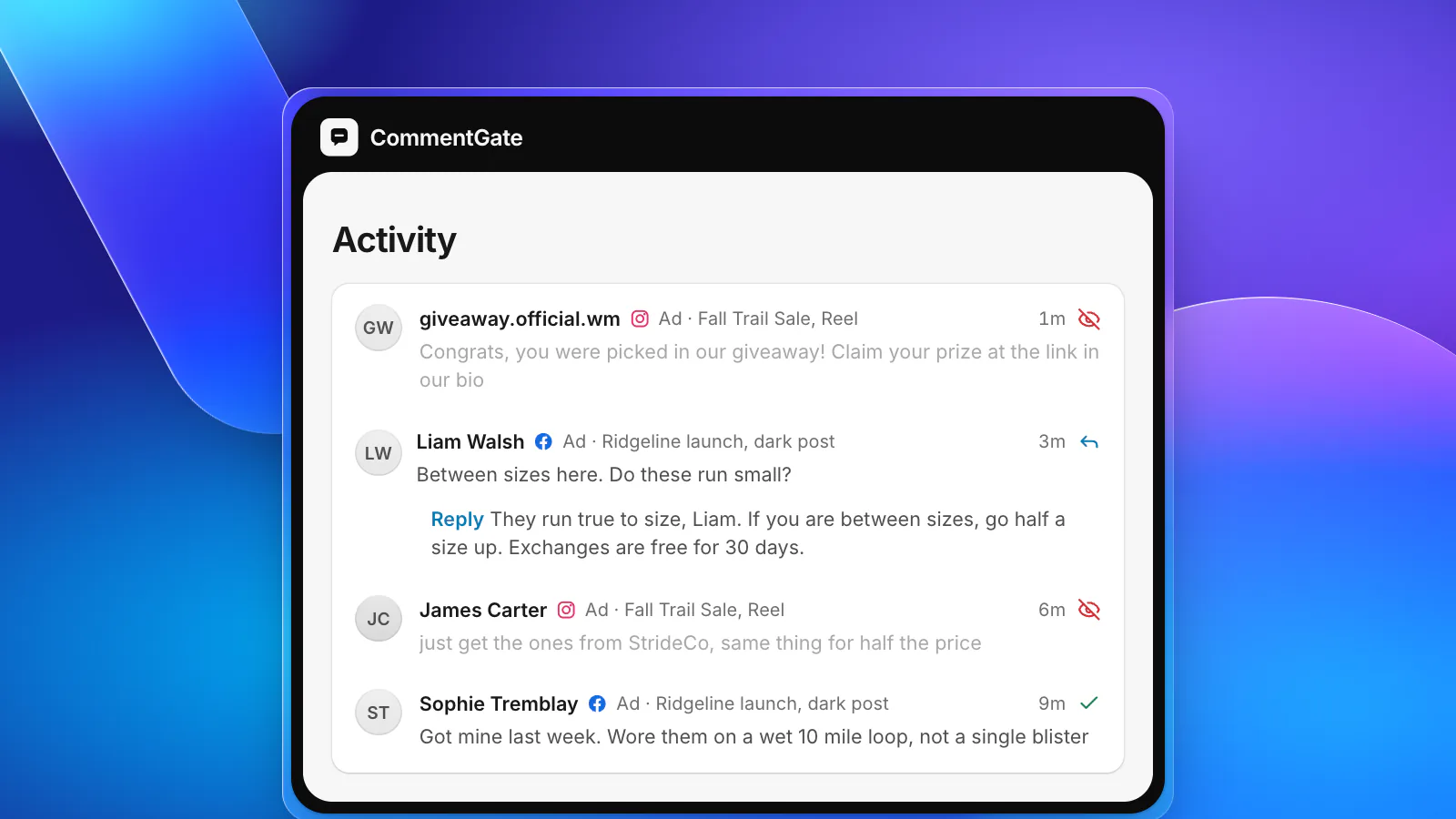
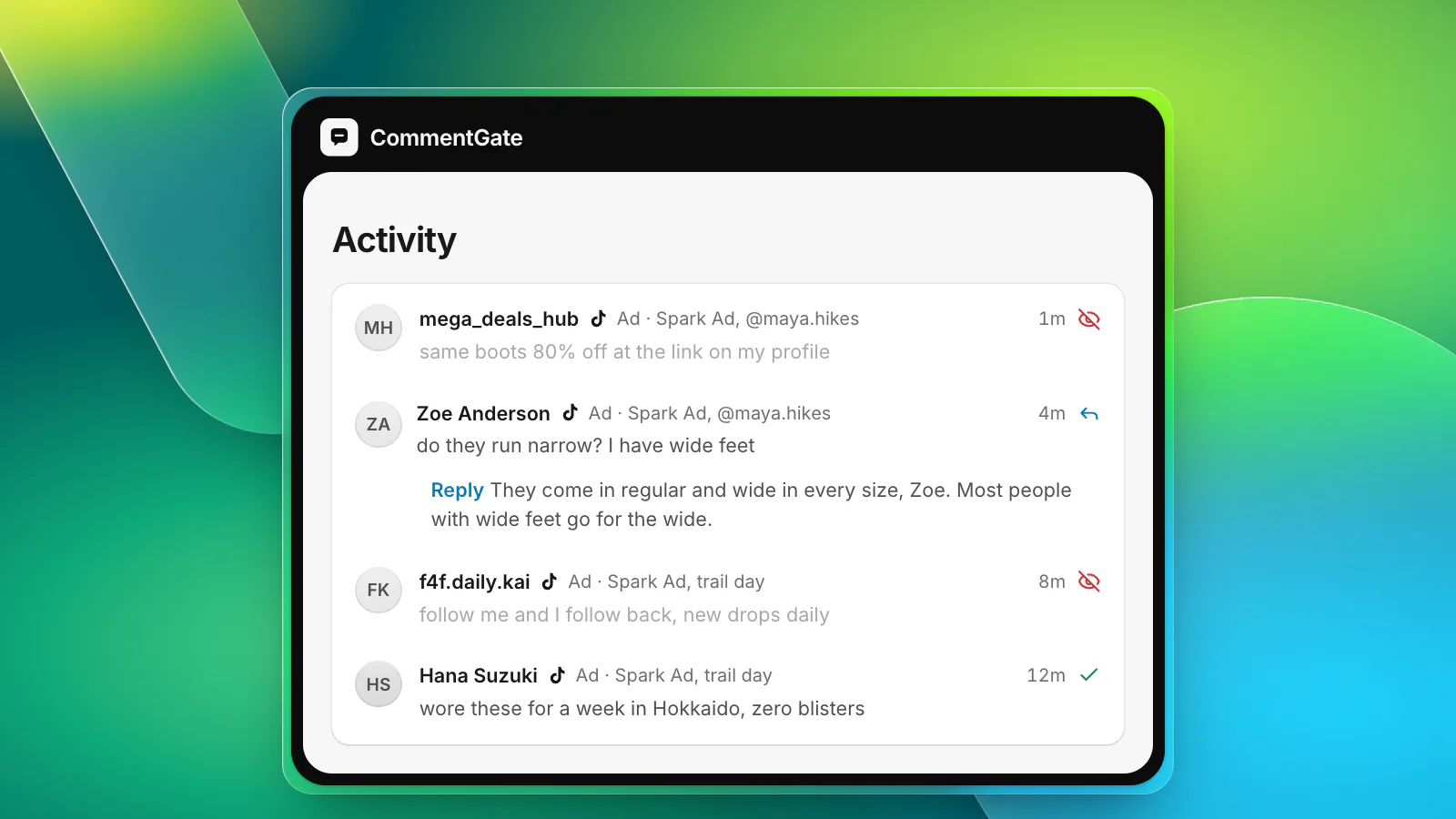
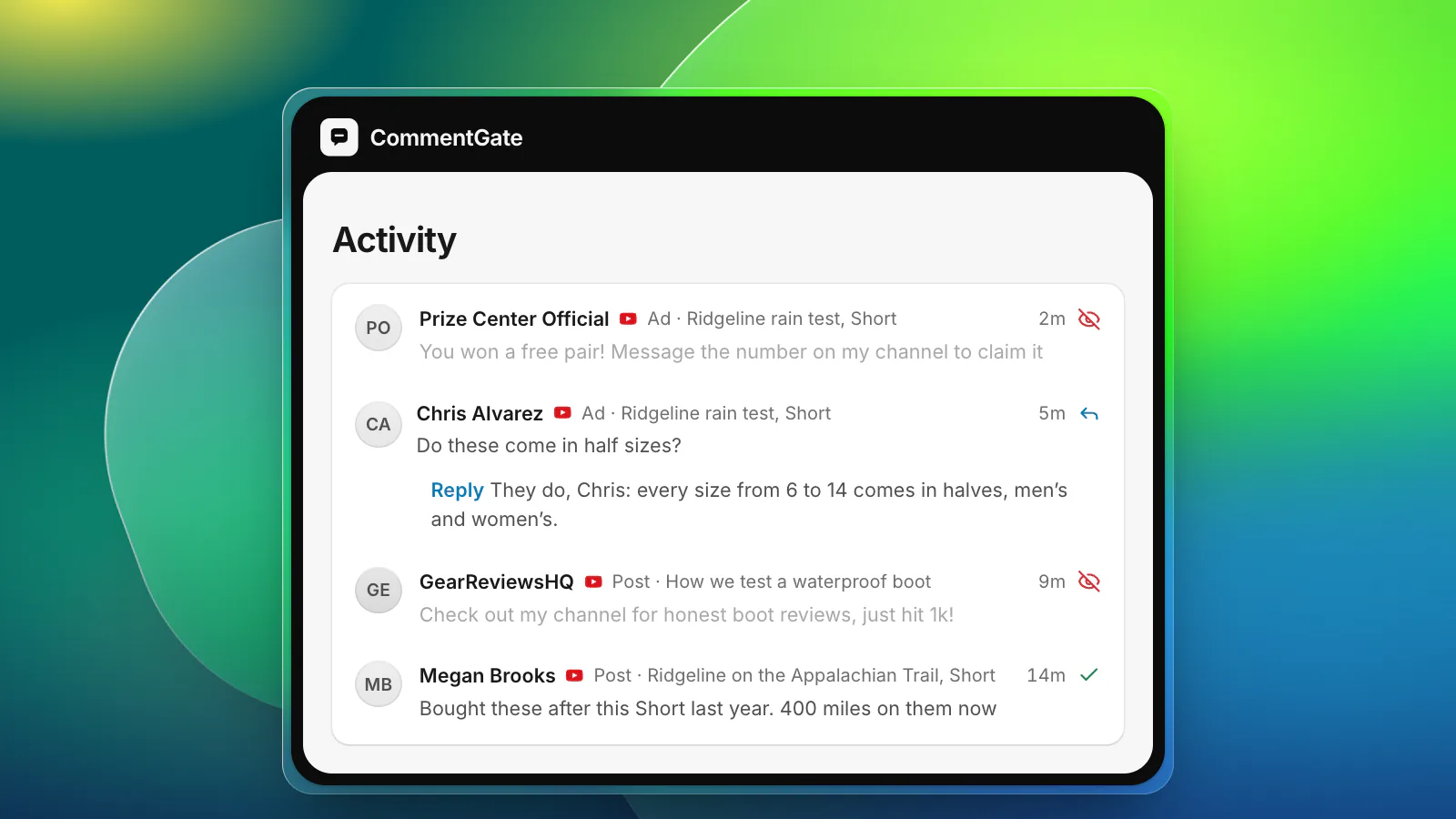
CommentGate connects to your Pages, profiles, channels and ad accounts, works out which posts belong to which ads, and brings every ad's comments into one list with the ad each one came from. Dark posts, promoted posts, Spark Ads, in-feed ads and Shorts ads all land in the same place.
- Facebook and Instagram: comments are read and handled within seconds.
- TikTok: Spark Ads on your connected account arrive within minutes; other ads are checked regularly, and your blocked words go to TikTok itself, where they act instantly.
- YouTube: channels are checked about every 5 minutes, and anything unwanted is held for review.
- Threads: replies on Threads ads appear in the same list. Hiding and answering them from CommentGate needs an extra Meta permission you grant; until then, act on them in Ads Manager.
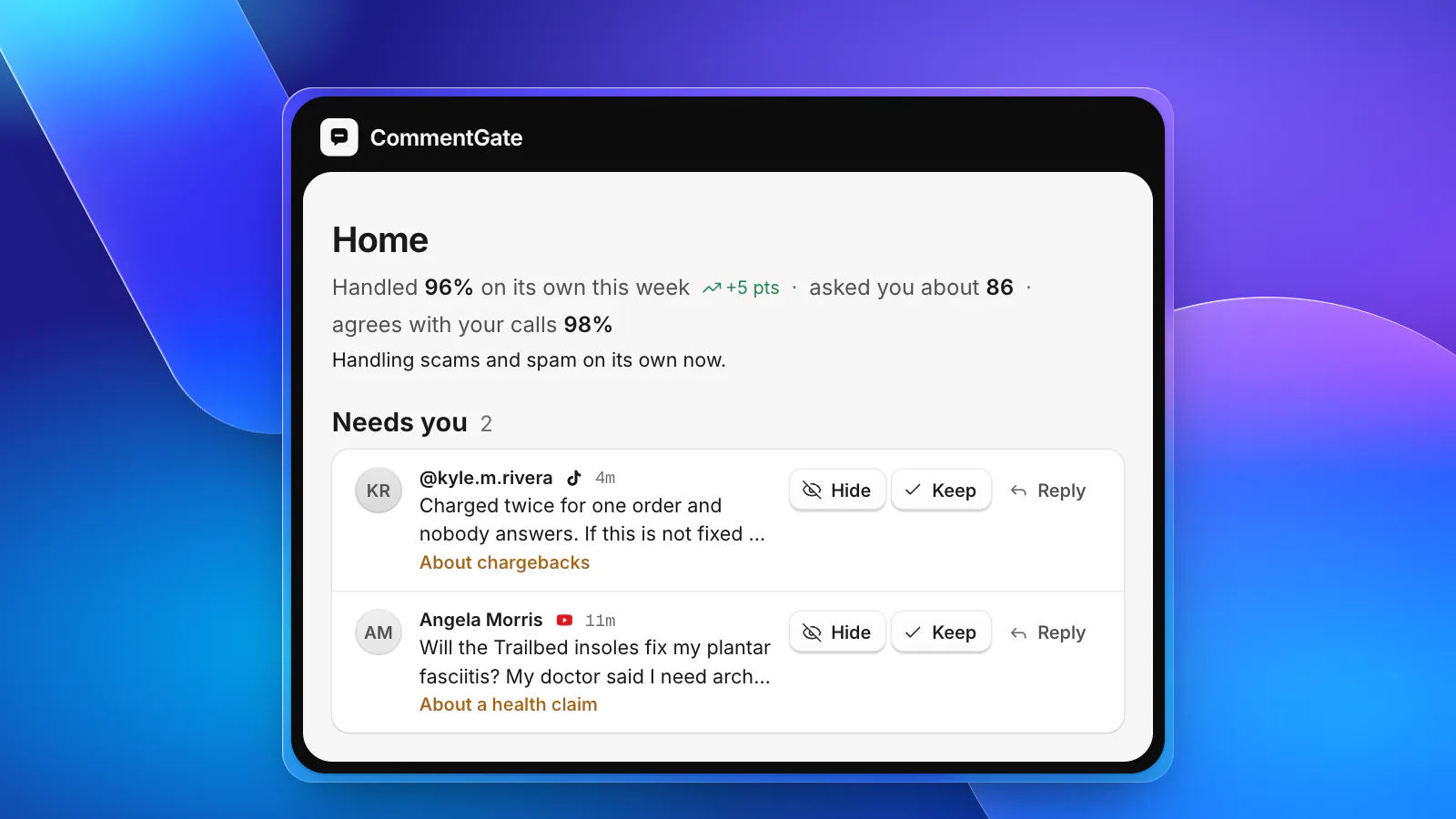
The switches are the same everywhere: scams, spam, hate and competitor plugs hidden, questions answered in your voice. Judgement calls, like a chargeback threat under a TikTok ad or a health claim under a YouTube ad, wait for you in Needs you. See how media buyers and dropshippers use it, or every platform side by side.
Sources
- Meta Business Help Center: Manage comments on your ads in Meta Ads Manager
- Meta Business Help Center: Best practices for comment moderation on your ads
- Meta Business Help Center: Manage comments with Moderation Assist on Facebook
- Meta for Developers: Instagram ads get started
- Meta for Developers: Instagram post moderation
- Meta for Developers: Advantage+ catalog ads, get started
- Meta for Developers: Threads Advantage+ catalog ads
- Meta for Developers: IG Comment replies
- TikTok Ads Help: Spark Ads
- TikTok Ads Help: About Comments Manager in TikTok Ads Manager
- TikTok Ads Help: How to add a Blocked Word in TikTok Ads Manager
- Google Ads Help: Shorts ads FAQ
- Google Ads Help: About Performance Max video assets
- Google Ads Help: About auto-generated video ads