Facebook Page comment settings every brand should check
Blocked words, the profanity filter, Moderation Assist, who can comment, and banning: where each Facebook Page setting lives, what it does to your ads, and the order to set them up in.
Guides 7 min read
On this page
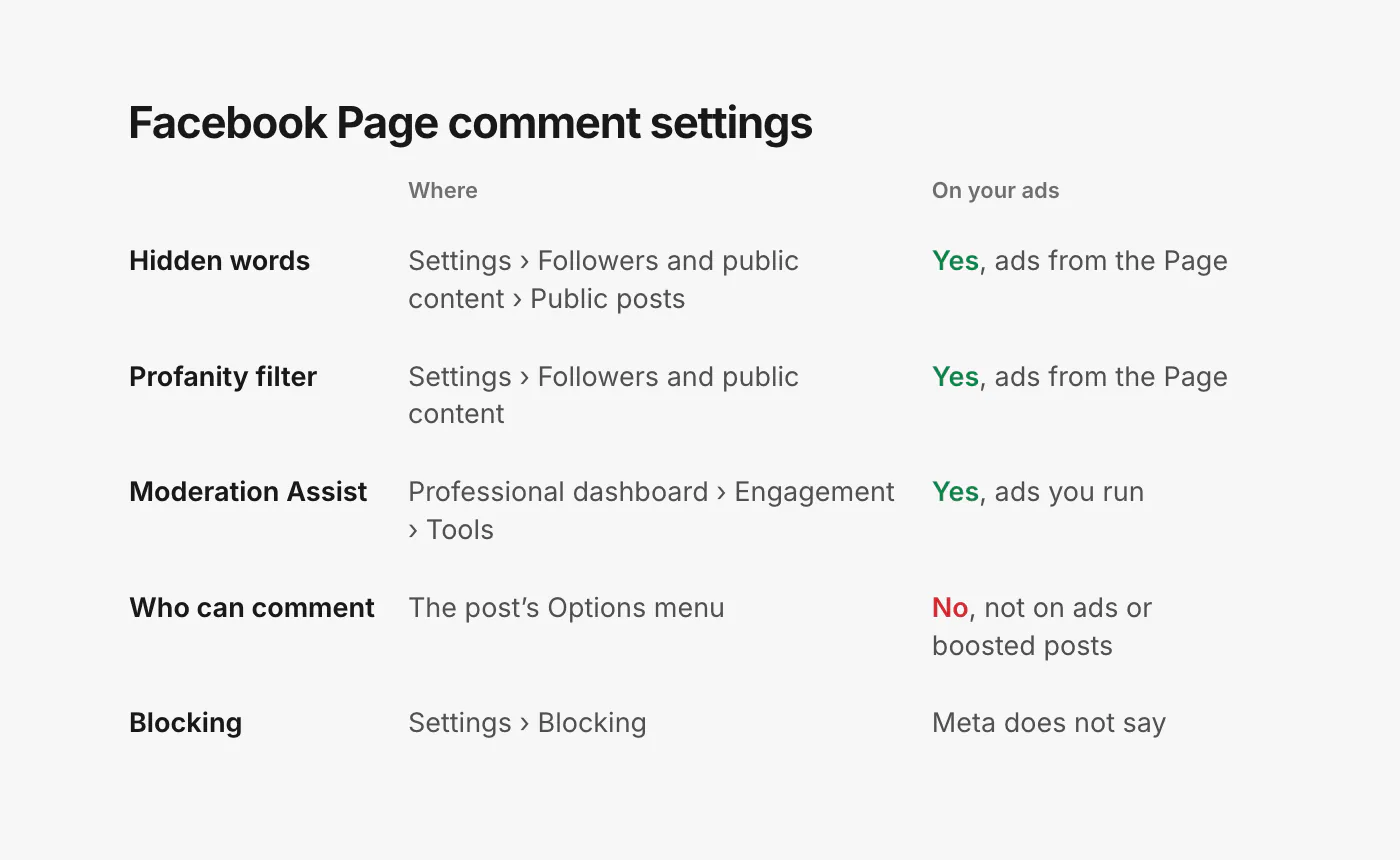
Most Facebook Pages run on whatever settings they had the day someone created them. For a brand that runs ads, that is a problem: several Page settings reach every ad the Page runs, and a few of them are off until you turn them on.
This is a walkthrough of the settings worth checking, where each one lives today, and what it does and does not do for your ads. Set aside twenty minutes and do them in order.
Before you start: check your access
Every step below needs Facebook access to the Page. Meta is specific about this: "If you have Facebook access to a Page, you can switch into the Page on Facebook and hide comments on Page posts. If you have task access to a Page, you can’t hide comments on Page posts" (Facebook Help: hide a comment on your Page). If your agency or a freelancer only has task access, they can work from other tools but not from these settings.
Every settings path starts the same way: log into Facebook, click your profile photo in the top right, click See all profiles and switch into the Page, then click the Page's profile picture and choose Settings & privacy, then Settings (Meta Business Help: comment moderation for Pages).
1. Hide comments containing certain words
Your own list of words that should never appear under your posts or ads.
- In Settings, click Followers and public content.
- Click Public posts.
- Click Hide comments containing certain words from your Page.
- Add words, phrases or emojis, separated by commas, and click Save.
Meta's ads help says these filters "are set at the Page level and extend to ads from the Page" (Meta Business Help: best practices for ad comment moderation), and that emojis are "treated like a text character", so a list can include the emoji a scam network keeps using.
What belongs on it: competitor brand names, the domains of lookalike stores, and the handles of accounts that copy yours. What does not: common words your customers use. "Scam" is the classic mistake, because "is this a scam?" is a buyer asking for a reason to trust you. Our blocked words builder helps you draft a list that stays out of your customers' way.
2. Turn on the profanity filter
- In Settings, click Followers and public content.
- Turn on the toggle next to Hide posts and comments with profanity, then click Save.
Meta describes the filter as blocking "different degrees of profanity", based on "the most commonly reported words and phrases marked offensive by the community" (Meta Business Help: about moderation for Pages). Like the word list, it "extends to any ads published by your Page".
Whether you want it on depends on your audience. A streetwear brand may be happy with some swearing under its posts; a baby products brand probably is not. Either way, decide on purpose.
3. Keep comment ranking on
Show most relevant comments first is on by default, in the same Followers and public content screen. Leave it on. Meta notes that "the comment ranking setting must be turned on in order to sort hidden comments" (Facebook Help: hide a comment on your Page), and sorting hidden comments is how you check what your filters caught (step 7).
4. Set up Moderation Assist
Moderation Assist is the most useful setting most brands have never opened. It lives in the Professional dashboard: go to the Engagement tab, tap Tools, then Moderation Assist, and tap Add in the Manage comments section (Meta Business Help: Moderation Assist).
It hides comments based on who wrote them or what they contain. The criteria include commenters who:
- Do not have a profile picture.
- Do not have any friends or followers.
- Have a Facebook account less than 1 week old.
- Have had at least 3 comments reported, deleted or hidden by an admin in the past 30 days.
And comments that contain a link, a link to a specific site, an image, a video, custom keywords (with variations, so "tree" also catches "tr33" and "t.r.e.e."), or profanity.
Two details matter for brands. It "only hides comments made after you create the criteria", so it does not clean up what is already there. And it covers "comments on your Page, profile or ads that you run". The new-account and no-followers criteria are the ones that catch throwaway scam accounts, so start there. Its Activity Log shows what it hid and why, and Undo brings a comment back.
5. Decide who can comment on each post
For a single organic post, you can narrow who comments. Click Options in the top right of the post, then Who can comment on your post?, and choose Public, Established followers, Profiles and Pages you follow, or Profiles and Pages you mention. People outside that group "won’t see the Comment below the post" (Facebook Help: who can comment on your Page’s posts).
Read the line under it before you plan around it: "This feature is not available if your post is an ad or boosted post." It is a tool for a heated organic post, not for ads. For ads, the filters above and hiding are what you have; our post on turning off comments on Facebook ads covers why that is usually fine.
6. Block the people who keep coming back
In Settings, click Blocking, then Edit next to the list you want. You can add people, followers, apps or Pages (Meta Business Help: comment moderation for Pages). You can also block from a comment: hover over the commenter's name, click Options, and select Block.
A blocked profile can no longer see what you post on your Page, tag it, invite it to events or groups, message it, or find it in search, and it is removed as a follower (Facebook Help: block profiles from your Page). Block is for repeat offenders and scam accounts. For a real customer who is angry, answer instead.
While you are in settings, open Page and tagging and check Who can post on your Page? (Everyone or Only me). For most stores, visitor posts are a second, unwatched comment section, and Only me is the tidier choice (Facebook Help: control what visitors can post).
7. Check what your filters hid, every week
Filters make mistakes in both directions. On any post, click Most Relevant at the top of the comments and pick Hidden by This Page. You will see comments you hid, plus "comments that are automatically hidden by the profanity filter and comments that have words that you chose to block" (Facebook Help: hide a comment on your Page). Click Unhide on any real customer. This view is only available from a computer or the Facebook app for Android.
Remember what hiding does: the comment "will still be visible to the person who wrote it and their friends" and "hidden for everyone else". That is why hiding beats deleting for spam: the person who posted it gets no signal to try again.
What the settings do not cover
Set up properly, these settings take care of swearing, your worst keywords and a good share of throwaway accounts. Three gaps remain.
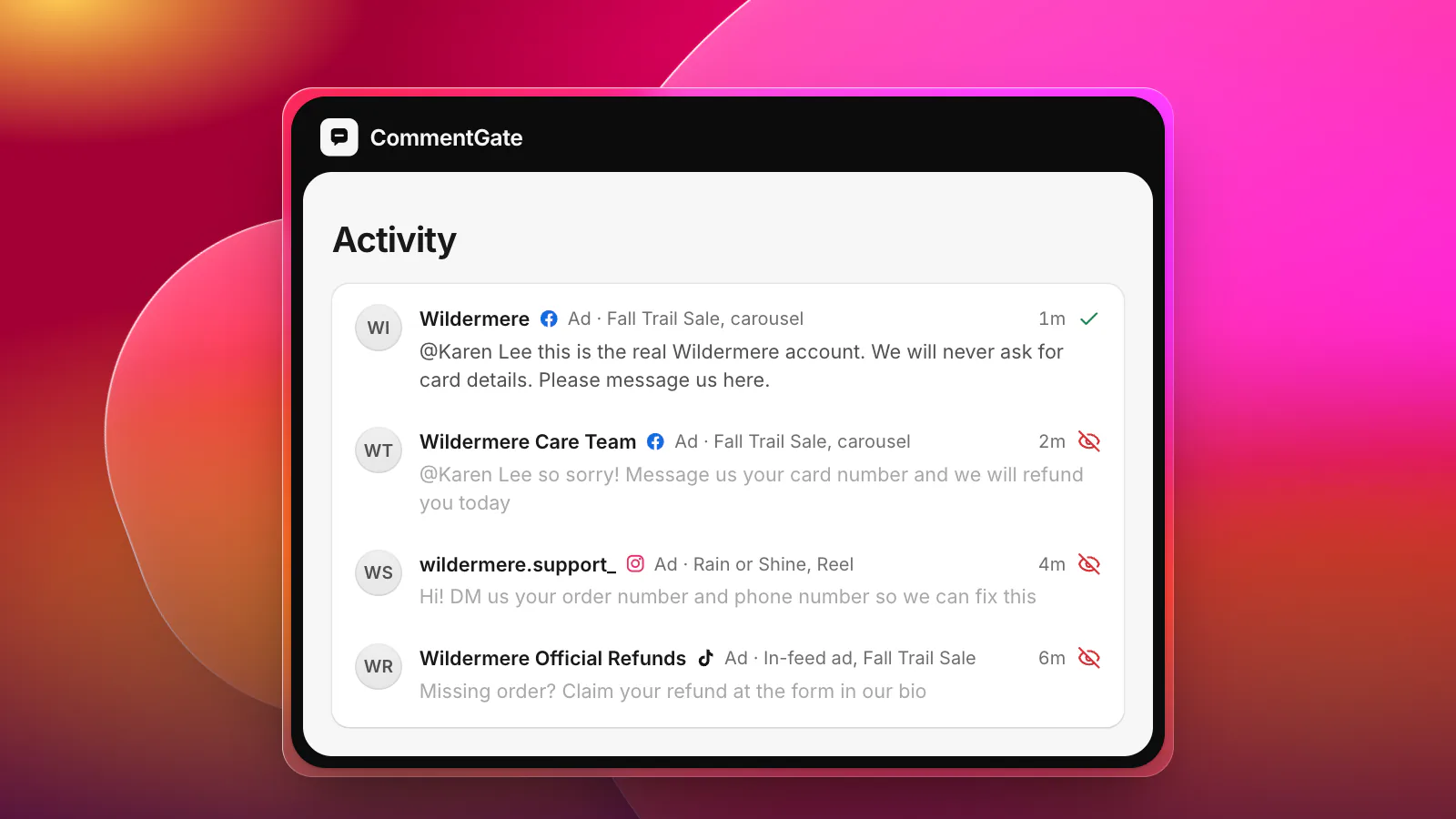
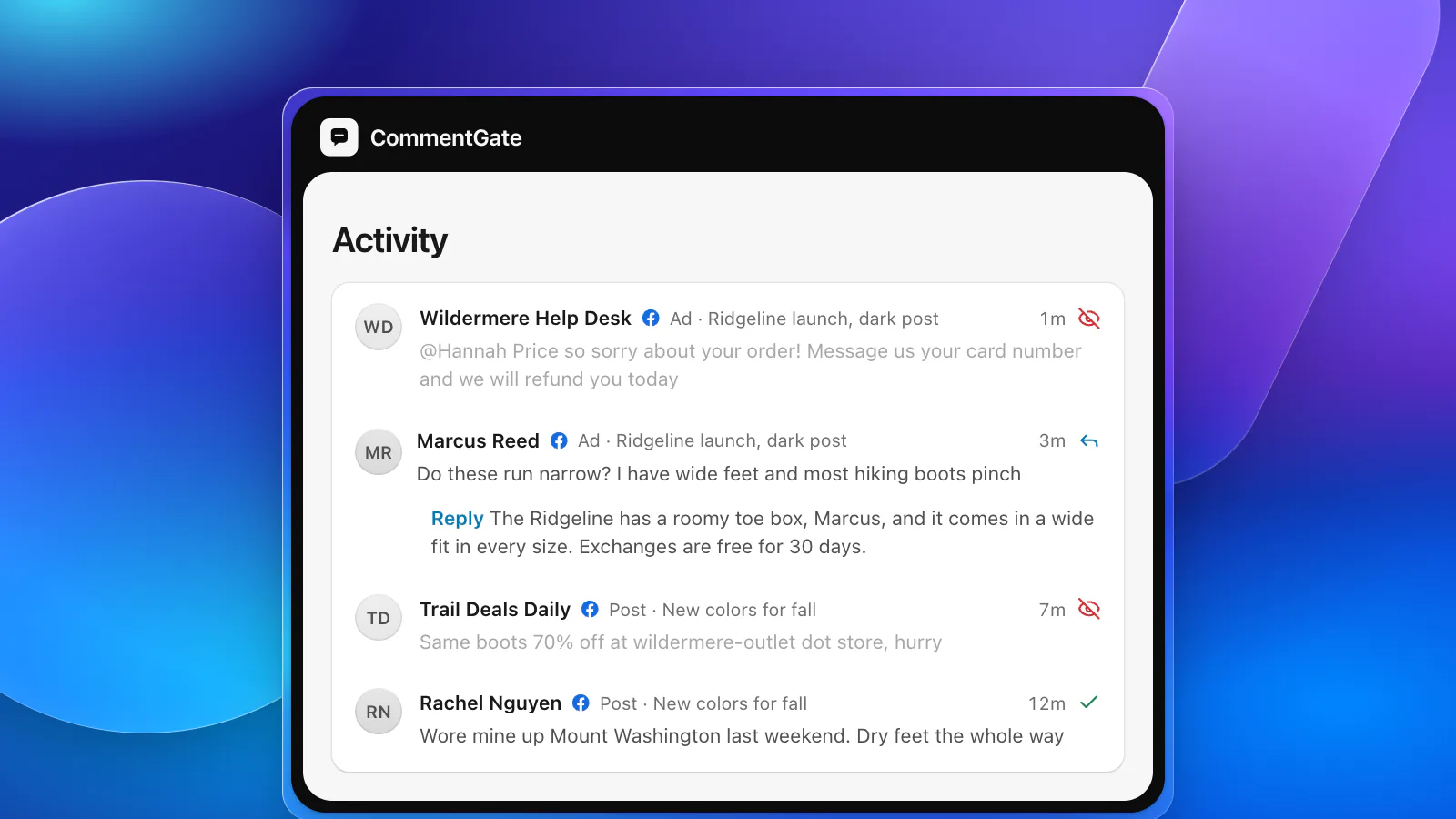
Scams written in plain words. A fake support reply ("So sorry about your order! Message us your card number and we will refund you today") contains nothing a word list can safely block. What gives it away is who is saying it and to whom.
Ads you never see. Ads built in Ads Manager run on posts that never appear on your Page's timeline, so nobody scrolls past their comments. You find them one ad at a time in Ads Manager, through Manage Facebook comments (Meta Business Help: manage comments on your ads). Our guide to where ad comments live walks through every platform.
Questions. No setting answers "do these run narrow?" at 11 p.m. on a Saturday, and unanswered questions under an ad are lost sales.
How CommentGate covers the rest
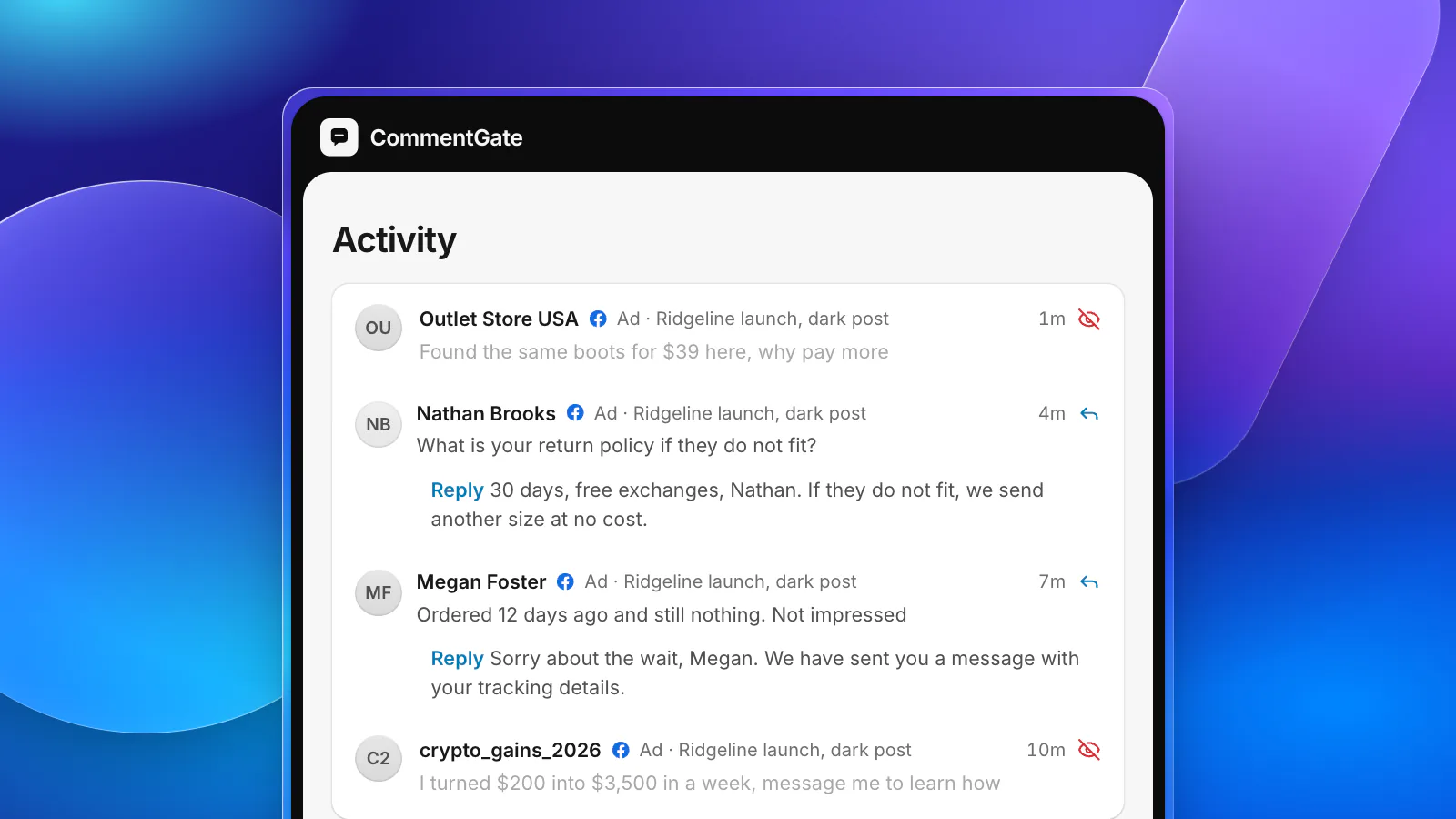
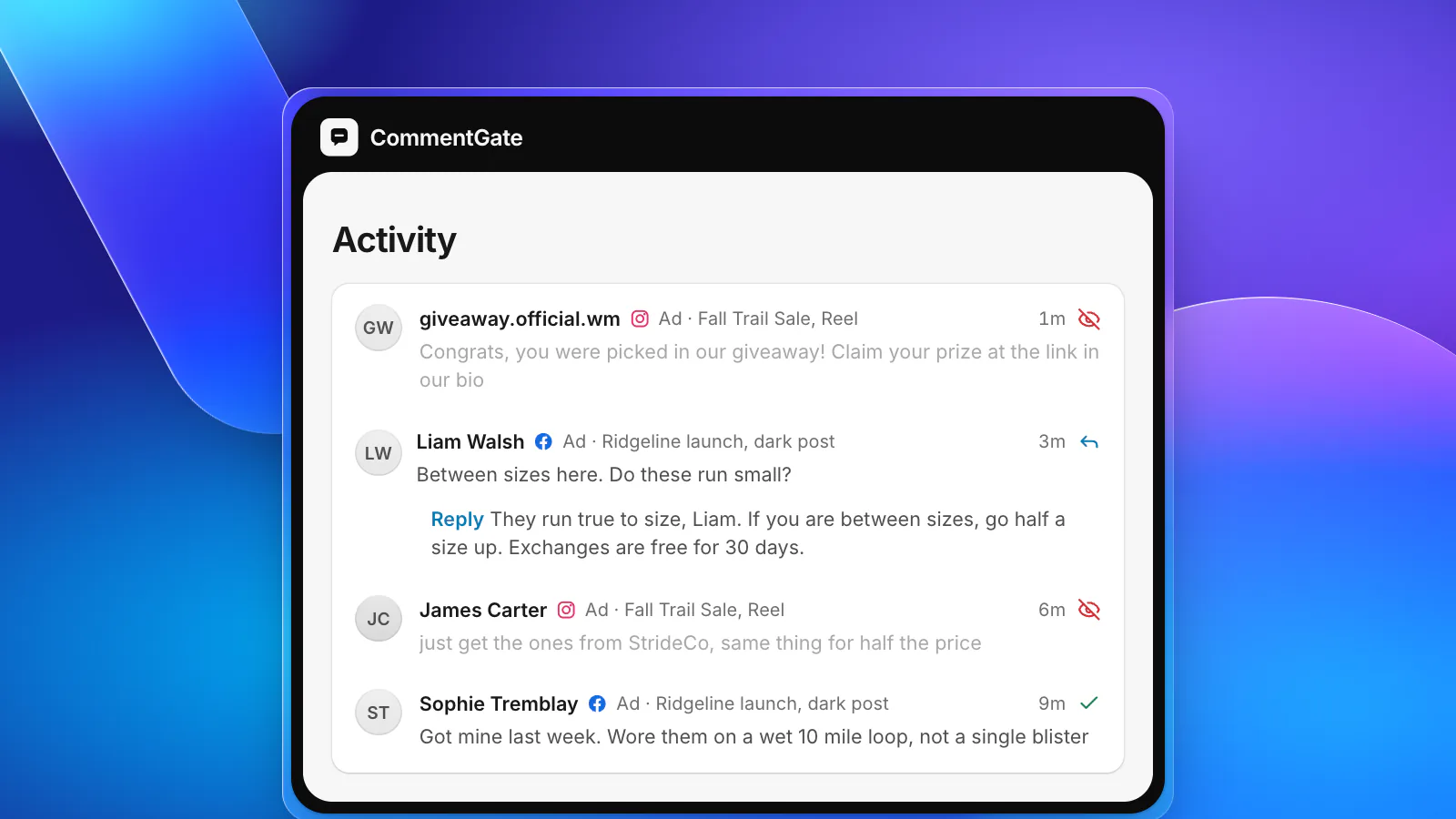
CommentGate connects to your Page, the Instagram account linked to it, and your ad accounts, so every comment on every post and ad lands in one list, dark posts included. Keep your Page settings on: they act first, inside Facebook. CommentGate reads what gets past them.
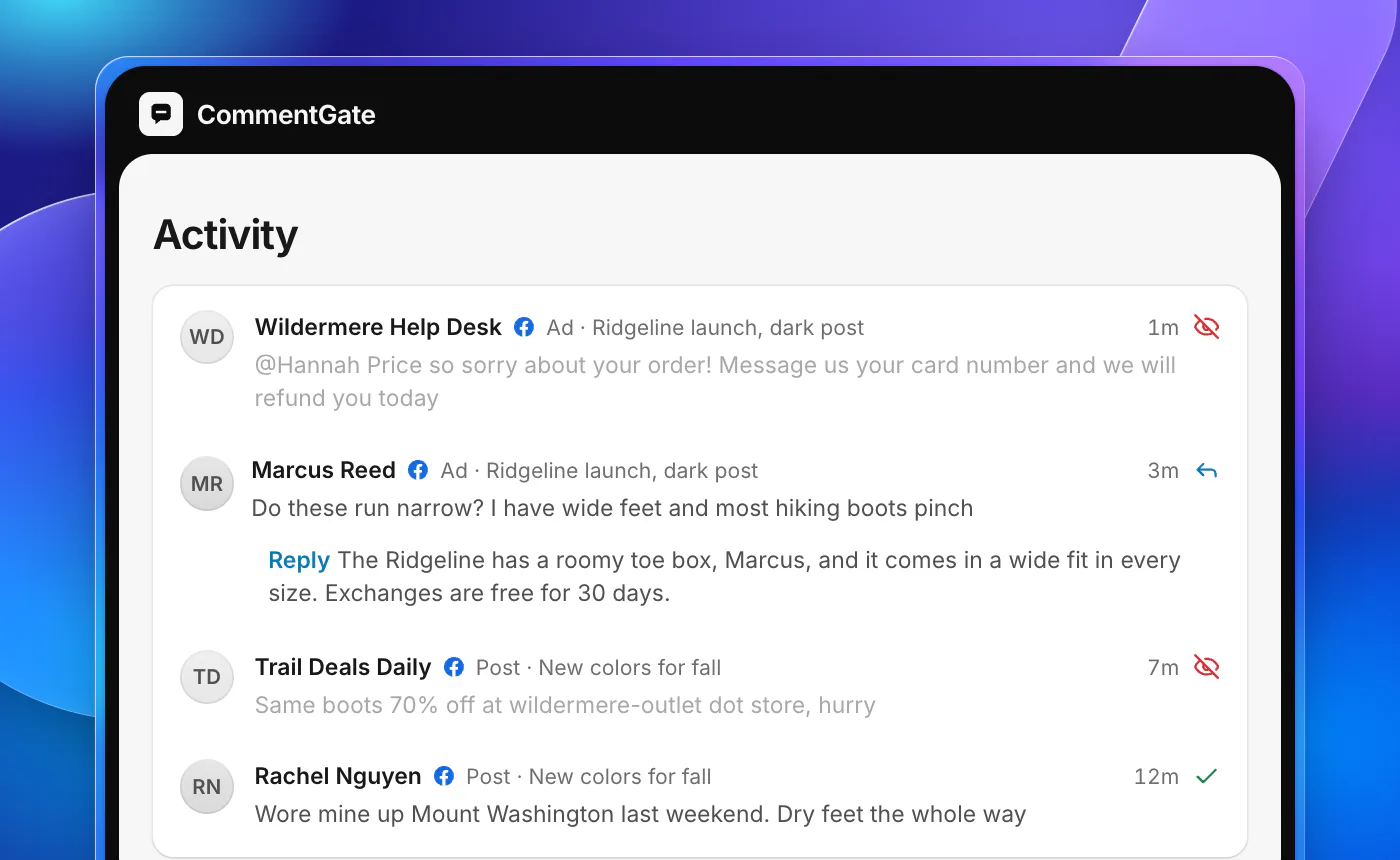
- Scams, spam, hate and competitor plugs are hidden within seconds, including the fake support replies and fake giveaway winners a word list cannot catch. See scam protection.
- Questions get a drafted reply in your voice, which you approve or let send on its own.
- Hiding, never guessing. A customer threatening a chargeback or reporting a defect is not hidden; it waits for you in Needs you with a one-line reason.
- Everything can be undone, and CommentGate learns from every comment you unhide or keep.
The same switches cover Instagram, Threads, TikTok and YouTube. See what Meta allows on each surface, or how the agency playbook handles Page access for clients.
Sources
- Meta Business Help Center: Manage comment moderation for Facebook Pages
- Meta Business Help Center: About moderation for Facebook Pages
- Meta Business Help Center: Best practices for comment moderation on your ads
- Meta Business Help Center: Manage comments with Moderation Assist on Facebook
- Meta Business Help Center: Manage comments on your ads in Meta Ads Manager
- Facebook Help Center: Hide a comment from a post on your Facebook Page
- Facebook Help Center: Choose who can comment on your Facebook Page’s posts
- Facebook Help Center: Block or unblock profiles from your Facebook Page
- Facebook Help Center: Control what visitors can post on your Facebook Page