Can you turn off comments on Facebook ads? What you can and cannot do
Meta gives you no switch that turns comments off on a Facebook ad. Here is what it does give you, how that compares with Instagram, TikTok and YouTube, and why a quiet, well-kept comment section beats an empty one.
Guides 6 min read
On this page
Sooner or later every advertiser has a day when they want the comments gone. A competitor's fans have found your ad, a bot network is posting links, or one unhappy customer has started a thread that grows every hour. The obvious question is whether you can just switch comments off.
On a Facebook ad, the short answer is no. Here is what Meta does let you do, how the other platforms compare, and why the switch you want is usually the wrong fix anyway.
The short answer
Meta's help page on managing ad comments lists what you can do with comments on a Facebook ad: like them, reply to them, and use the menu next to each one to Hide comment or Report comment (Meta Business Help: manage comments on your ads). It opens by saying that "for most advertisers, anyone who can see your Facebook, Instagram or Threads ad can react to it or comment on it." It describes no setting that stops people commenting on a Facebook ad.
So the tools are about what happens after a comment arrives: hiding it, deleting it, blocking words before they show, and blocking the people who keep posting them.
What you can do instead
Hide comments
Hiding is the workhorse. On Facebook, a hidden comment "will still be visible to the person who wrote it and their friends" and "hidden for everyone else", and any replies under it are hidden with it (Facebook Help: hide a comment on your Page).
That is the right default for scams, spam and abuse. The person who wrote it sees nothing unusual, so they have no reason to come back louder, and the people deciding whether to buy from you never read it. You can find hidden comments again under Hidden by This Page and unhide any of them.
Block words and turn on the profanity filter
Facebook Pages have two filters that act before a comment is seen:
- Hide comments containing certain words. Your own list of words, phrases or emojis, in the Page's settings under Followers and public content, then Public posts.
- Profanity filter. The toggle Hide posts and comments with profanity, in the same place (Meta Business Help: comment moderation for Pages).
Both apply to ads. Meta says these filters "are set at the Page level and extend to ads from the Page" (Meta Business Help: best practices for ad comment moderation). Comments they catch show up under Hidden by This Page, so you can check them and bring back anything that was a real customer.
Delete comments
Deleting removes the comment from the post for everyone, including the person who wrote it. It is permanent, and a real customer who sees their complaint vanish tends to post a second, louder one. Save it for things that must go: personal information, threats, or content you will report.
Block and report people
When the same person keeps coming back, block them from the Page's Blocking settings. Once blocked, a person "can no longer see things you post on your timeline" or start a conversation with your Page (Meta Business Help: about moderation for Pages). Report comments or accounts that break Meta's rules, especially impersonators; our guide to fake support accounts covers where.
Pause the ad
If an ad's comments have become the story (a pricing mistake, a product problem), pausing the ad is the one way to stop new people from arriving. It is a business decision, not a moderation one: fix the thing people are angry about, answer the thread, and relaunch.
How other platforms handle it
The other platforms draw the line in different places.
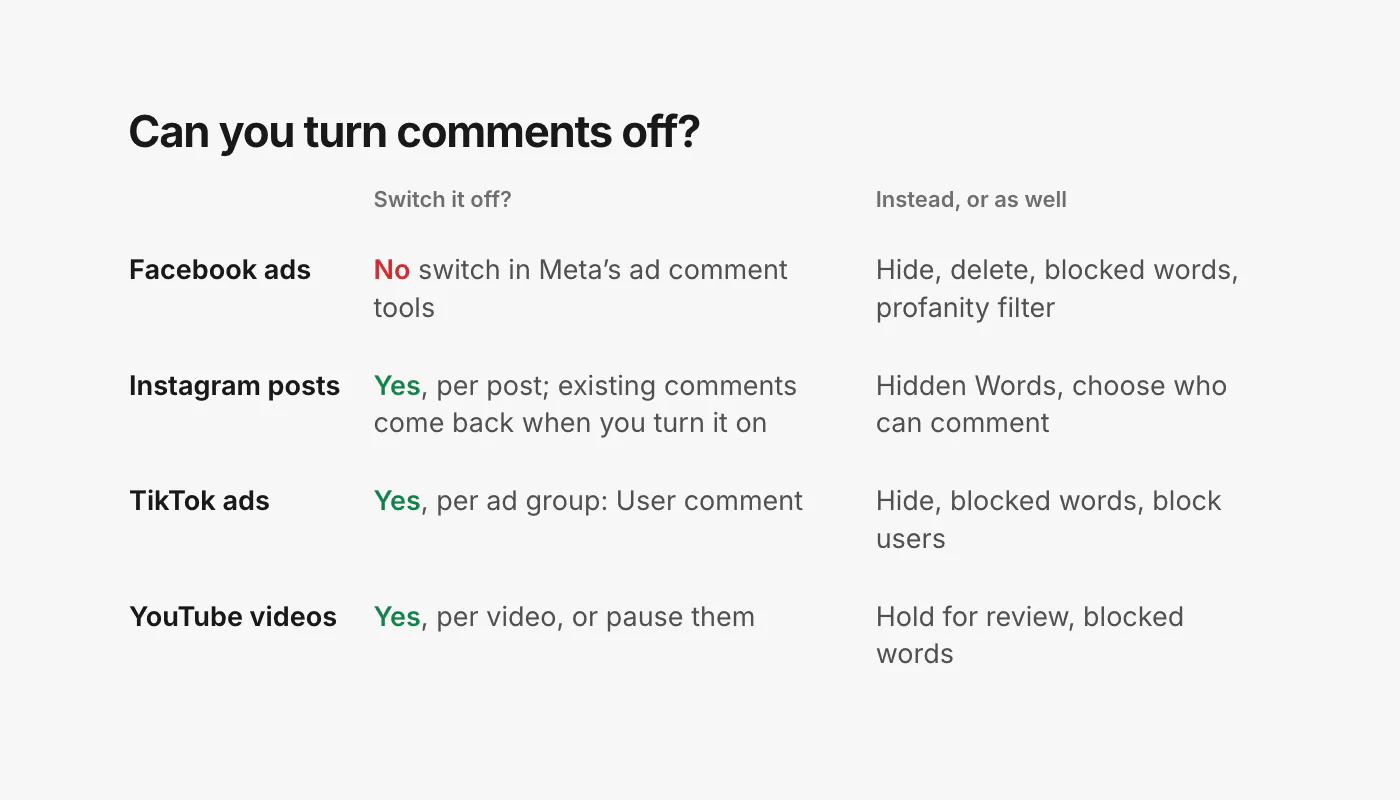
- Instagram. You can turn off commenting on an individual post. When you do, "any comments that are currently on your post will be hidden", and turning it back on restores them (Instagram Help: turn comments on or off). You can also limit who comments to people you follow or your followers (Instagram Help: hide comments).
- TikTok ads. TikTok Ads Manager has a User comment toggle on each ad group, under Placements and Advanced settings. TikTok itself adds a note: "We recommend keeping user comments on to help your ads achieve more impressions and conversions" (TikTok Ads Help: turn off comments for an ad group).
- YouTube. Comments can be turned on, paused or turned off for each video, and held for review before they show (YouTube Help: comment settings).
TikTok's note is the part worth taking seriously, whichever platform you run on.
Why you usually want comments on
Turning comments off feels safe, but it has costs that do not show up until later.
- Questions go unanswered in public. "Do these run small?" and "how long is shipping to Canada?" are asked under ads by people close to buying. One public answer helps everyone who reads it.
- Social proof disappears. Comments from happy customers do work no ad copy can. An ad with none looks new, or looks like it is hiding something.
- Closed comments look like a hiding place. Shoppers notice when a brand has shut the door, and some will look for reviews elsewhere, where you cannot answer.
- The problem moves. People who want to complain will do it in your DMs, on your organic posts, or on someone else's post. A complaint under your own ad is at least one you can see and answer.
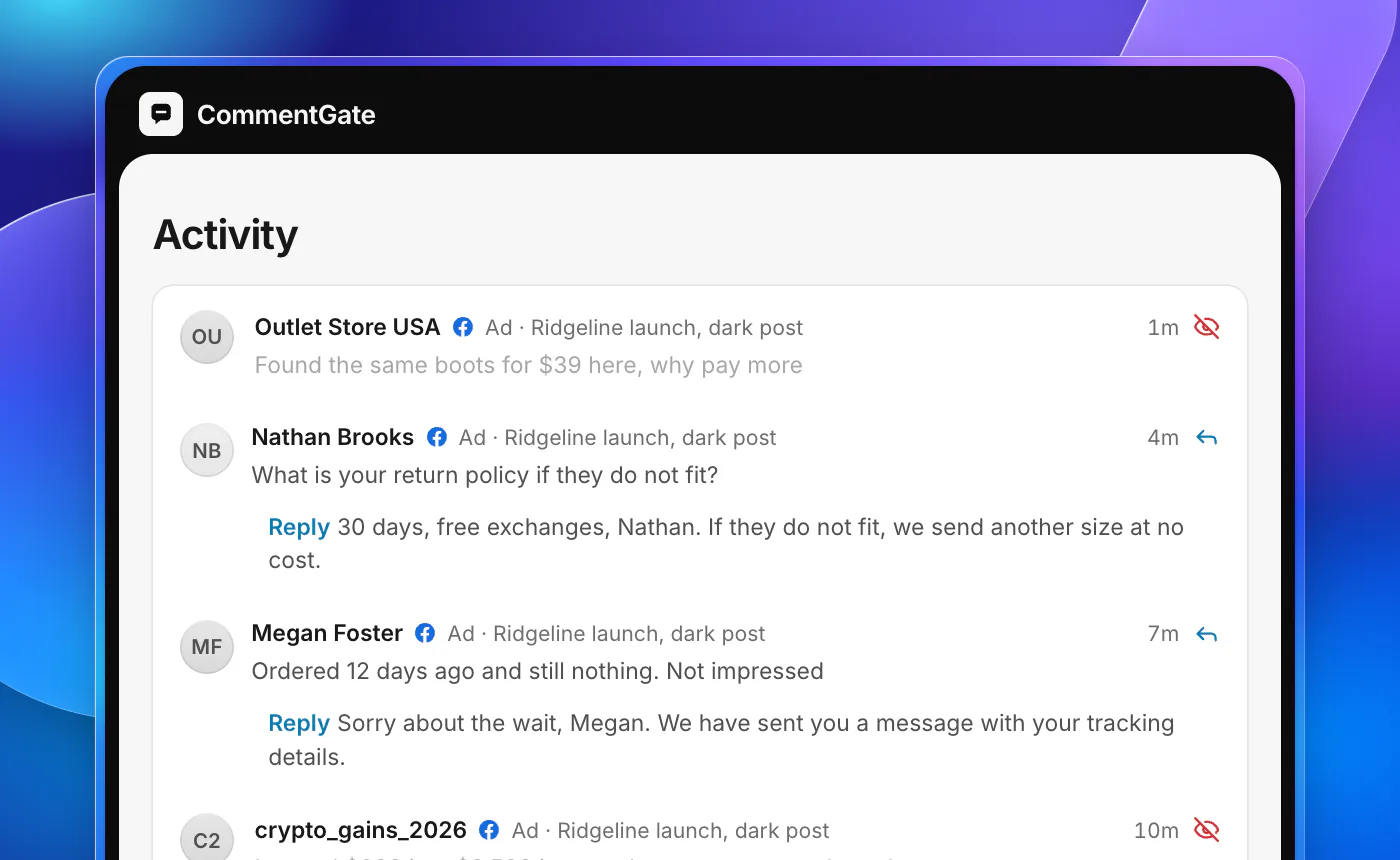
The better goal is a comment section that is kept rather than closed: scams and spam gone within seconds, questions answered, honest complaints answered calmly, and praise left where buyers can read it.
A routine for Facebook ad comments
- Turn on the profanity filter and add a short blocked-word list: competitor names, lookalike store domains, and words only scams use. Skip common words.
- Hide first, delete rarely. Hide scams, spam, hate and competitor plugs. Delete only personal information and content you will report.
- Answer questions and complaints. Keep replies short and specific, and move account details to a private message. On Facebook, a private reply is one message sent within 7 days of the comment (Meta: private replies).
- Check what the filters hid. Once a week, open Hidden by This Page on your busiest ads and unhide real customers.
- Block repeat offenders and report impersonators.
- Pause, do not close, when an ad itself is the problem.
The weak point is time. Filters act instantly, but everything else needs a person watching every ad, including the ones built in Ads Manager that never appear on your Page (why ad comments are hard to find).
Doing it without watching every ad
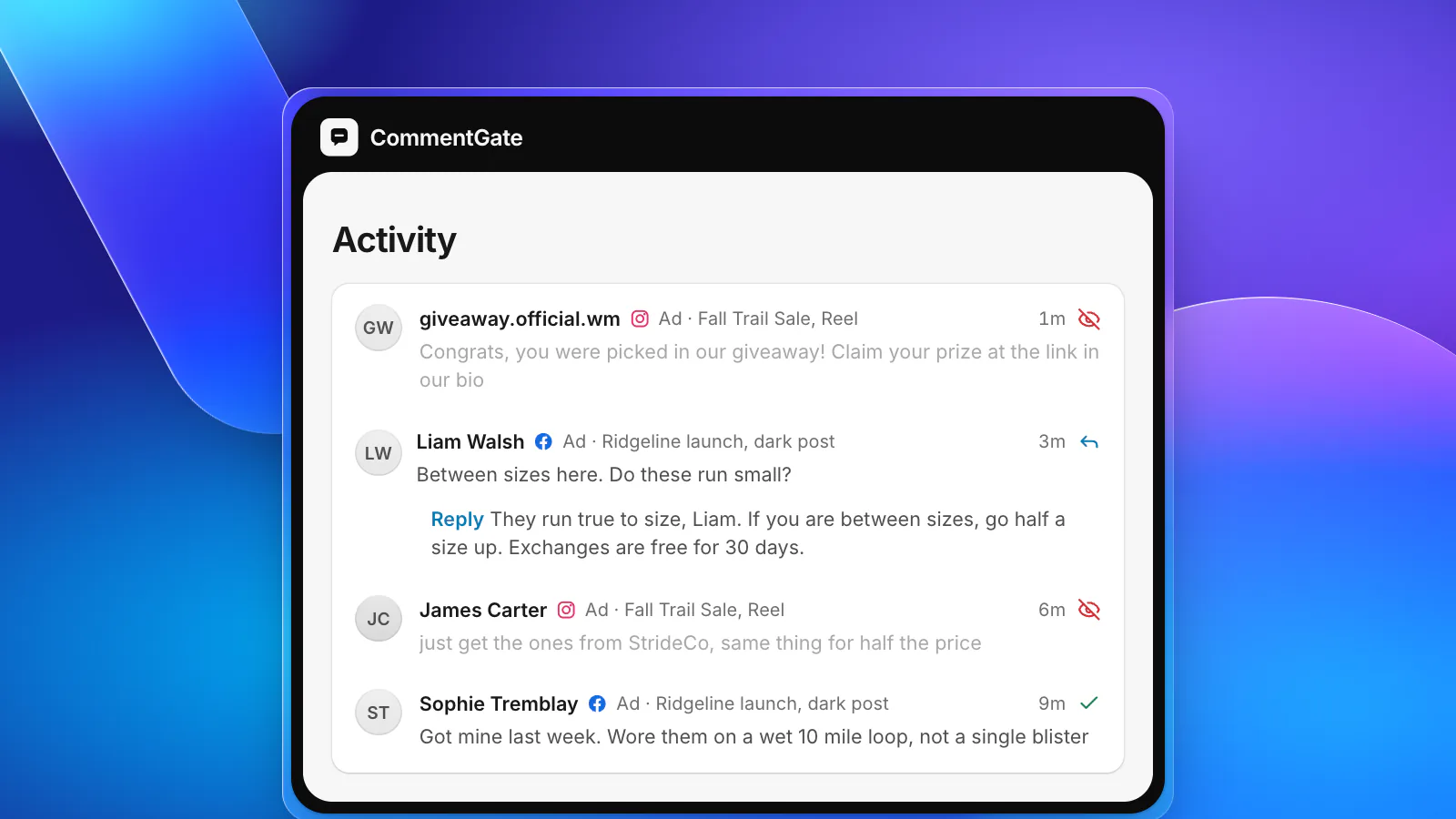
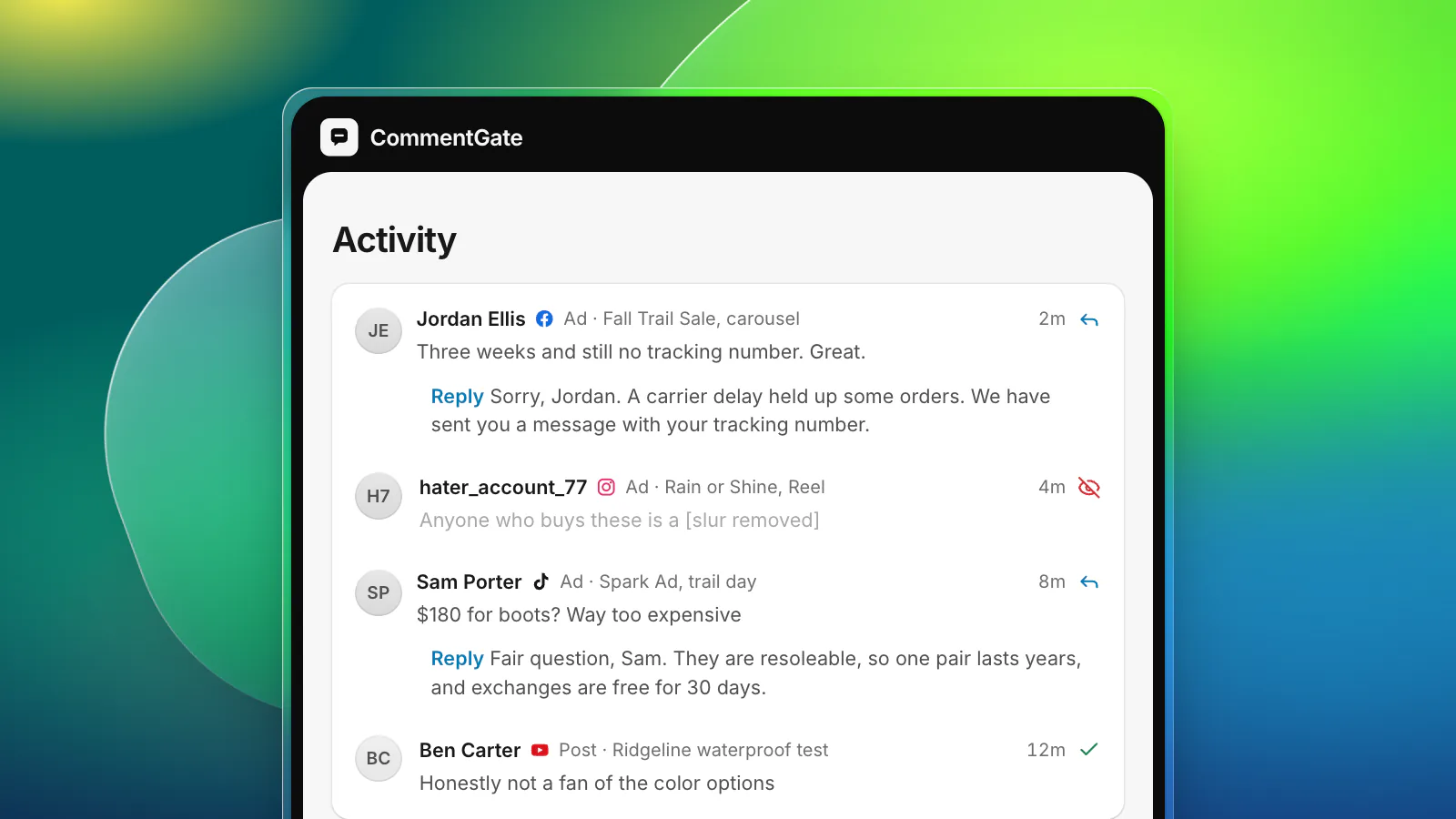
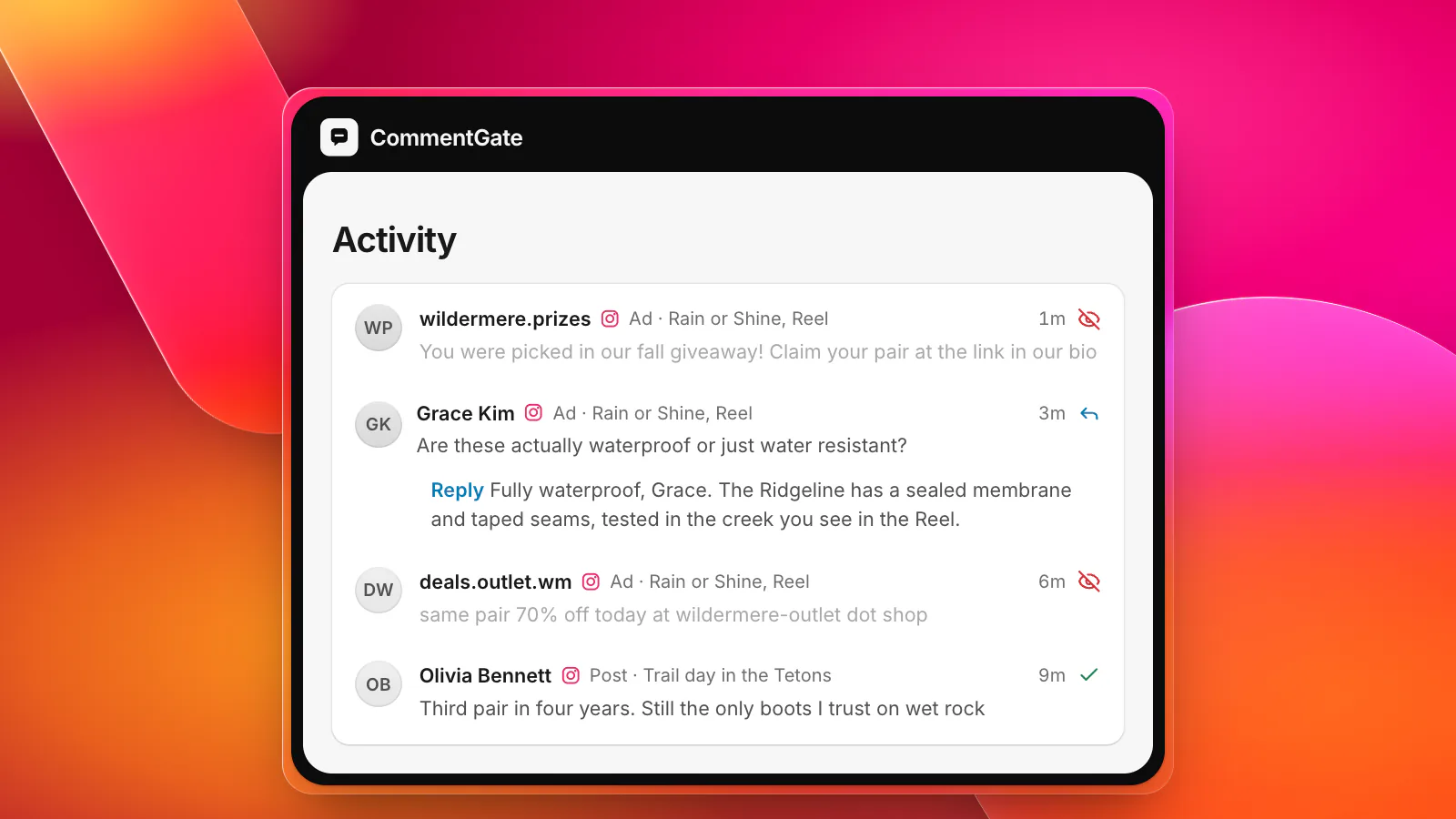
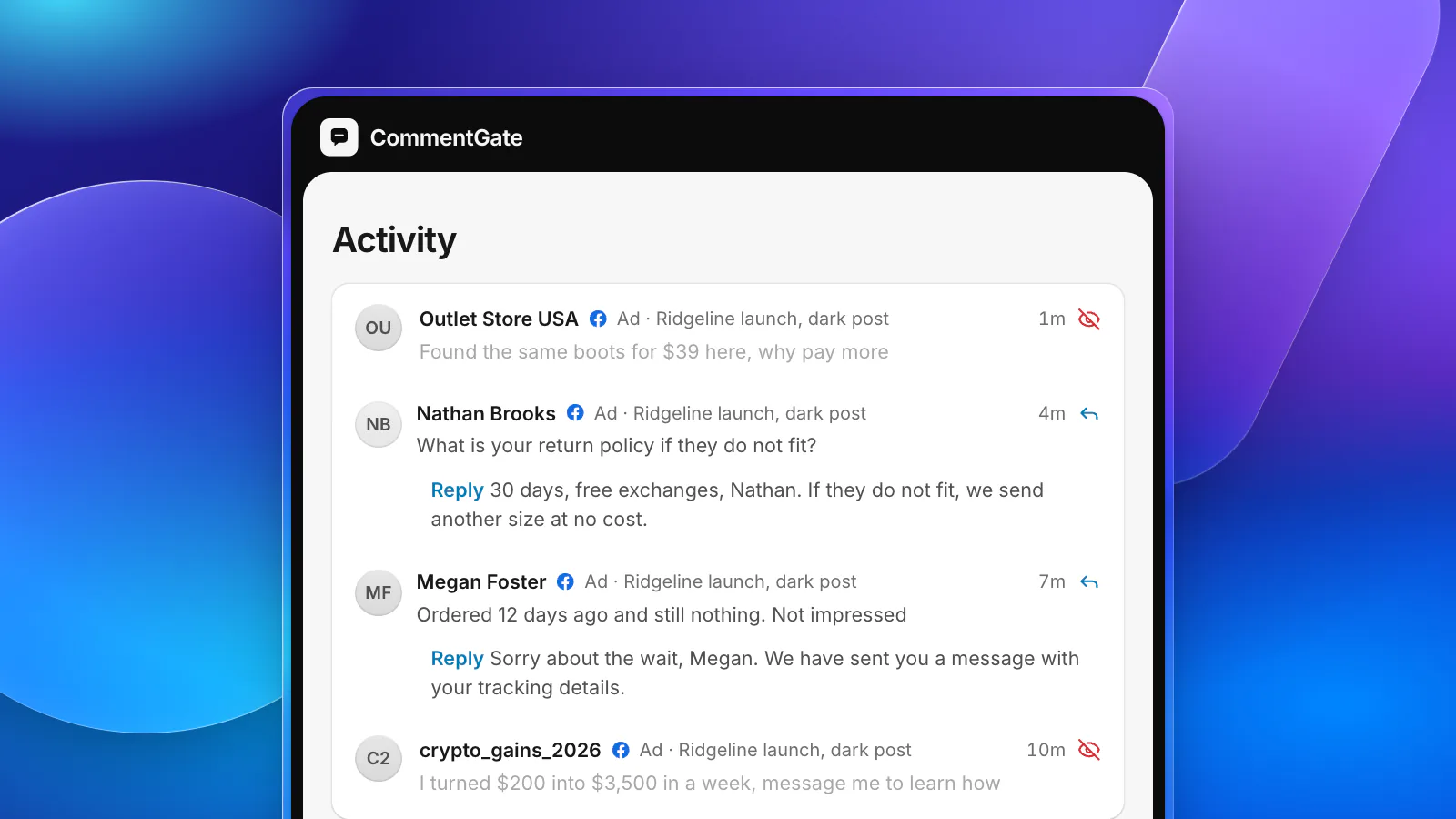
CommentGate connects to your Facebook Page, the Instagram account linked to it and your ad accounts, and reads every comment on every ad as it arrives, dark posts included. Scams, spam, hate and competitor mentions are hidden within seconds. Questions get a drafted reply in your voice that you approve, or that sends on its own once you trust it. Complaints are answered, not hidden, unless you decide otherwise; the switch to hide negative comments is off until you turn it on.
When something is a real judgement call, such as a customer threatening a chargeback under your ad, it waits in Needs you with a one-line reason instead of being guessed. And on a truly bad day, crisis mode holds every new comment for a person, on every account or only the ones you pick, and stops anything automatic until you say so. That is as close to "comments off" as you should need.
See what Meta allows on each surface, or how to decide which negative comments to hide and which to answer.
Sources
- Meta Business Help Center: Manage comments on your ads in Meta Ads Manager
- Meta Business Help Center: Best practices for comment moderation on your ads
- Meta Business Help Center: Manage comment moderation for Facebook Pages
- Meta Business Help Center: About moderation for Facebook Pages
- Facebook Help Center: Hide a comment from a post on your Facebook Page
- Instagram Help Center: Turn comments on or off for Instagram posts
- Instagram Help Center: Hide comments or message requests you don’t want to see
- TikTok Ads Help: How to turn off comments for an ad group
- YouTube Help: Learn about comment settings
- Meta for Developers: Private replies