YouTube comment settings for brand channels: held for review, blocked words, approved users and Shorts
A walkthrough of every YouTube Studio comment setting a brand channel should set on purpose: hold levels, who can comment, blocked words and links, hidden and approved users, defaults, and what changes for Shorts and ads.
Guides 6 min read
On this page
YouTube's comment settings are split between two places: settings on each video, and settings that cover the whole channel. Brands tend to set one and forget the other, and then wonder why a filter did nothing on the video that mattered.
This is a walkthrough of both, with the exact paths in YouTube Studio as of today. Our YouTube and Shorts moderation guide covers what to do with a comment once it arrives; this one is about the settings that decide where it lands.
Per video: On, Pause or Off
Every video has three comment states (YouTube Help: comment settings):
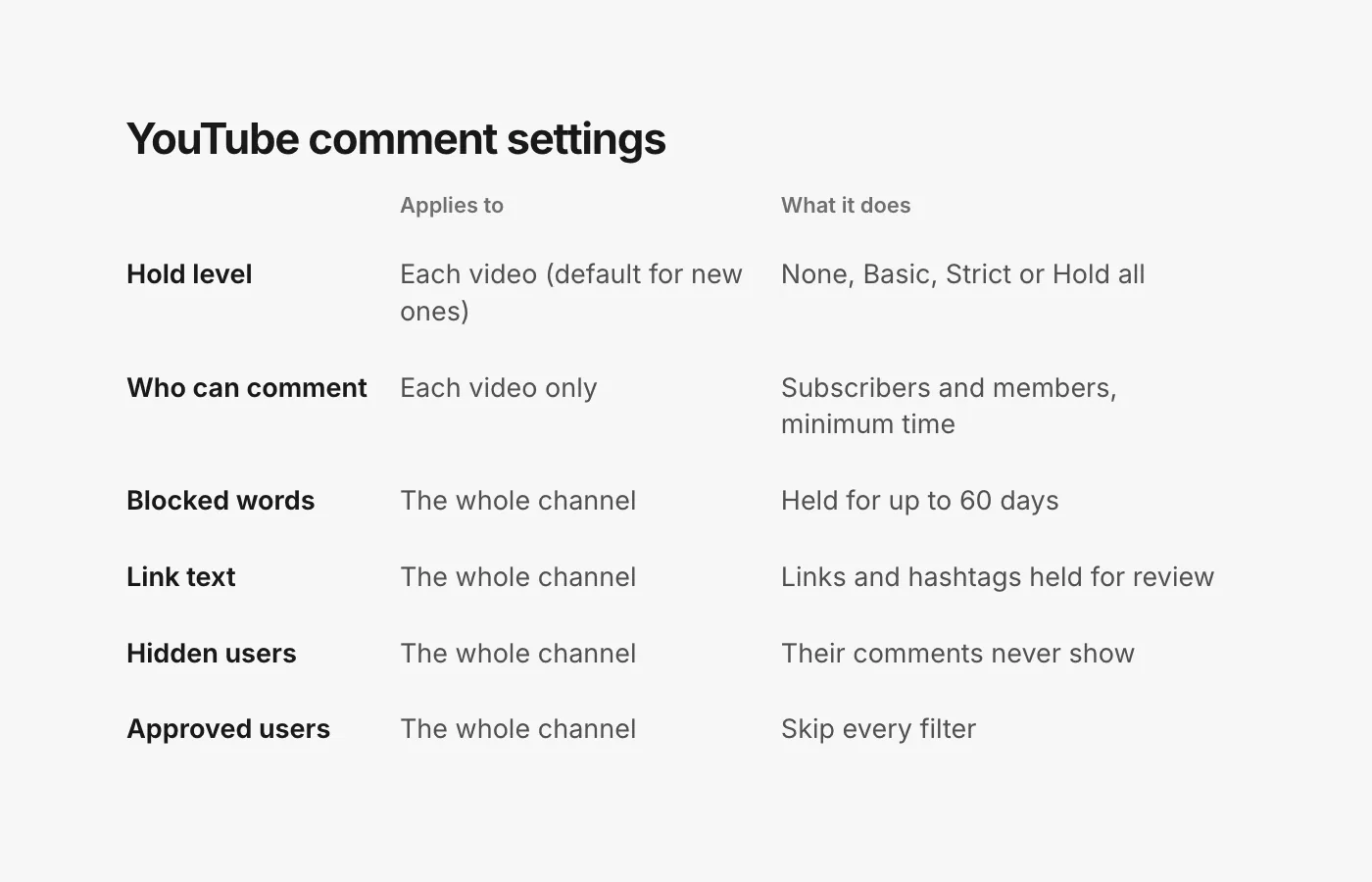
- On. Comments are allowed, and you choose whether some are held first (below).
- Pause. You "keep your existing comments, but you won’t receive any more on that video until you turn comments back on." YouTube suggests it for "a sudden increase in comments on a video".
- Off. Viewers "can’t comment on the video" and existing comments disappear from the watch page and from Studio. Turn comments back on and they reappear.
To change it: in YouTube Studio, select Content from the left menu, click the video's thumbnail, scroll and click Show more, and choose your settings under Comments and ratings, then Save (YouTube Help: choose comment settings).
For brands: Pause is the underrated one. When a video is suddenly in the middle of an argument, Pause stops the flood while keeping every comment that is already there, including the good ones.
Per video: how much to hold
With comments on, the Comment moderation dropdown sets how much YouTube holds back before anyone sees it:
- None: hold nothing.
- Basic: "Hold potentially inappropriate comments", which YouTube says covers comments "that may be spam, self-promotion, gibberish, or potentially inappropriate".
- Strict: "Hold a broader range of potentially inappropriate comments."
- Hold all: every comment waits for you.
Held comments are "Kept in YouTube Studio for up to 60 days" and "Aren’t publicly visible, unless you approve them" (YouTube Help: comment settings). YouTube is candid that "they may not always get it right", so a held comment is not necessarily a bad one.
For brands: Basic is a good default. Strict suits a channel that attracts a lot of spam. Hold all is for a launch-day video you plan to watch closely, because every real question also waits.
Per video: who can comment
Also under Comments and ratings, the Who can comment dropdown can limit comments to Subscribers and members, with a Minimum subscription time of any duration, 1 hour, 1 day or 1 week. This one is per video only: "Limiting comments to subscribers and members is not available at the channel-level", so use bulk edits to apply it to several videos.
For brands: a minimum subscription time of 1 day blocks the accounts created to swarm a single video. It also blocks every new viewer with a genuine question, so it is a bad-day setting, not a default.
Channel-wide: blocked words and links
These live in one place: in YouTube Studio, click Settings, then Community moderation, then Content controls (YouTube Help: channel moderation settings).
- Blocked words. Add words and phrases separated by commas. Comments "containing or closely matching these terms may be held for up to 60 days", and you review them on your Comments page under the Held tab (YouTube Help: comment settings).
- Link text. Holds comments and viewer posts that contain hashtags and URLs for review. Links from you, your moderators and approved users are not held.
Both apply to every video on the channel. YouTube's help is explicit: you cannot block words or links "from one specific video".
For brands: turn on link holding. On a product channel, a stranger's link is nearly always a knockoff store, a fake giveaway or self-promotion, and the few real ones can be approved. Keep the blocked words list short and specific: competitor names, lookalike store names, and the phrases your spam keeps repeating.
Channel-wide: hidden users and approved users
Hidden users let you "hide comments from specific commenters across all videos on your channel". To hide someone, find one of their comments and select More, then Hide from channel. In Studio, you manage the list under Settings, Community moderation, User management, in the Hidden users box (YouTube Help: hide users).
Know the trade-off: "If you hide someone, they aren’t notified", their past comments disappear from your videos, and "Comments from hidden users don’t show in YouTube Studio", so you cannot review them later. Hide scam accounts and serial spammers, not unhappy customers.
Approved users are the opposite. Their comments "are automatically published and won't be filtered for blocked links, blocked words, or potentially inappropriate content" (YouTube Help: comment settings). Add your own team members' channels and the creators you work with, so their links to your store are not held.
Defaults only apply to new uploads
The channel default comment setting "applies to new videos and posts. Existing videos and posts won’t be affected" (YouTube Help: choose comment settings). If you change your default today, the fifty videos you already have keep their old settings.
To fix the back catalog, use bulk edits: in Studio, select Content, check the videos, select Edit and choose Comments (YouTube Help: bulk changes).
The Held tab is where everything waits
Comments held by your hold level, your blocked words, your link setting and YouTube's own spam detection all end up in the same place. YouTube merged "Held for review" and "Likely spam" into one tab, where comments stay "for up to 60 days" (YouTube Help: manage spam). In Studio, select Comments and choose the Held tab; from there you can approve, remove, report, or hide the user.
Two cautions. Reporting a comment as spam cannot be undone. And anything left in Held for 60 days is gone, including the real customer asking about returns.
Shorts
Shorts use the same settings. In the YouTube app, tap Comments to the right of your Short, tap Settings, then Comments under For this video (YouTube Help: choose comment settings). Your channel-wide blocked words, link holding and hidden users already apply.
Ads
When a Short runs as an ad and is eligible for comments, "comments made on the ad will appear alongside other comments in the comment section of your original Shorts", and advertisers "can choose to enable or disable the comments button" (Google Ads Help: Shorts ads FAQ). So the settings on the video are the settings on the ad.
That only holds for videos on your own channel. A video uploaded to a Google-managed House channel during campaign setup cannot even have its details edited (Google Ads Help: Performance Max video assets). Upload ad videos to your own channel, public or unlisted. Private videos cannot take comments; YouTube suggests posting an unlisted video instead.
How CommentGate covers the rest
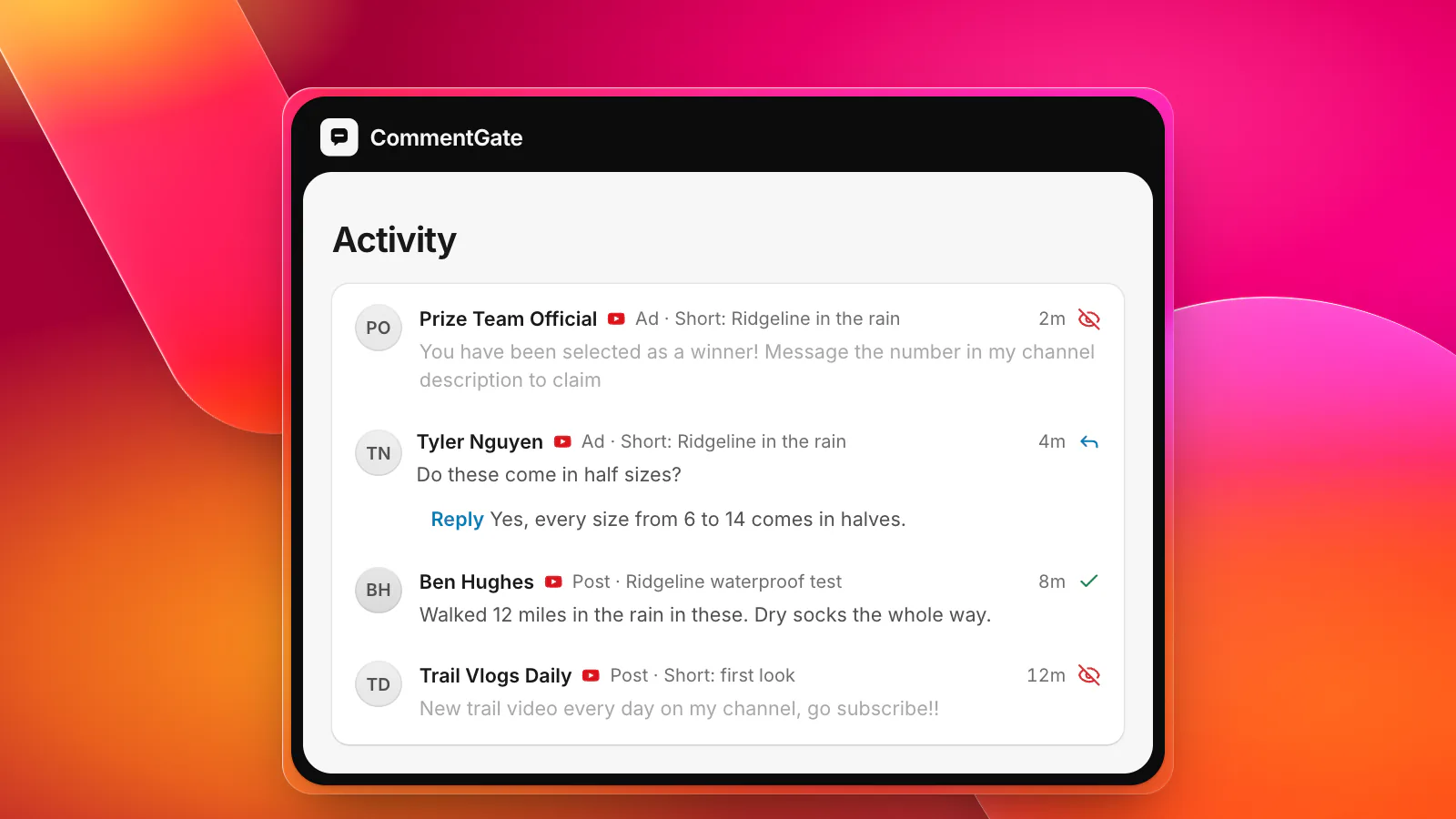
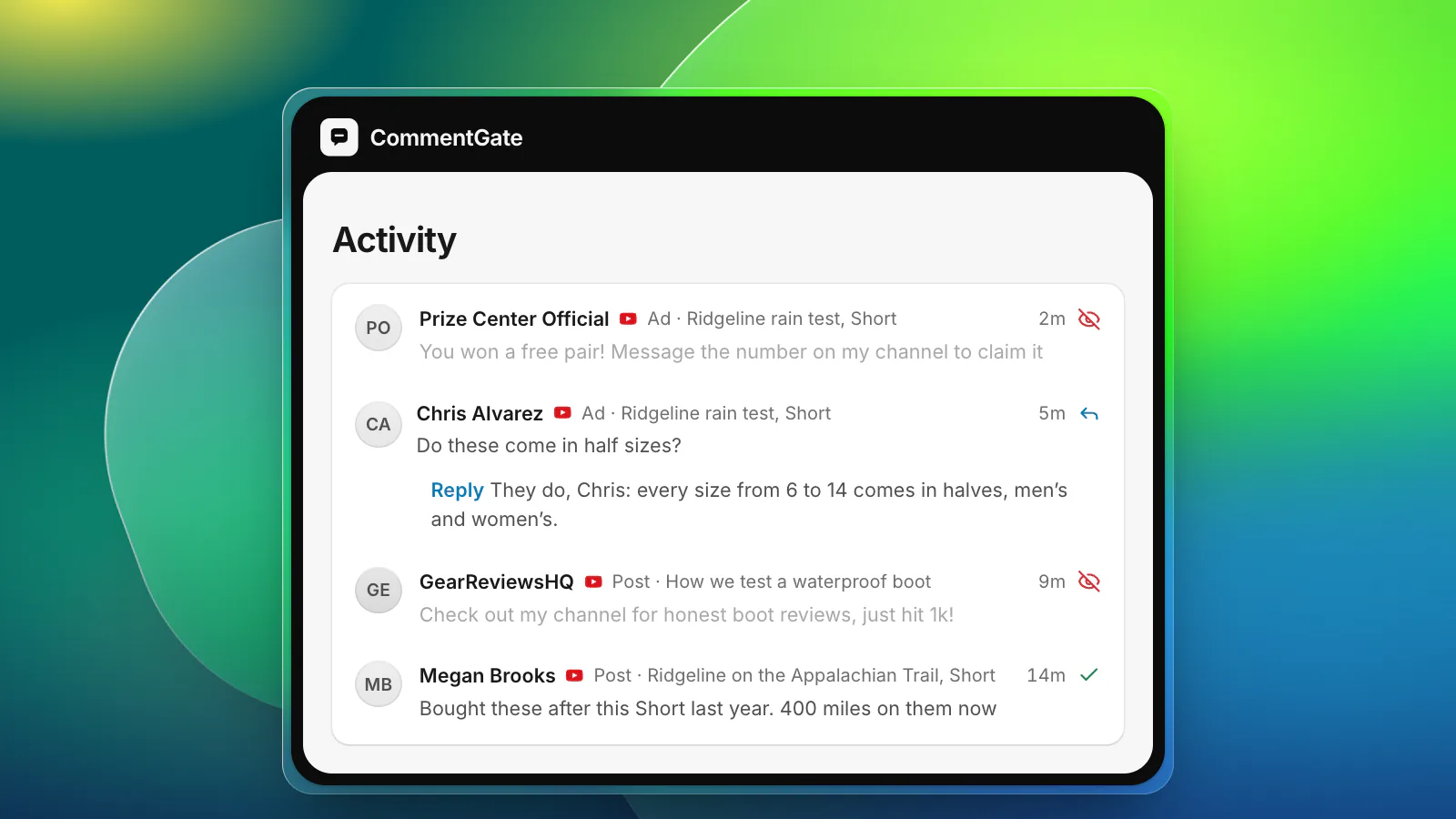
Studio's settings hold comments; they do not answer them, and the Held tab still needs someone to read it. CommentGate connects to your channel and brings Shorts, long videos and Shorts ads into the same list as your Facebook, Instagram, Threads and TikTok comments.
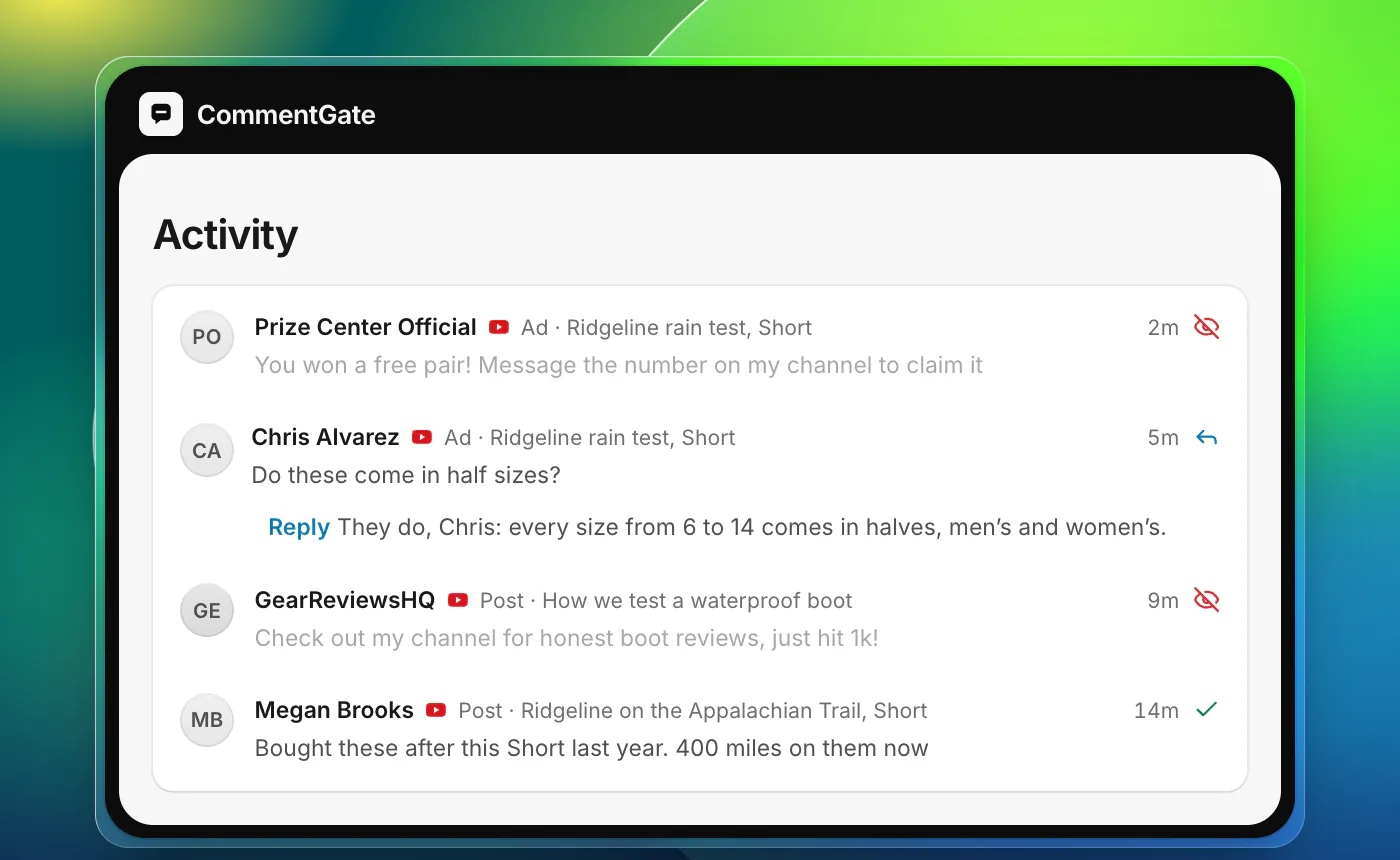
- Held, not removed. Scams, spam, hate and competitor plugs are held for review, the same reversible state as Studio's Held tab. Removing a comment and blocking its author stays a step you take yourself.
- Checked about every 5 minutes. YouTube does not announce new comments to outside tools, so each connected channel is checked regularly. Your Studio settings still act first.
- Questions get drafted replies you approve or let send on their own.
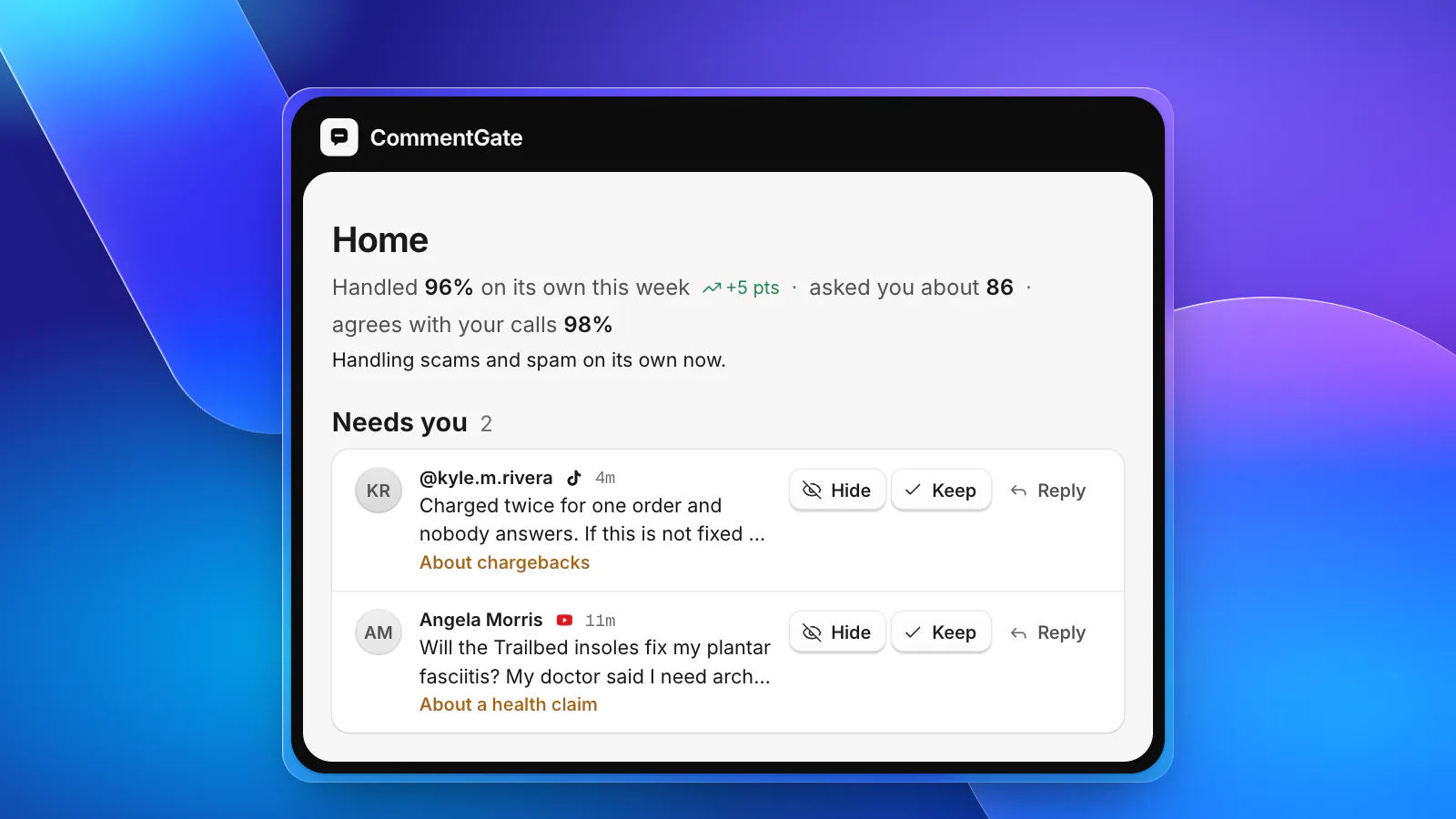
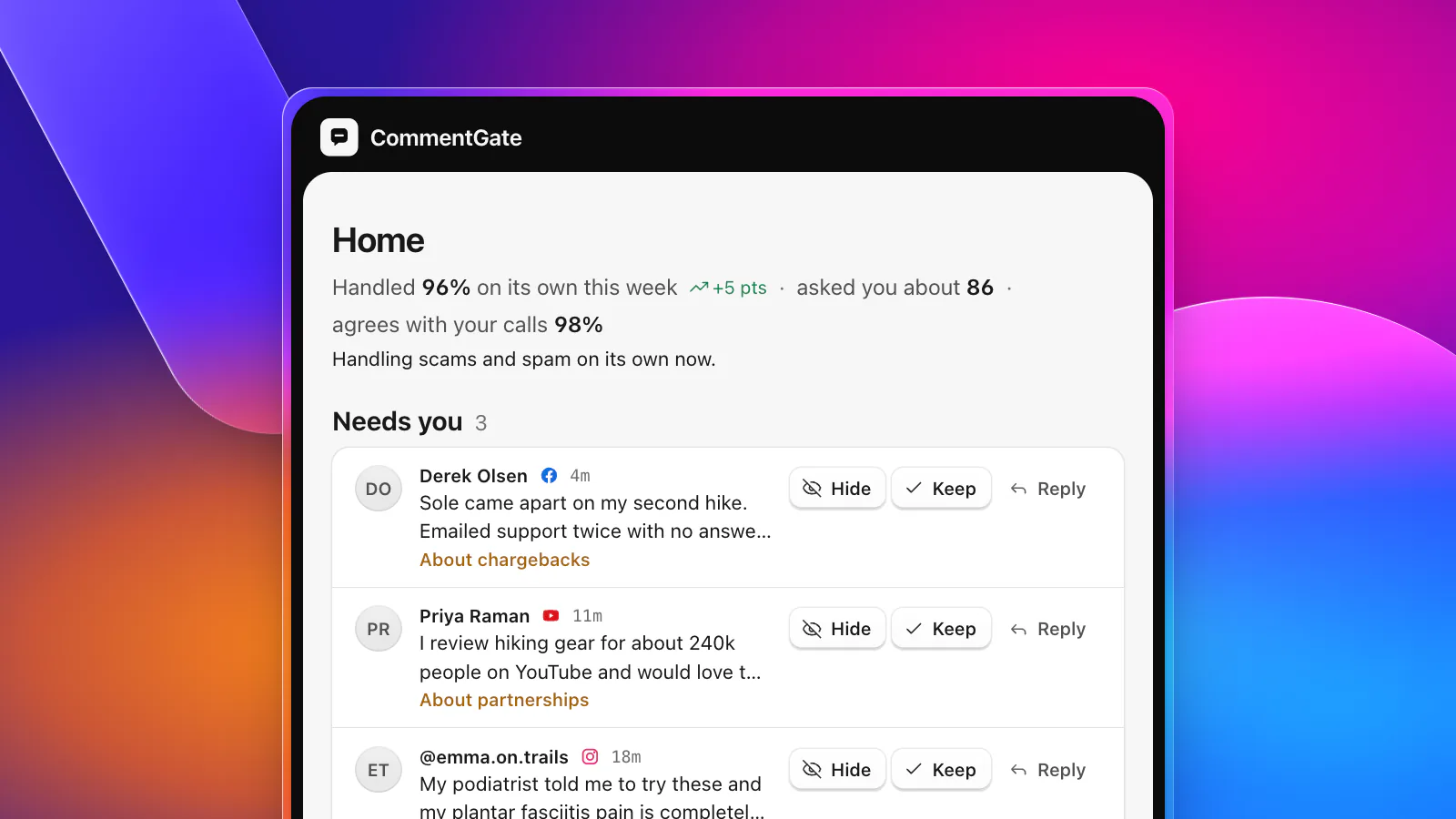
- Judgement calls wait for you in Needs you, like a viewer reporting that a sole came apart on the trail.
Connect as the channel owner, or as an owner or manager of the Brand Account: YouTube's channel permissions do not extend to outside tools (YouTube Help: channel permissions). See every platform side by side.
Sources
- YouTube Help: Learn about comment settings
- YouTube Help: Choose comment settings
- YouTube Help: Manage your channel’s moderation settings
- YouTube Help: Hide or unhide users from your channel
- YouTube Help: Manage spam in comments
- YouTube Help: Make bulk changes to videos
- YouTube Help: Channel permissions
- Google Ads Help: Shorts ads FAQ
- Google Ads Help: About Performance Max video assets