YouTube and Shorts comment moderation: hold, remove, and what your ads change
YouTube gives you three ways to take a comment down, and only one of them can be undone. Here is how each works on videos and Shorts, what happens to comments on your ads, and who can connect a channel.
Platforms 6 min read
On this page
For a lot of e-commerce brands, YouTube now means Shorts: short vertical product videos, often the same ones running on TikTok and Reels, and more and more of them running as ads. The comment sections look like TikTok's and attract the same things: fake giveaways, "check my channel", people pretending to be your support team.
YouTube's moderation works differently from both Meta and TikTok, though, and the difference that matters most is which actions can be undone.
Three ways to take a comment down
YouTube has no "hide" button in the sense Facebook does. It has moderation statuses, and they are not equal.
Hold for review. The comment is taken out of public view and put in your held comments in YouTube Studio. You can approve it later and it comes back as if nothing happened. This is YouTube's equivalent of hiding.
Remove. YouTube calls this rejecting a comment, and it is final. The comment and all of its replies disappear, and YouTube's documentation is blunt about going back: "You can't change the moderation status of a rejected comment to published" (YouTube, set moderation status). Removing is also how you take down someone else's comment for good, because only the person who wrote a comment can delete it.
Remove and block the author. The comment is removed and YouTube automatically rejects any further comments that person writes on your channel (YouTube, set moderation status). Studio has a similar list of hidden users you manage by hand: "If a user is hidden, the comments they've made won't show up on any of your videos" (YouTube Help, comment settings).
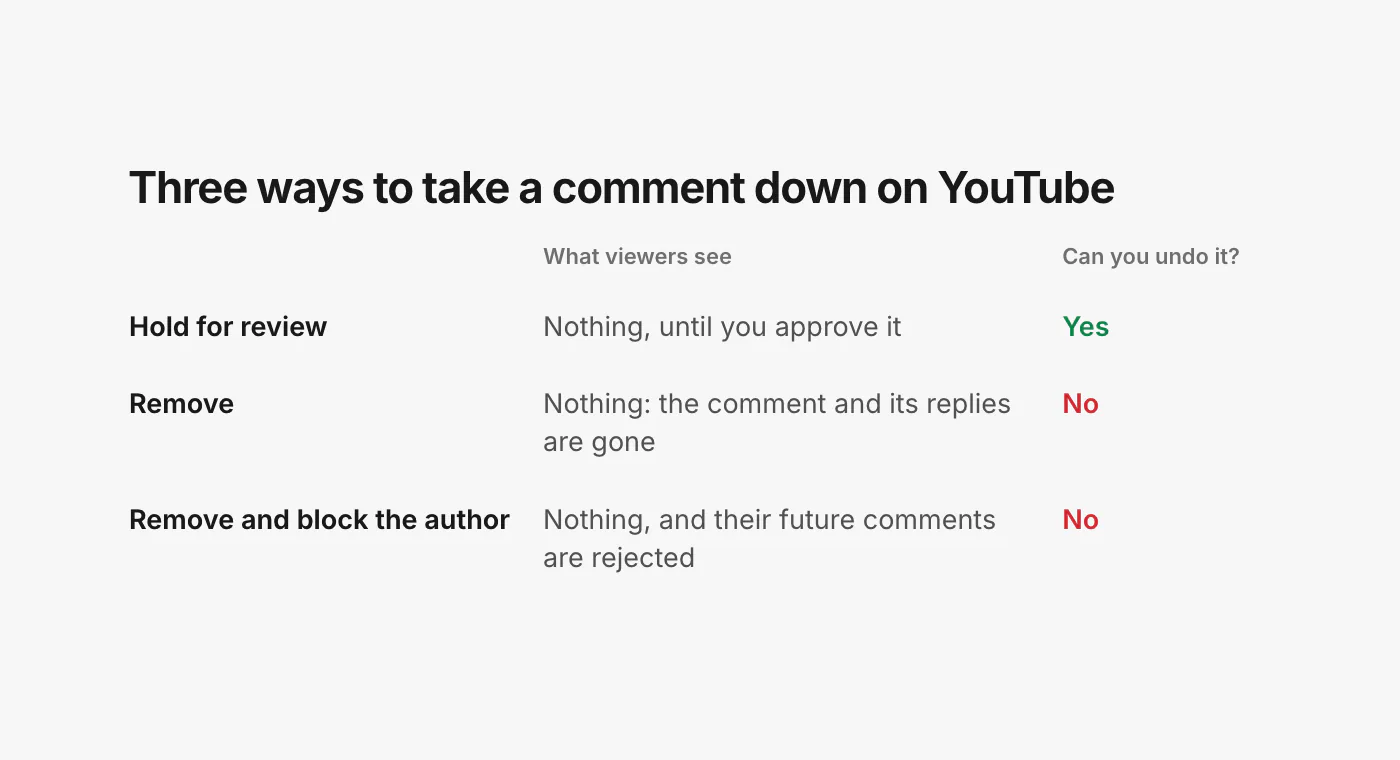
The practical rule: hold by default, remove on purpose. A scam comment held for review is exactly as invisible to your viewers as a removed one, and if you held a real customer by mistake, you can put them back. Save removal (and blocking the person) for comments you are certain about, and make it a person's decision.
What YouTube already does on its own
Before you add anything, look at what YouTube Studio is already doing for you. By default, channels hold potentially inappropriate comments for review, and the setting has four levels: None, Basic, Strict and Hold all (YouTube Help, comment settings). Studio also lets you keep a list of blocked words.
Held comments are "Kept in YouTube Studio for up to 60 days" and "Aren't publicly visible, unless you approve them" (same page). Studio shows comments YouTube considers likely spam in the same place (YouTube Help, spam).
Two things to know about those settings:
- Only Studio can change them. No outside tool can edit your blocked words or your hold level. YouTube removed the last channel-level comment setting it offered to connected tools in 2024 (YouTube, revision history). Set them once in Studio.
- They catch real customers too. The stricter the level, the more comments it holds, and some of them will be harmless. Check your held comments every few days and approve the real ones, especially questions. A question sitting in held comments is a sale nobody answered.
Shorts are videos, with the same comments
To YouTube, a Short is an ordinary video. It has a normal video ID, and its comments work exactly like comments on a long video: the same statuses, the same held comments, the same Studio settings. YouTube's definition of a Short is about shape and length: videos uploaded since October 15, 2024 "with a square or vertical aspect ratio up to three minutes in length will be categorized as Shorts" (YouTube Help, three-minute Shorts).
That means one routine covers both. It also means the Shorts that get the most comments (the ones picked up by the Shorts feed, or running as ads) are worth watching most closely.
Comments on your YouTube ads
Every YouTube ad is a video on a YouTube channel, and comments on the ad are comments on that video. For Shorts ads, Google says so directly: "comments made on the ad will appear alongside other comments in the comment section of your original Shorts" (Google Ads Help, Shorts ads). The same page notes that advertisers can switch the comment button off on Shorts ads, but that throws away engagement you paid for.
So far, simple. The catch is which channel the ad video lives on, because you can only moderate comments on videos on your own channel:
- Your own channel, public or unlisted: you can moderate it like any other video. Unlisted videos still take comments; private ones do not (YouTube Help, comment settings for a video).
- A House channel: if you uploaded the video during campaign setup without linking a channel, Google puts it on a Google-managed channel, and you cannot edit the video's details there (Google Ads Help, Performance Max video assets).
- Auto-generated and sourced Performance Max videos: these sit on Google-owned channels you cannot manage (auto-generated videos, sourced videos).
- A creator's channel: partnership ads run on the creator's video, so only the creator (or a tool they connect) can moderate it. Linking your Google Ads account to a channel does not grant that (YouTube Help, linking).
If you want your ad comments moderated, upload every ad video to your own channel first (unlisted is fine) and pick it from there.
Who can connect a channel
This trips up agencies more than anything else. People invited to a channel through YouTube Studio's channel permissions, even as Managers, cannot connect it to outside tools; YouTube's help lists connected tools among the parts of YouTube invited users can't access (YouTube Help, channel permissions). The channel's owner has to connect it.
For channels on a Brand Account, the owners and managers of the Brand Account can connect it; communications managers cannot (YouTube Help, Brand Accounts). If you run channels for clients, ask them to add you to the Brand Account rather than only to channel permissions.
Replies, and what is not possible
You can reply under top-level comments. YouTube supports "replies only for top-level comments" (YouTube, comments), and you cannot reply to a comment that is held for review, so answer a real question before you hold anything nearby.
A few things are out of reach for everyone except you in YouTube Studio:
- Liking, hearting and pinning comments.
- Turning comments on or off for a video, and your blocked words and hold level.
- Videos made for kids, which have comments off entirely (YouTube Help, why comments are off).
How fast can anything act?
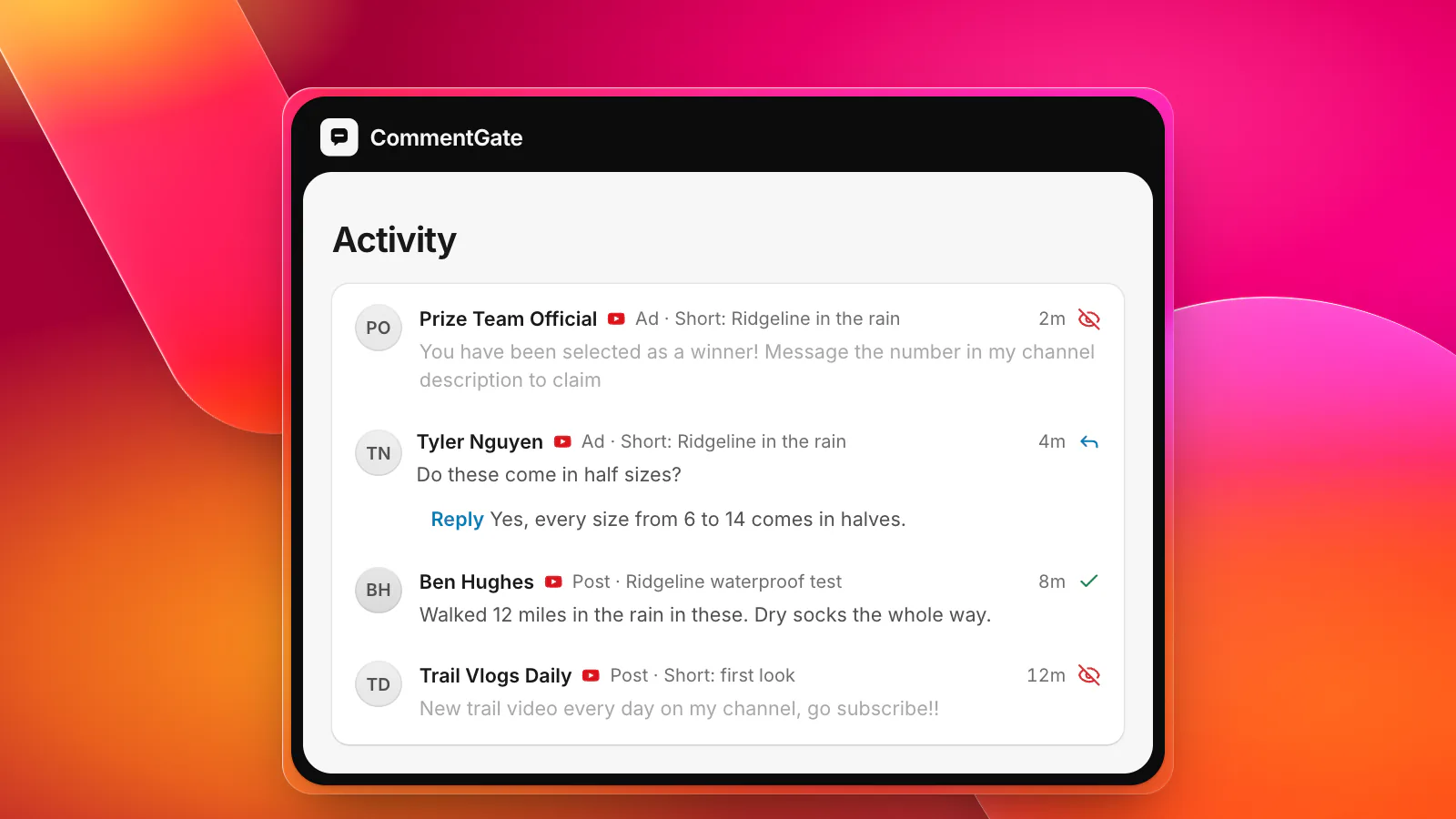
YouTube does not announce new comments to outside tools the way Facebook and Instagram do, so anything that moderates for you has to check the channel regularly. CommentGate checks each connected channel about every 5 minutes, so a scam on a busy Short is held within minutes of being posted, not seconds. YouTube's own hold settings still act first, inside YouTube.
Putting it together
- Set your Studio basics once: hold level (Basic is a good start), blocked words, and hidden users for repeat offenders.
- Host every ad video on your own channel, public or unlisted, never on a House channel.
- Connect as the owner, or as an owner or manager of the Brand Account.
- Hold by default; remove only on purpose.
- Review held comments every few days and approve the real ones, answering questions as you go.
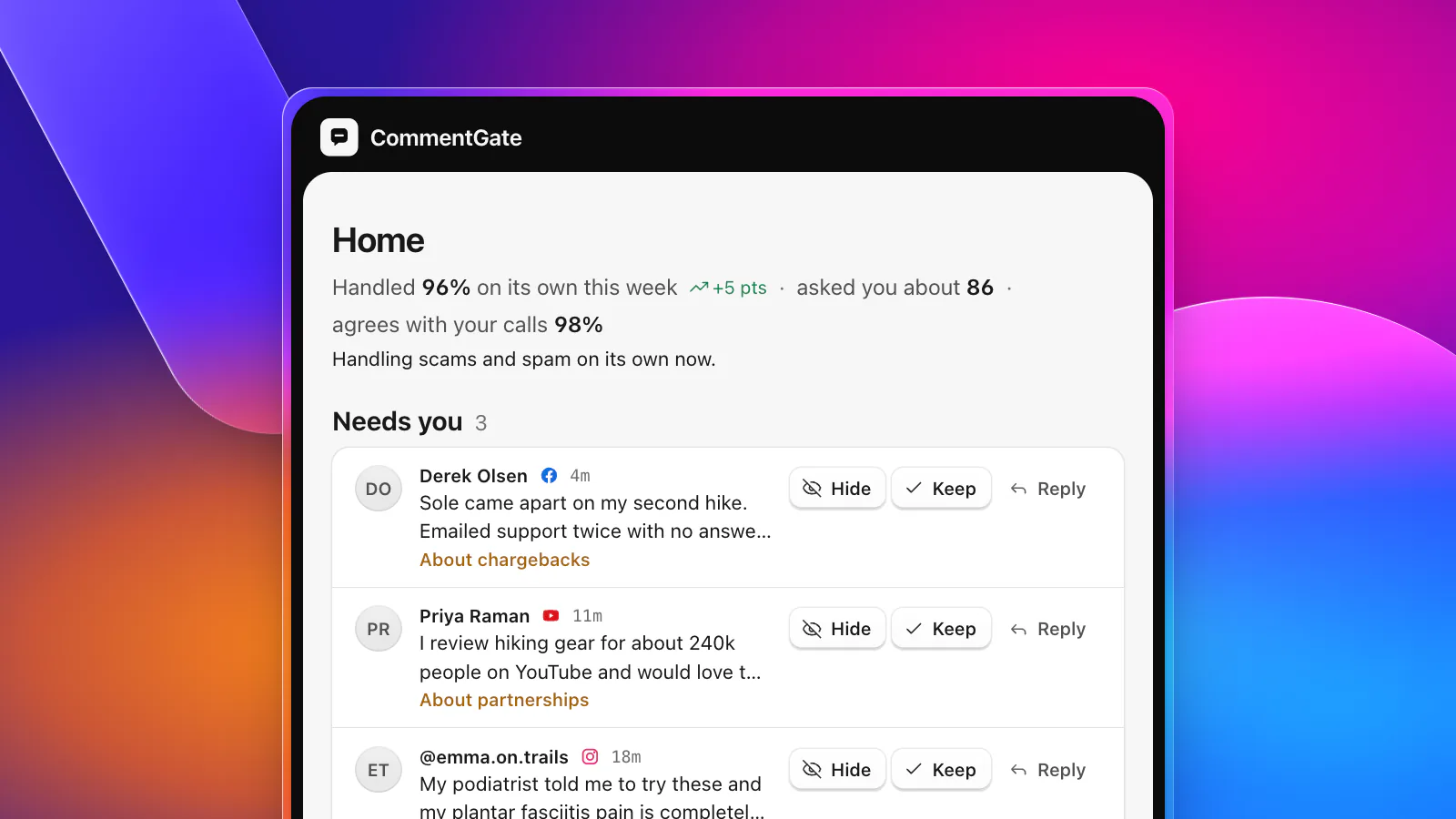
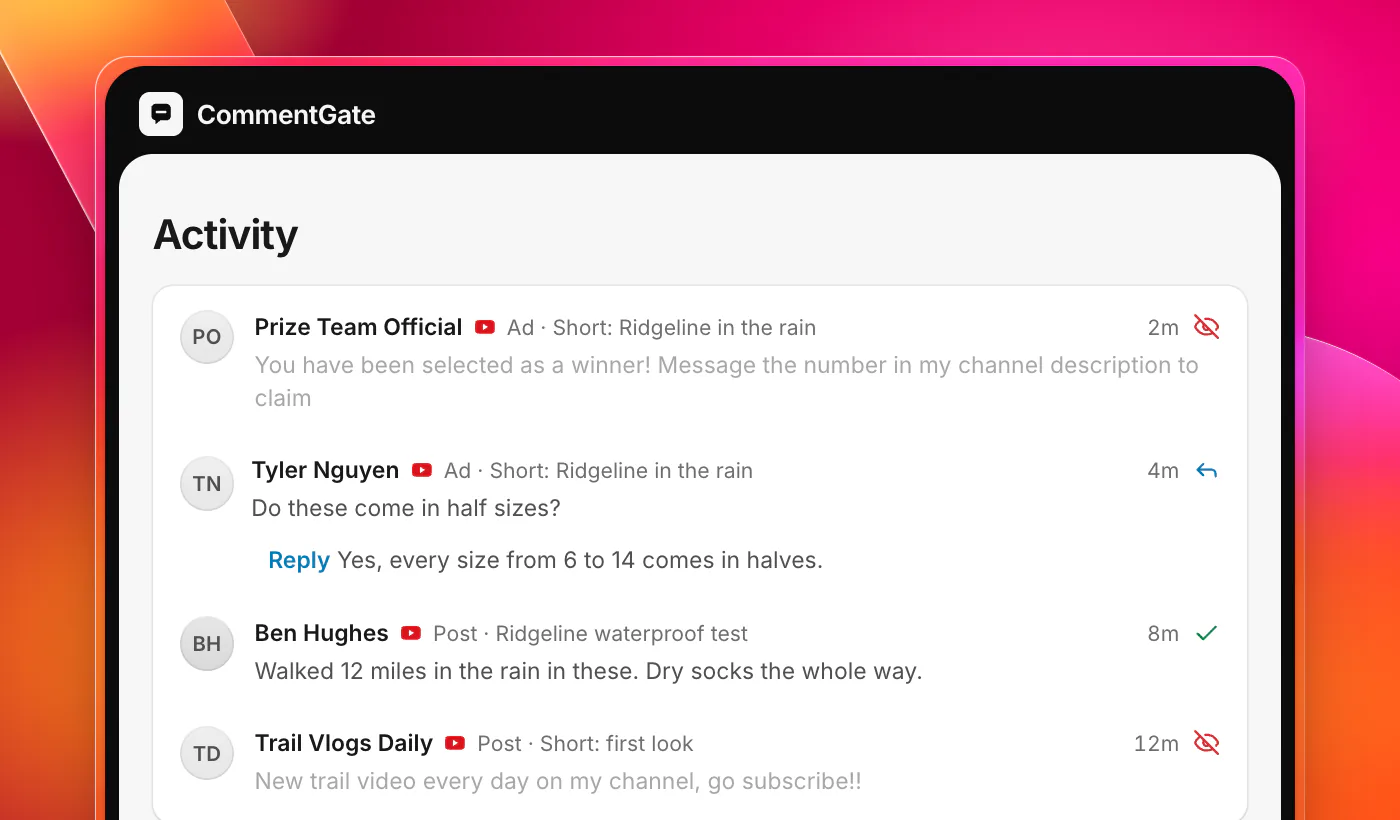
When you connect a channel to CommentGate, Shorts, long videos and Shorts ads come into the same list as your Facebook, Instagram, Threads and TikTok comments. Scams, spam, hate and competitor mentions are held for review, so every one of them can be brought back with a click. Removing a comment and blocking its author stays a separate step you take yourself. Anything that genuinely needs a person, like a viewer reporting that a sole came apart halfway up a trail, waits for you in Needs you, and CommentGate learns from your corrections.
See what each platform allows side by side.