Build a campaign on the flow board
Add steps with the + buttons, change them in the side panel, and turn the campaign on once nothing is blocking it.
Updated
Open any campaign from Campaigns to see its board. The trigger sits at the top, and the steps run top to bottom in the order people go through them.
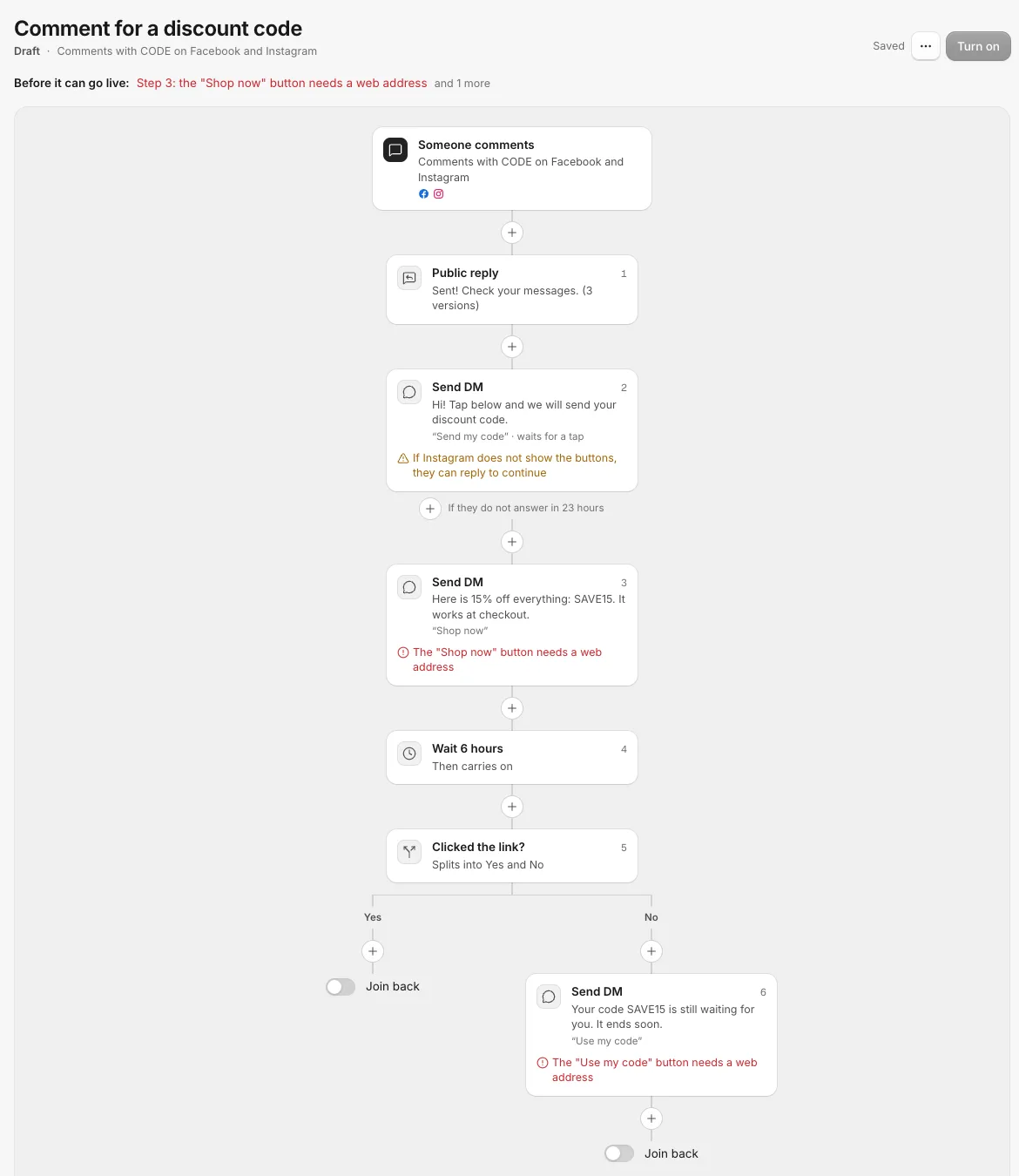
Read the board
- The trigger card (the dark icon at the top) says what starts the campaign, for example "Comments with CODE on Facebook and Instagram", with the platforms it listens on.
- Each step card has a title ("Send DM", "Wait 6 hours", "Clicked the link?"), a one-line summary in your own words, and its step number on the right.
- Warnings (amber) are things worth knowing that do not stop the campaign. Problems (red) must be fixed before it can go live.
- Lanes appear under steps with more than one way out: Yes and No under a branch, Follows and Does not follow yet under a follow check, Path A and Path B under an A/B split. See Yes and No branches, and Join back.
The board lays itself out. You never drag cards around; adding or removing a step moves the rest for you.
Add a step
- Click the + between two cards (or at the end of a lane) where the new step should go.
- Pick a step from the menu. Steps that cannot go there are listed under Not available here, each with the reason, for example "They need to tap a button or reply first" or "YouTube does not allow private messages".
- The new step opens in the side panel so you can fill it in.
A step that waits for a tap or an answer also has a small + beside it, labeled "If they do not answer in 23 hours". Use it to follow up with people who never tap.
Change a step
Click a card to open its settings in the side panel on the right (a sheet from the bottom on a phone). Changes show on the card as you type and save on their own: the header says Saving, then Saved.
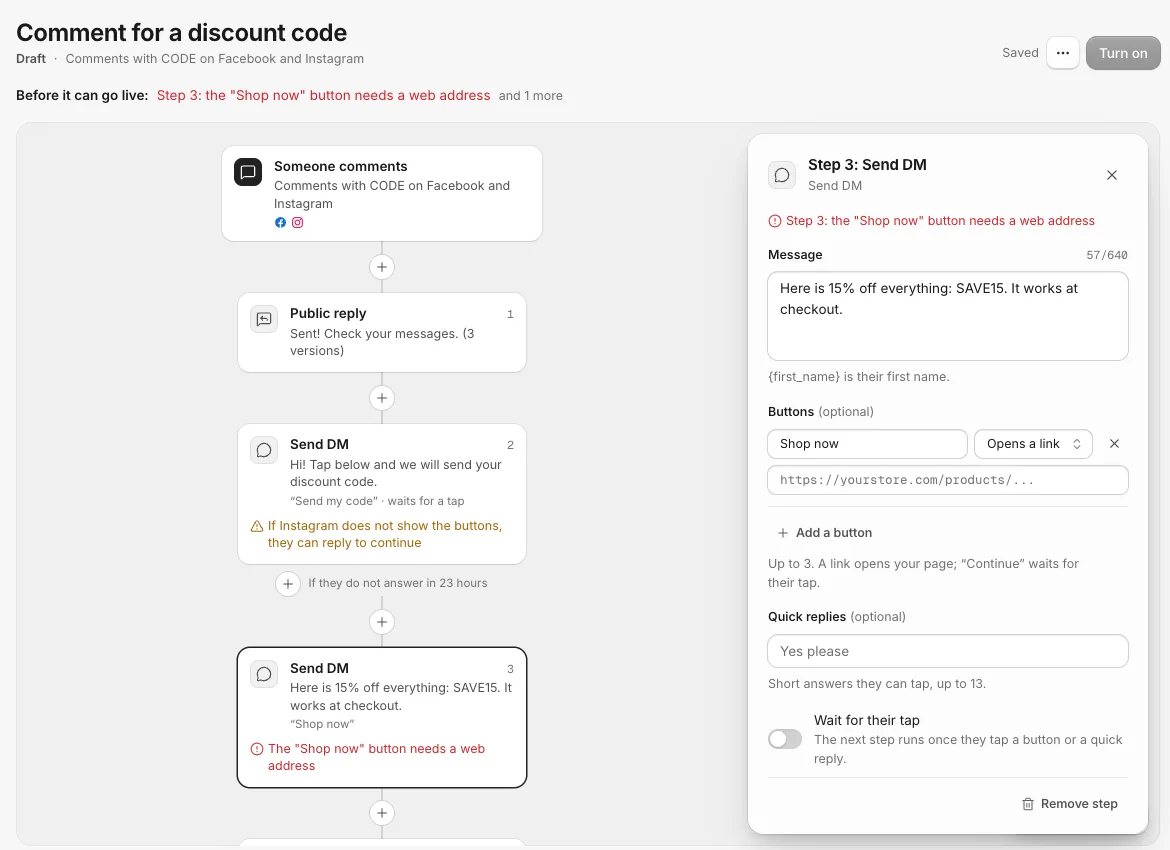
The panel lists that step's problems at the top. A DM step also shows a preview of the message as the person will see it.
To remove a step, open it and click Remove step at the bottom of the panel. Close the panel with the X or Escape.
Move around
- Drag the empty canvas to pan. Zoom with the trackpad, Cmd and scroll, or the zoom controls at the bottom right.
- With the keyboard: the arrow keys move between steps, Enter opens one, Escape closes its settings, plus and minus zoom, and 0 fits the whole flow on screen.
Turn it on
The primary button in the header does one thing at a time:
- Turn on for a draft (or a paused campaign).
- Publish changes for a live campaign you have edited.
- Send now for a campaign that starts with "Send now". See Send a message now.
The button stays grey while anything under Before it can go live is left. See Fix what stops a campaign from going live.
More actions
The ... button next to it has:
- Show numbers: turn the Reached, Clicked and Converted numbers on the cards on or off.
- Recent comments: the latest comments this campaign answered, and under Why some got no message, the reasons some people were passed over (for example "The comment was hidden" or "This person is already in this campaign").
- Rename, Pause, Duplicate and Delete.
Deleting a campaign keeps its leads and link clicks.
Related
- Fix what stops a campaign from going live What each line under "Before it can go live" means, and how to fix it so the Turn on button works.
- Yes and No branches, and Join back Send people down different steps depending on whether they clicked, follow you, replied or have a tag, then bring the lanes back together.
- Every step, and where it works What each campaign step does, and which of Facebook, Instagram, TikTok, YouTube, Threads and WhatsApp allow it, with the reason when one does not.
- Read the numbers on a campaign What Reached, Clicked and Converted mean on each step, what the campaign list totals count, and why some people got no message.
Still stuck?
Tell us what you were trying to do and what happened. A person replies, usually within one business day.